


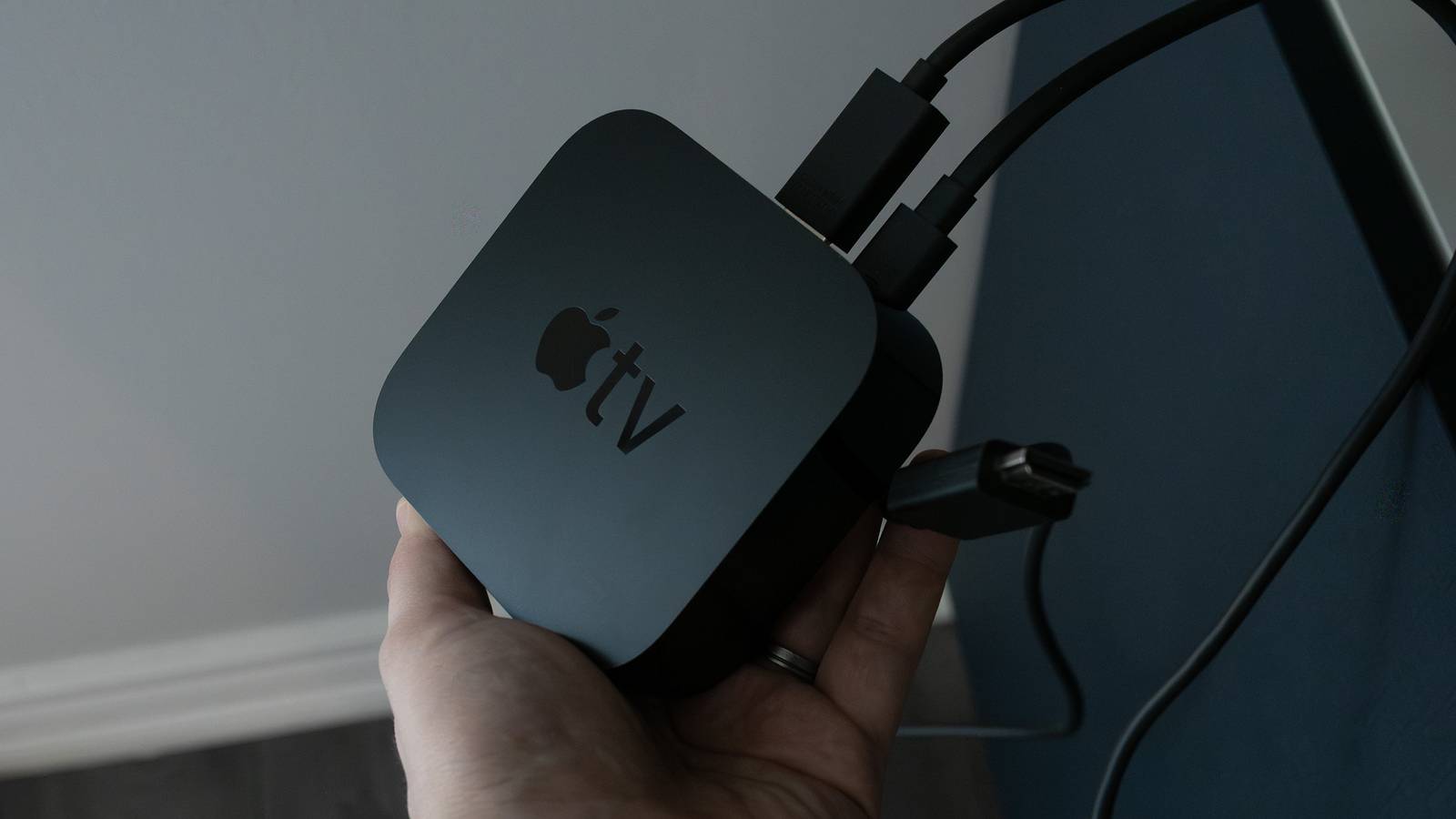
Believe it or not, I’m still using a first-generation Apple TV 4K, which means it’s coming up on a decade old. Although it gets tvOS updates, at least for now, these updates don’t bring anything meaningful. I don’t have Liquid Glass. I don’t have Snoopy backgrounds. Despite that, it hasn’t hurt my enjoyment of the device, and there’s a reason I keep on using it.
The reality is that my Apple TV 4K is closer to the end of its life than it is to the beginning, and that means I have to baby it a bit more than I used to. I always planned on grabbing a fourth-gen Apple TV 4K, but I still don’t know if that’s a real thing. It’s not like the third-gen models are something I’m considering anymore either, thanks to a price hike. This leaves me stuck in a weird spot where I’m hoping that my first-gen model lasts as long as possible. I’m not just sitting on my hands here, though. There are a few things I’ve done to help prolong its life, and while it won’t last forever, I hope it’s long enough to see the release of the elusive fourth-gen model. Here’s a look at some of the things that’ve worked for me so far.

- Brand
-
Apple
- Bluetooth codecs
-
5.0
- Wi-Fi
-
6
- Ethernet
-
Gigabit (128GB model only)
- Storage and RAM
-
64GB, 128GB
Periodic restarts are the key
Same as clearing the cache

There’s a good reason that people say you need to unplug your devices and plug them back in as one of the first steps of troubleshooting. I don’t really know why, but it just works, and it’s the answer to a lot of my problems with the Apple TV 4K. Restarting my device acts like clearing the cache, and it makes sure anything running in the background is closed. You can go through your actual settings and manually reset it, but I just unplug it from the wall for 10 seconds and plug it back in. Either method works, so pick your poison.
You’d be surprised how much background apps and services are slowing down your device. Restarting only takes a few seconds, so if you could do it at least once a month, you can get your Apple TV 4K running smoothly again. It’s not magic, however, so don’t expect it to bring your device back to life or anything, but it’s nice in a pinch. It’s also one of the easiest things you can do, so just start working these restarts into your routine at any hint of a slowdown.
Switch between apps quickly
Saves time and effort

Speed isn’t typically a problem with my Apple TV 4K, even one as old as mine, but that doesn’t mean I want to sit here and waste precious time during the day. What you might not know is that you can easily swap between apps just by double-tapping the TV icon on your remote. This brings up all of your currently opened apps, and you can swap between them with ease.
Perhaps more importantly, this is also how you can force close apps. You’ll find that backing out of an app doesn’t actually shut it down, and the reason things open up quickly is that they are constantly running in the background. This is good for when you want to switch between apps quickly, but it’s not good in the sense that it means a million things are running at any given time. This is a big part of why your Apple TV 4K will feel slow, and that applies to any device that leaves apps open, like your phone. To close these apps, you can hit the TV icon on your remote twice, slide over to the app you want to close, and swipe up on it. This closes down the app, and it means it’ll take a little bit longer to open up again, but that’s the only downside.
Turn on the right video settings
It makes a decade-old device feel modern

A 10-year-old device doesn’t have to feel 10 years old. The way I do that with my Apple TV 4K is to make sure I have the proper video settings. What I discovered far too late is that you should have your device on 4K SDR at all times. Yes, this means your menu screen won’t pop off the screen, but that’s not a big deal. As long as you have the Match Content setting toggled on, you will always have the proper settings for what you’re watching. If something has HDR, your Apple TV 4K will display it.
The reason I say to do this is that 4K HDR as your default setting forces HDR on everything. This includes things that aren’t meant to have HDR, so it strays from how things are meant to look. Obviously, that’s a bad thing for purists who want to maintain the original look of something as much as possible.
Use voice controls when possible
Really speeds things up

I use a universal remote in my living room, and that includes my Apple TV 4K. Sadly, that remote doesn’t have voice controls, so I have to keep my Apple TV remote handy for when I want to use my voice. I didn’t realize how often I did this until I tried to live without it. Voice controls make searching for things on YouTube simple, it makes typing passwords in easy, and it makes navigating through the interface faster than it already is.
With voice controls, I can’t even tell my Apple TV 4K is as old as it is because it still zips around like it’s brand new. I’m a huge fan of voice controls on devices like this, so until universal remotes find a way to get Siri on them, I’m going to keep my Apple TV remote around for as long as I can.


