If you’re a relatively casual home theater enthusiast, you might have no idea that there’s an entire subculture devoted to homebrew TV solutions. And that’s understandable — most people just want to sit back and watch Frasier, Smiling Friends, or The Punisher without worrying about the optimal way of doing it. Some people have specific ambitions, however, or enjoy the tinkering process for its own sake.
Both audiences might find a lot of value out of hooking up a Mac for media streaming, rather than relying on their TV’s native apps or an add-on like the Apple TV 4K. In this piece I’ll explain why, and what you need to know if you’re going to jack a Mac directly into a TV.
Faster, more intense

The first advantage is raw horsepower. While you might think of an Apple TV 4K as plenty fast for media streaming, even overkill, it’s still based on the A-series processors Apple relies on for iPhones. Excluding the MacBook Neo, every Mac is based on an M-series chip, built to handle everything from Photoshop and Safari through to Resident Evil. A high-end PC will still deliver better performance in games and some other tasks, but for media streaming, there’s no serious ceiling on what you can do. That includes transcoding video files through apps like Jellyfin and Plex — something that’s just too demanding for an Apple TV, never mind a Fire TV Stick.
An adjunct of Mac performance is access to more apps and services. The TV app stores run by Amazon, Google, Roku, and yes, Apple itself are reasonably comprehensive, but still chained by rules, and focused on the capabilities of TVs and conventional add-on devices. Since a Mac has far fewer performance restrictions, as well as access to software from any source, new possibilities open up. That includes better gaming, ripping Blu-rays and DVDs, and setting up a media server with remote access. You can play video straight from the web, and you’ll probably have to (more on that in a moment).
Streaming video is dependent not just on internet access, but subscription services, and what those services are paying to host. Conversely, once you’ve ripped or downloaded a video to your Mac, it’s going to stay there unless something catastrophic happens.
Simply having more ports makes a difference. Aside from connecting a Blu-ray drive, you have the option of using just about any controller you like, including mice, keyboards, and gamepads. You could even hook up a steering wheel or flightstick if you’re into racing or flight sims. There are also more mundane possibilities, like expanding storage, adding a webcam for video calls, or popping in a USB stick whenever you want to transfer files.
Speaking of storage, it’s hard to overstate the value of being able to stash videos locally. Streaming video is of course dependent not just on internet access, but subscription services, and what those services are paying to host on any given month. Conversely, once you’ve ripped or downloaded a video to your Mac, it’s going to stay there unless something catastrophic happens. Some movies and shows aren’t even available via subscription, and moreover, you’ll get reliable quality from local files. No internet traffic means bitrates stay locked at the maximum quality a file was encoded in.
What you need to know to get started with a Mac on your TV
Boundaries do exist

If you don’t already have a Mac, the best model for media streaming is undoubtedly a Mac mini. Most other Macs will work just as well — but a Mac Studio or MacBook Pro is gratuitous unless you legitimately need one for work, while the MacBook Neo doesn’t have anything better than USB 3.0 for video output. The M4 Mini has a native HDMI port, capable of 4K output at any refresh rate you could want. The next best option is a MacBook Air, but you’ll need a USB- or Thunderbolt-to-HDMI adapter, and the laptop starts at $1,099 versus the Mini’s $799.
Be aware of which HDMI versions your Mac, TV, and cables are capable of handling. While any recent Mac will support lossless audio, Dolby Atmos, and dynamic HDR standards like Dolby Vision and HDR10+, HDMI 2.0 doesn’t have enough bandwidth for lossless, and can’t push 4K refresh rates over 60Hz. When available, switching to HDMI 2.1 will not only unlock these features, but add others like VRR, which is essential for preventing the visual artifacts created by a mismatch between frame and refresh rates. You really shouldn’t turn a Mac into a game console without VRR.
Streaming services like Netflix and Disney+ don’t have native Mac apps, but that’s okay. You can still get 4K HDR (if you’re paying for it) via the web. Because of this, however, you should definitely set up a lapboard or coffee table for your mouse and keyboard. You won’t want to walk over to your TV every time you need to pause and resume a video, much less toggle settings or browse movie catalogs.
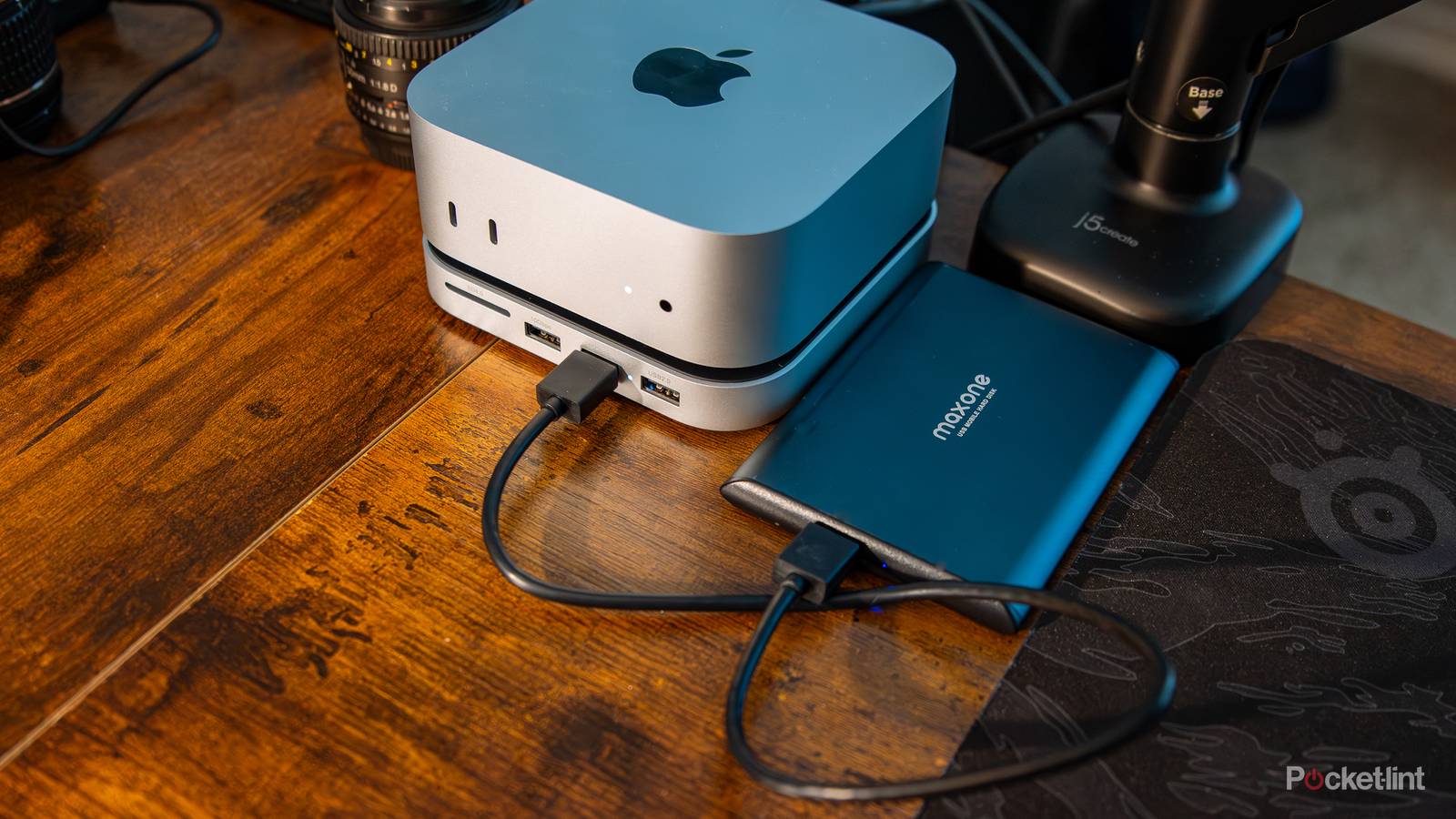
A complete 4K movie library can quickly fill up a 1TB drive alongside apps and macOS, so consider using an external movie drive, and leaving some downloads in the cloud.
One concern with using a Mac may be reading text. If you’re having a tough time, try adjusting resolution, or making use of the Zoom functions under Apple menu -> System Settings -> Accessibility -> Zoom. You’ll also have an easier time if you change chrome subsampling on your TV (under picture/display settings) to 4:4:4. Compressed levels (4:2:2 or 4:2:0) are inherently harder to read.
For audio, it’s best to use your TV’s ARC or eARC port. You can of course connect headphones or speakers directly to your Mac, but nothing else linked to your TV will be able to detect them. Conversely, ARC and eARC allow audio to traverse everywhere, and mean your speaker(s) will be controllable via your regular TV remote. They’ll also power on and off alongside your TV.
There’s more I could say, but to keep things short and readable, the last thing I’ll note is that you should be very mindful of resolution and bitrates if space is at a premium. On its own, a high-quality 4K version of The Return of the King (Extended Edition) could measure over 67GB — so you can imagine how a complete 4K movie library would quickly fill up a 1TB drive alongside apps and macOS. You may want to leave some purchased downloads sitting in the cloud, and keep any ripped videos on an external USB movie drive, which you can plug directly into your TV if you have to. If you don’t care about 4K or HDR, consider limiting yourself to 1080p SDR sometimes. You might be shocked at how much smaller a 1080p file is.

- Storage
-
256GB, 512GB, 1TB SSD
- CPU
-
M4, M4 Pro
- Memory
-
16GB, 24GB, 32GB, 64GB
- Operating System
-
macOS