


Hardware and software have never been so in tune — that is, if you have an iPhone. Over the last few years, iOS has become increasingly more customizable, which is great news for anyone tired of their phone looking like all the rest. Sure, you can spruce it up with a case or fancy backgrounds, but there’s a better way to make your home screen unique: change the app colors.
Customizable app icons have been around since iOS 18 and let you revamp your screen’s apps and widgets all in one go by changing their colors, plus applying light or dark modes. And when iOS 26 introduced the controversial new Liquid Glass interface, you could even control the tint and opacity.
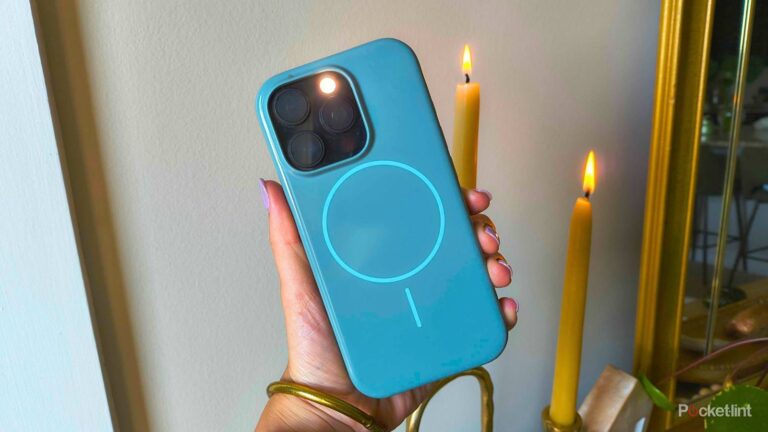
But Apple just added another customization feature to iOS 26 — one that makes your physical phone itself and the apps match perfectly. The new option automatically matches your apps to the iPhone’s physical chassis (or case) color — as long as you have the right case. Here’s how to do it.

- Brand
-
Apple
- SoC
-
A19
- Display
-
6.3-inch 2622 x 1206 pixel resolution Super Retina XDR
- Storage
-
256GB, 512GB
The iPhone 17 is Apple’s 6.3-inch 2025 flagship smartphone with a 48MP dual-camera system, A19 chip, 120Hz ProMotion display, and 256GB starting storage.
How to make your app icons your iPhone color
Or phone case, if you have a special Apple one

If you love your iPhone’s physical aesthetic, you can make all your apps that color too. Or, if you have one of Apple’s official MagSafe cases, your iPhone can recognize the color of the case through MagSafe and tint your apps to match instead. This will also update automatically if you switch out compatible cases — just like a chameleon changing color with its surroundings.
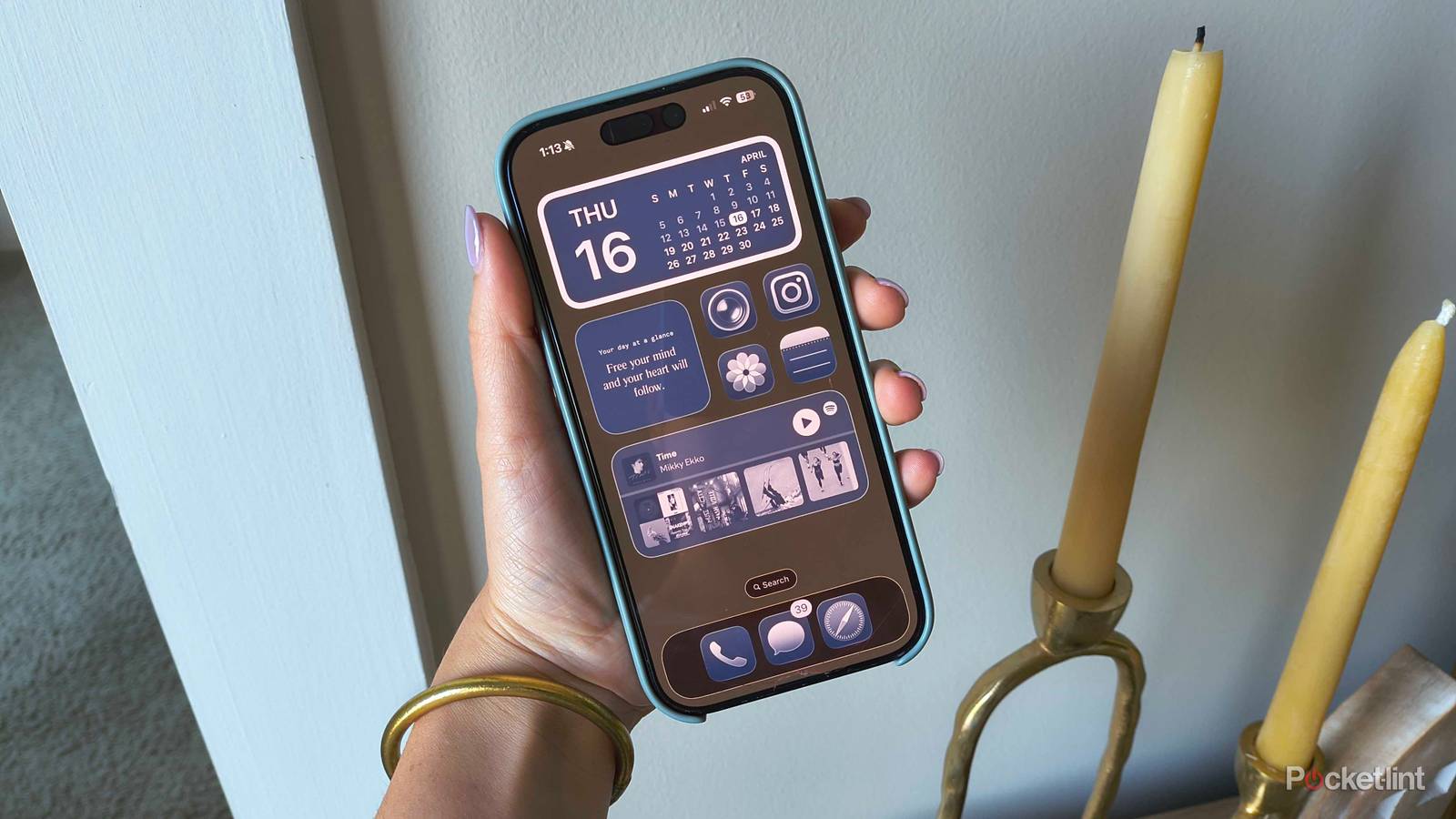
I have an iPhone 16 Pro in Black Titanium, and I think that color would make my apps look pretty slick. Luckily, the new feature that will match those icons perfectly to that hardware is hiding in plain sight: exactly where you go to customize the home screen in general:
- Unlock your iPhone.
- Tap and hold any blank space on your home screen.
- When the apps begin to jiggle, tap Edit in the top-left corner.
- Choose Customize from the drop-down.
- Choose Tinted.
- Under the color sliders, there will be four round icons (only three if you don’t have a compatible case). If you want the app icons to take on the color of the phone itself, choose the first icon (farthest to the left). If you have a compatible case and see four options, choose the icon just to the right of it to make your apps match the aesthetic of the case itself.
If you aren’t in love with the initial color pick, try toggling between Light and Dark modes at the very bottom of the customization menu. For that slick Black Titanium feel, I opted for Dark — Light was a little too gray.