I think it’s fair to say that one of the biggest reasons people buy an Apple TV 4K isn’t just its fast, reliable performance. It’s also the user interface.
Compared to streaming platforms like Fire TV, Google TV, and Roku, the Apple TV 4K doesn’t bombard you with ads the moment you turn it on. Every time I boot up my Fire TV Stick 4K Max, the first thing I see is the large ad carousel on the home screen, featuring everything from cars and shampoo to recommendations for shows and movies. Roku isn’t much better, with a prominent ad sitting right beside your apps. Google TV takes a similar approach, devoting a large portion of its home screen to recommendations and promotional content.
That’s what makes the Apple TV 4K’s ad-free home screen so refreshing. The only place you’ll really find recommendations is inside the Apple TV app itself. Everywhere else, your apps are front and center, with no oversized banners or promotions competing for your attention.
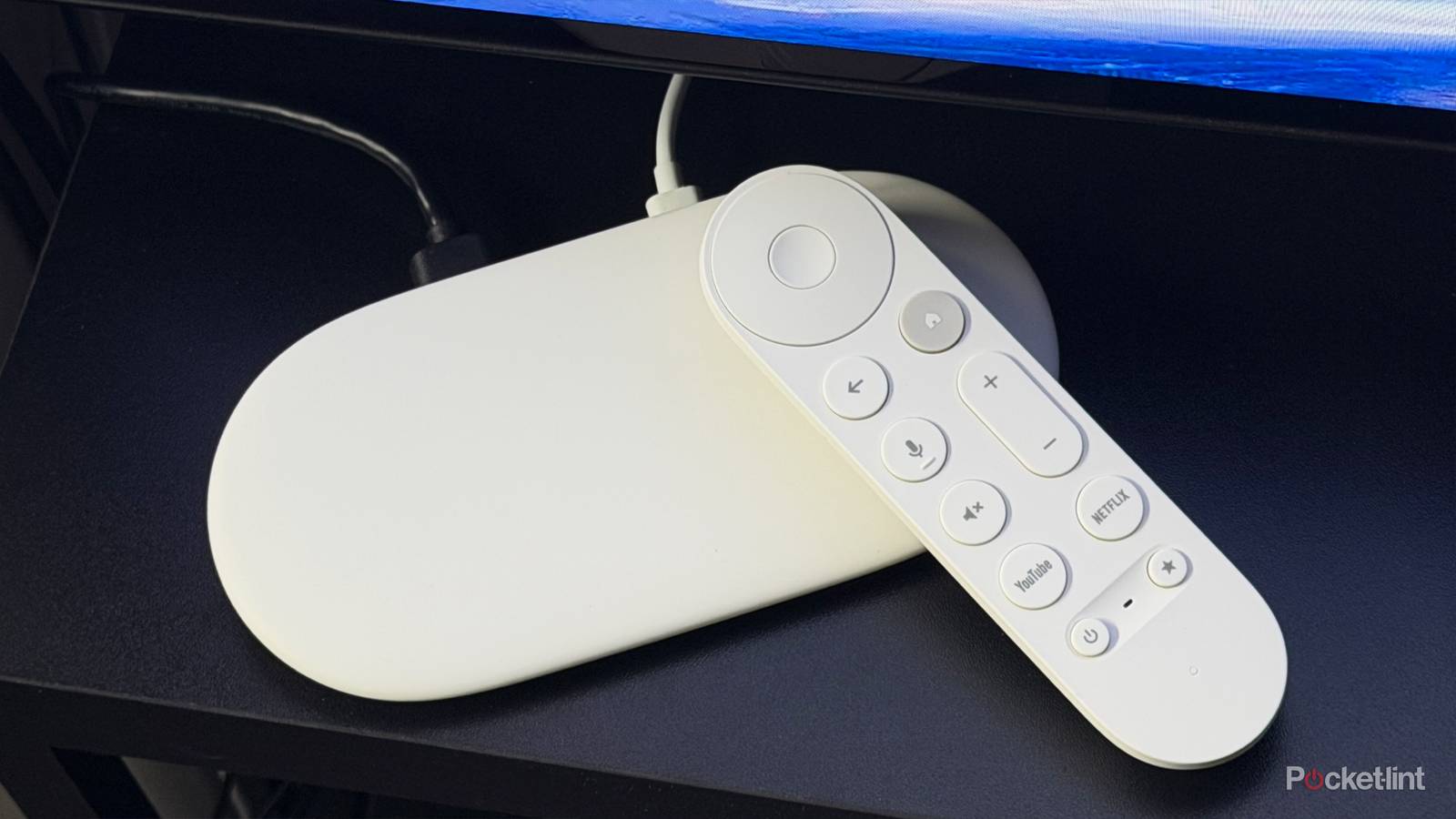
However, with the Apple TV 4K recently going up in price, it got me thinking about how I could make my Google TV Streamer, which is now a significantly cheaper yet still powerful alternative, feel more like an Apple TV 4K. More specifically, I wanted an experience that was as close to ad-free as possible and put the focus back on my apps.
There are a few ways to achieve this, but I’ve settled on one that’s incredibly easy. It doesn’t require sideloading apps or setting up a third-party launcher, and anyone can do it. It’s a feature built right into the Google TV Streamer, and after using it for the past couple of weeks, I wish my Fire TV Stick and every other streaming device offered something similar.
Apps Only mode is the Google TV Streamer’s best feature
Your apps become front and center

If you want your Google TV Streamer to look almost exactly like an Apple TV 4K, you can install a custom launcher, such as Arc Launcher, to recreate its interface. But if you’re looking for a quick, easy solution that doesn’t require any tinkering, Apps Only Mode is the way to go.
Apps Only Mode is a feature unique to Google TV, and as the name suggests, it shifts the focus of the Google TV Streamer’s interface almost entirely to your apps. It’s a simple option in the settings menu, and once you turn it on, you’re greeted with a home screen that displays all your installed apps, making it easy to jump straight to whatever you want to watch.
It’s not completely ad-free, but it’s about as close as you can get. The only promotional content is a carousel of show and movie recommendations at the top of the screen. Everything else is just your apps (as shown in the image above), with no oversized banners or other distractions competing for your attention.

And don’t worry, Google has made it easy to enable Apps Only mode. Here’s how:
1. On the Google TV homepage, open Quick Settings.
2. Select All Settings > Accounts & Profiles, then select your Profile.
3. Scroll down to the bottom of your profile page.
4. Toggle on Apps Only mode.
Once it’s turned on, your home screen will show only your installed apps and the recommendations carousel at the top of the screen I mentioned earlier. If you ever want to turn off Apps Only mode, just follow the same steps outlined above to toggle it back on.
The biggest drawback of Apps Only Mode is that you can’t search for or install new apps while it’s enabled. If you want to download something new, you’ll need to turn off Apps Only mode, install the app, then turn it back on.
More streamers need an Apps Only mode
Google leads the way

After using Apps Only mode on the Google TV Streamer for the past couple of weeks, I really wish other streaming platforms, especially Fire TV and Roku, offered something similar.
Amazon recently redesigned the Fire TV interface, and while I appreciate that you can now pin more of your favorite apps to the home screen, they’re still relatively small and surrounded by ads. It’s an improvement over the previous design, but I still think a dedicated Apps Only mode like Google’s would have been a welcome addition.
The same goes for Roku. It recently updated its home screen with even more recommendations and ads, which is a shame because I really liked how simple it was before. Given Roku’s heavy focus on advertising, I doubt it’ll ever add an Apps Only mode, so that’s probably just wishful thinking on my part. Nonetheless, if Roku ever added something like it, it would sure make many of its users happy.
Ultimately, if you’re looking for a more streamlined experience with fewer ads on your Google TV Streamer, similar to using an Apple TV 4K, Apps Only mode is the perfect way to achieve that without a custom launcher. Although it remains a feature unique to Google TV, hopefully other streaming platforms will one day take note of how convenient it is and add something similar.

- Dimensions
-
6.4 x 3 x 1-inch
- Connective Technology
-
Wi-Fi, Bluetooth
- Brand
-
Google
- What’s Included
-
Remote