



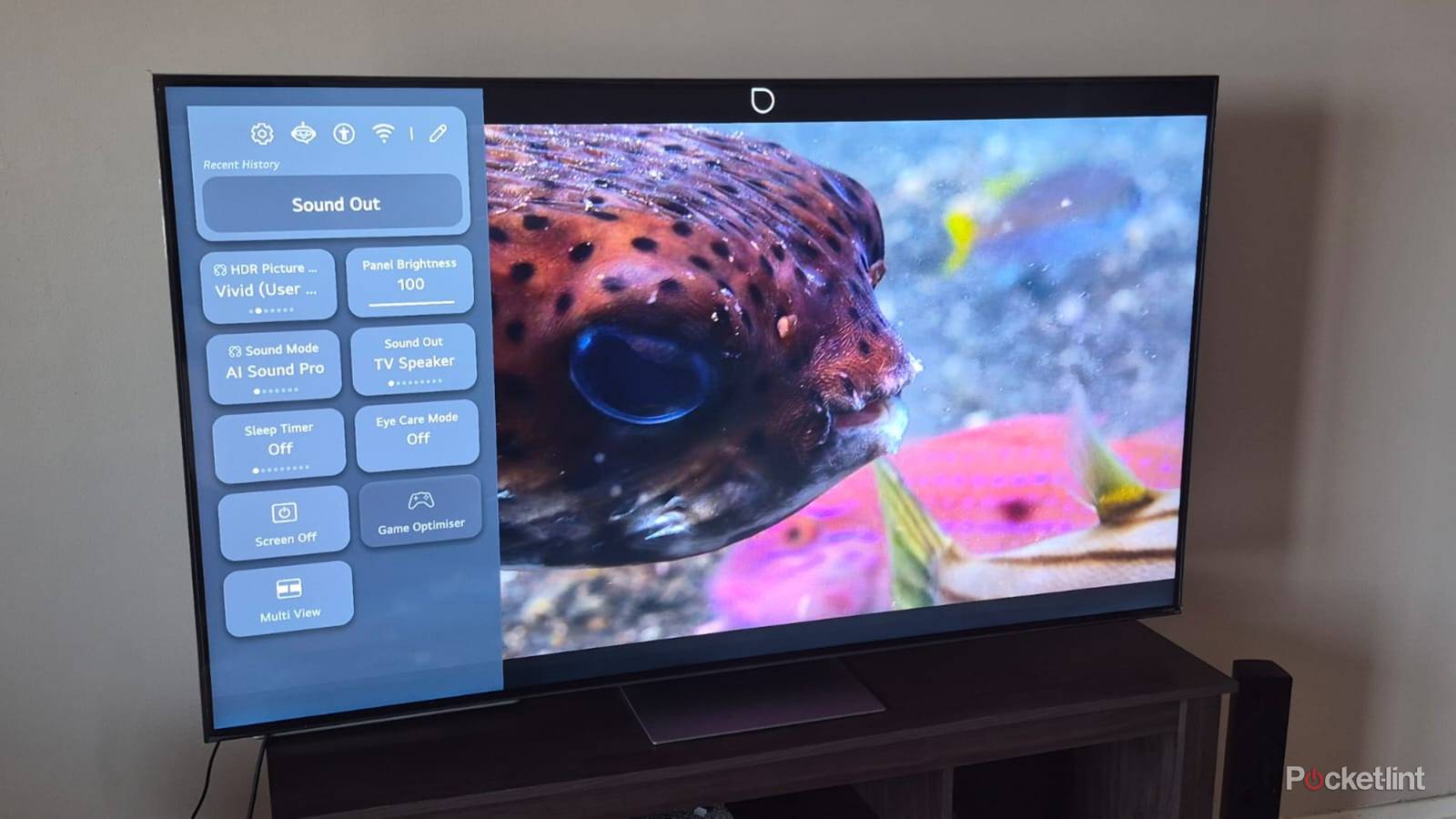
Every LG owner should be aware that their TV is spying on them, thanks to hidden WebOS features. It takes screenshots of the content you’re watching and shares your information with third parties. It also stores more information than you think in the user agreements that you might have ticked without reading.
Some people don’t mind corporations harvesting and selling their data, but I like to keep mine as confidential as possible. It’s not that difficult and involves changing a few LG TV settings. Here’s how I stop my LG TV from spying on me.
Turn off Live Plus viewing tracking
My content stays private
Turning off Automated Content Recognition (ACR) is the best place to start to make your TV more private. This feature automatically takes screenshots and audio snippets of the content you’re watching and sends them to LG’s servers so it can know what you’re watching.
This feature automatically takes screenshots and audio snippets of the content you’re watching and sends them to LG’s servers.
The company recently settled a Texas lawsuit over this feature, which spies on consumers, and agreed to provide clear notification and opt-out options for users. It’s still safer to turn it off for peace of mind.
To turn off ACR on an LG TV, go to Settings => All settings => General => System => Additional Settings. Then use the Live Plus toggle to turn it on or off.
Change the user agreements
Opt out of unnecessary tracking
We’re often so excited about using our new TVs that we tick all the boxes in the user agreements without reading the fine print. This is a big mistake because it gives LG and its partners’s permission to collect and share your data. LG TVs have several optional user agreements that you should avoid.
The Viewing Information agreement grants LG and its service partner, Alphonso Inc., access to data such as the content you watch across different streaming services and how often you press play, pause, etc. It also collects device information, like the consoles or soundbars you’ve connected to your TV, and shares it with third parties.
LG TVs have several optional user agreements that you should avoid.
The Voice Information agreement grants LG the right to access your voice commands and to share them with third parties.
The Internet-Based Advertisement agreement lets LG display ads on your TV and share your device and content information with third parties.
The Marketing Agreement authorizes the receipt of pop-up marketing messages, such as special offers, news, and updates from LG.
All of the above are voluntary agreements that you can opt out of by withdrawing your consent. To do this, go to Settings => All settings => Support => Privacy and Terms => User Agreements.
Untick the Select all button at the bottom if it’s ticked. Then untick all the boxes apart from the mandatory Terms of Use and Privacy Policy. Click agree, and the TV will ask whether you want to proceed with changing the terms of service. Click on Yes, and the TV will restart to implement the new changes.
Turn off advertising tracking
I don’t need ads on my TV
Turning off advertisement tracking can also reduce your LG TV’s spying capabilities. This feature collects your data to present you with targeted ads.
This feature collects your data to present you with targeted ads.
To turn it off, go to Settings => All settings => Support => Privacy & Terms => Advertising. Then use the toggle to Limit Ad Tracking. After limiting Ad Tracking, you should also click on the Reset AD ID to clear your ad-related data.
Check app permissions to access the camera and microphone
Rather be safe than sorry
It’s worth checking which apps have access to your TV’s camera and microphone as an added precaution. To do this, navigate to Settings => All Settings => Support => Privacy & Terms => App Permissions.
Click on Camera to view all the apps with access to it. Then use the toggle to enable or disable access as you prefer. Then press the return key on the remote control, and do the same with the Microphone settings.
Delete Personal Information
I don’t want it shared with third parties
After changing all the privacy settings, it’s advisable to delete all your personal information still stored on the TV. Navigate to Settings, All settings => Support => Privacy & Terms => Delete My Personal Information.
The page will open with options to Delete Viewing Information, Delete Voice Information, and Delete Voice ID. Click each one, then press the Delete button to clear them.

- Display Size
-
42, 48, 55, 65, 77, or 83 inches
- Operating System
-
webOS
- Display Type
-
OLED
- Display Resolution
-
4K (2160p)
- Connectivity
-
Wi-Fi 6E, Bluetooth 5.3
- Weight
-
36.6 pounds
LG’s C5 OLED is a premium TV offering incredible image quality and fast refresh rates for gamers.