


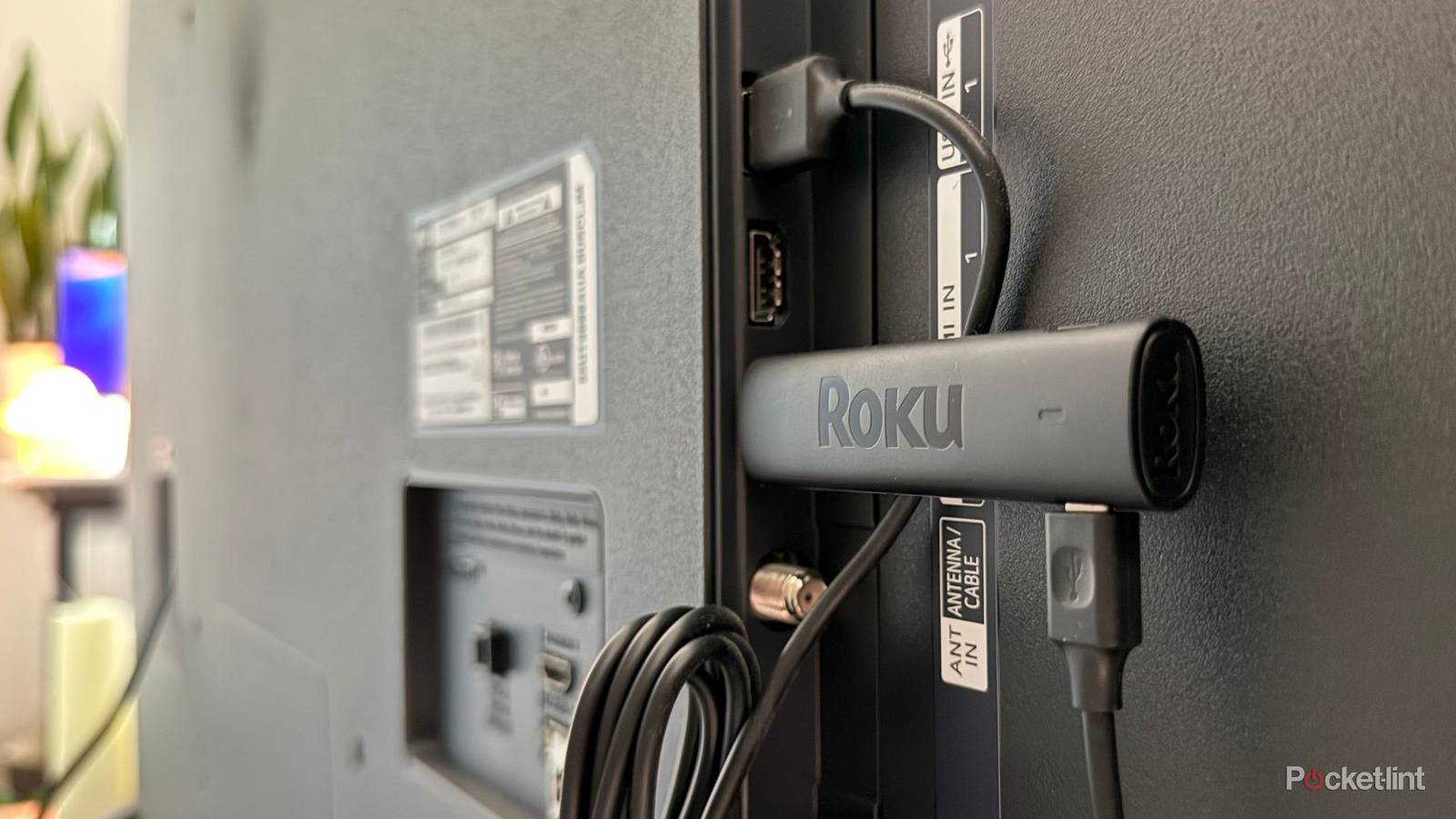
Roku produces some of the cheapest, most approachable streaming devices on the market. Its tiny streaming sticks are especially easy to forget about when they’re plugged into the back of your TV, but Roku OS is as powerful as it is simple. That simplicity means we don’t see major software overhauls all that often, and the hardware you bought years ago might still be kicking just fine in its HDMI port.
The most recent Roku streaming device to hit the market in 2025 was the Roku Streaming Stick Plus, which retails for just $40. However, the company has released more than a dozen other devices focused on streaming over the years, some of which are reaching “ancient” status. And we all know that when cheap tech starts to reach a certain age, it usually fizzles out in one way or another.
While saying a streaming stick can “expire” is a little dramatic (it isn’t suddenly going to ooze glowing green goo or start emitting a nasty sour smell like milk), it can sure become as useless as a gallon of expired milk. Some older Roku devices reach an age where they become “legacy” devices, which means that they aren’t on the guest list for new Roku OS updates. Just because they can’t show up to the software party doesn’t mean they stop working immediately, but it does mean that certain app support, general performance, and overall reliability on your device goes out the window.

- Connectivity
-
HDMI
- Misc.
-
Works with Alexa, Works with Apple AirPlay and HomeKit, Works with Google Home, Works with Roku Smart Home
- Remote
-
Yes
- Video
-
HD, 1080p
Which Roku devices are these “legacy” devices?
And how to check which model you have

If your Roku device is already plugged into your TV, the easiest way to see which model you have is to go to Settings > System > About. There, you’ll see the name of your model. However, since Roku releases new generations with the same name pretty consistently, you’ll want to use the right arrow to go one more menu over to see the model number.
Lower numbers usually indicate an older model, while higher numbers usually mean it’s newer. You can also match your model number to this official hardware spec sheet from Roku itself. Note that your model number might feature a letter other than X — for instance, my Roku Streaming Stick 4K’s model number is 3820R2, but it matches the official 3820X2 model.
There are three categories of Roku devices: Current, Updatable, and Legacy models. Current models are devices that Roku is actively manufacturing and fully supports at this time. Updatable devices can still support the latest Roku OS updates, but the company isn’t making any more of them. Legacy models, despite their cool label, are devices that Roku has discontinued and no longer supports for newer versions of Roku OS.
If your device is on the following list, it means it is a legacy model and cannot support newer versions of Roku OS:
- Roku DVP: N1000
- Roku SD: N1050
- Roku HD: N1100, N1101, 2000C, 2500X
- Roku XD: 2050X, 2050N, 2100X, 2100N
- Roku LT: 2400X, 2450X, 2700X
- Roku 1 / Roku SE: 2710X
- Roku 2 HD / XD / XS / Roku 2: 3000X, 3050X, 3100X, 2720X
- Roku Streaming Stick: 3400X, 3420X, 3500X
- Roku 4: 4400X
- 8K Roku TV: E000X
It won’t necessarily become a brick overnight, but if you see your device above, you may want to consider a newer model if you want full app support and a smoother streaming experience in general.
What should I do with my legacy Roku device?
A few options

Depending on your model, the streaming experience your legacy Roku provides might be fine, if only for low-stakes watching. If your favorite apps still work, it could be beneficial to keep the device around, perhaps in a guest room or basement TV you don’t use all that often. The only time it might truly fail you is if you rely on it for your main TV watching.
The most obvious option is to get a new Roku device. Since they are so affordable (way more so than something like an Apple TV 4K), $40 for the newest Roku Streaming Stick Plus isn’t a bad deal and likely won’t set you back on rent money. Other models, like the Roku Streaming Stick, Streaming Stick 4K, Streaming Stick 4K+, Ultra, and Streambar SE, are also strong contenders.
But if you decide to level up your Roku and can’t find another use for your legacy device, don’t just throw it in the trash. Streaming sticks and devices are considered e-waste, which means that they’re filled with potentially hazardous materials that can damage the environment if left to rot in a regular landfill. They also might have copper or other valuable metals inside that can be reused in other products. To properly dispose of your old streaming device, check out local e-waste disposal programs or take it to your local Best Buy so they can take care of it through its electronics recycling program. It also offers a mail-in recycling program if there isn’t a store close to you — you just have to purchase a recycling box first. Make sure to factory reset it before you send it off.
To factory reset your streaming device, go to Settings > System > Advanced system settings > Factory reset.