Summary
- Task Scheduler automates repetitive Windows tasks, like emails and scans.
- Clipchamp has a built-in screen recorder to document the steps required for a task.
- Focus Sessions reduce notifications to improve concentration.
I have a busy life, and spend hours a day working on my laptop and trying to complete other personal tasks. Juggling everything can be overwhelming, which is why I use some Windows 11 apps to improve my productivity and save time. I don’t need to download third-party apps or extensions because these user-friendly tools help me work faster and more efficiently.
The apps I’ve listed below help me in different ways. Some, like Task Scheduler, automate repetitive tasks, so I don’t need to do them manually. Others, like Virtual Desktop and To-Do, make it easier to focus by separating tasks and workloads. I don’t get stressed out by multitasking because I streamline my productivity to get more done with these five Windows tools.
1
Task Scheduler
Save time with automation

The Windows Task Scheduler app is great for automating repetitive tasks, so I don’t need to do them manually. It usually takes a few minutes to create each one, but it’s worth it in the long run because I won’t need to do them again.
I use this app to send monthly invoices and congratulatory emails for birthdays and holidays to some of my contacts. Setting up the scheduled emails is simple via the Create task tool. I can choose the specific day and time it should be sent, and add any text or attachments I’d like to go with it.
The Windows Task Scheduler app is great for automating repetitive tasks, so I don’t need to do them manually.
I spend my evenings with my family and use the task scheduler to automatically put my laptop to sleep every night and wake up in the morning to save power. It’s more complicated than scheduling emails because it requires basic PowerShell scripts, but anyone can do it with some online research. Task Scheduler can also run scans, cleanup tasks, and other automated functions at specific times, so they don’t interrupt my work.
2
Clipchamp
Screen recording and video editing
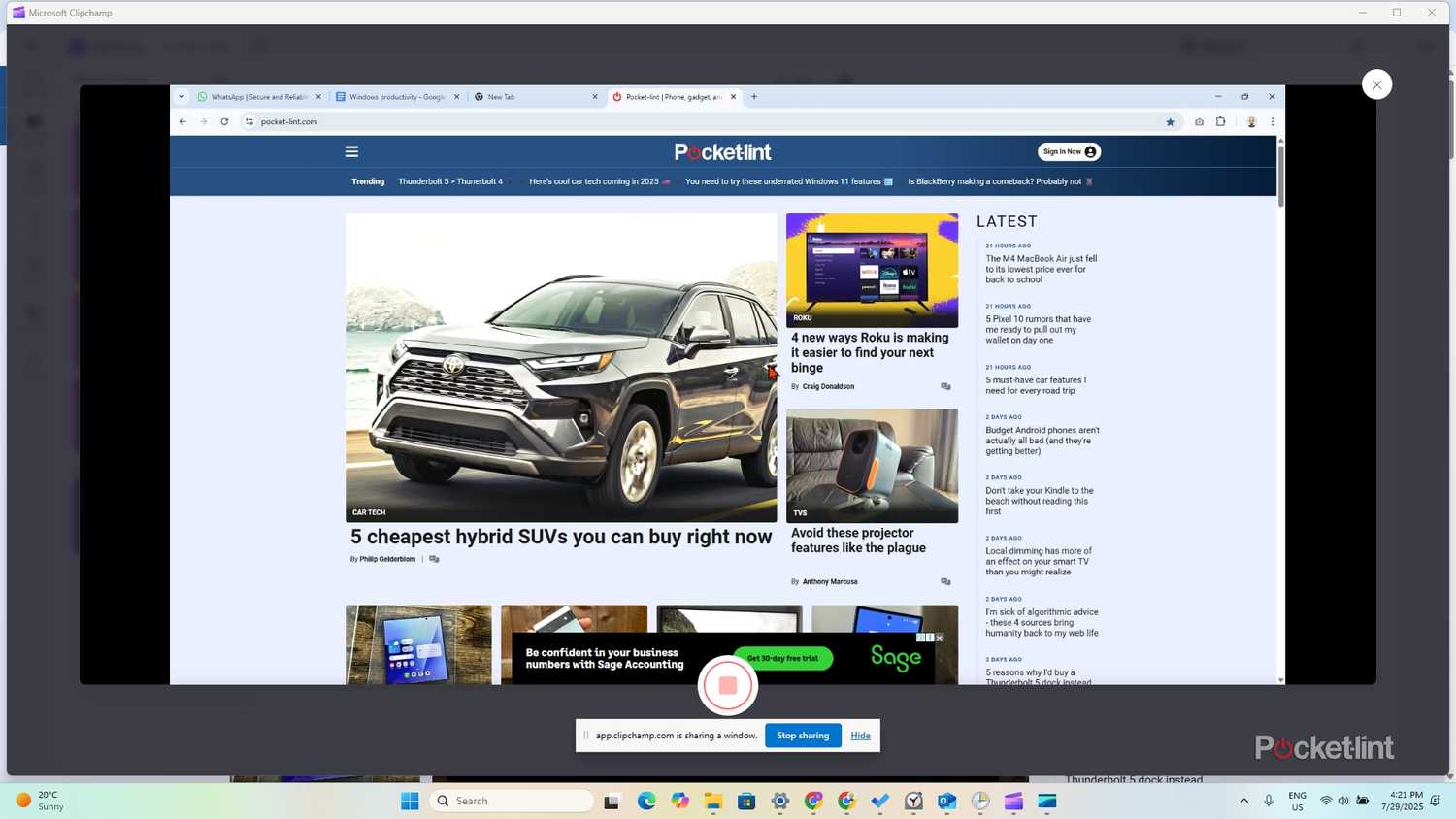
Microsoft’s Clipchamp is more than a video editing tool and is also great for recording what I’m doing on my screen. I test different apps for work daily, and being able to record each step of their use saves me time and makes it easier to write about them later. Instead of going through each step manually, I can just play the video on one monitor and write about it on the other.
When I provide computer support, I often need to explain common solutions to clients who have the same issue. Clipchamp improves my efficiency by allowing me to record the solution once with voice instructions and then send it to them. The clients benefit because they have a visual solution to the problem that they can revisit later instead of calling me about it.
3
Focus Sessions
Block unwanted notifications

I often sit at my desk to write, but I get interrupted by unwanted notifications that break my concentration. Windows 11 Focus Sessions is a simple app that helps me focus on my work and reduce distractions. With it, I can set a timer of 15 minutes or longer to work on specific tasks without interruptions. When activated, the app will turn on do not disturb, and hide badges and flashing on taskbar apps.
Windows 11 Focus Sessions is a simple app that helps me focus on my work and reduce distractions.
I like the Focus Session customization features because I can schedule breaks or allow notifications from certain priority apps. I’ve also linked it to my Spotify account, so I can enjoy listening to music or podcasts while I’m working. The app includes a progress tracker to help me improve my daily productivity, and I can use it to set new goals I’d like to achieve.
4
To-Do
List your tasks and set priorities

I like to plan ahead to organize my tasks so that I can keep track of all my work, chores, and other responsibilities. Microsoft To-Do helps me do this by creating tasks and adding due dates and reminders to get them done on time. I can also add lists to help me remember my grocery shopping and other things I need to do.
To-Do links to the Focus Sessions app, allowing me to map my productivity to my outstanding tasks and tick them off as I complete them. I can view my to-do lists in my calendar thanks to Outlook integration and share them with family or friends with an invitation link.
5
Virtual Desktop
A different desktop for each project

Keeping track of my work, personal, and side-hustle programs and browser tabs can get confusing because of the clutter. I streamline my projects with the Virtual Desktop app. This Windows tool, activated in the start menu, allows me to create separate desktops for each workload.
This Windows tool, activated in the start menu, allows me to create separate desktops for each workload.
I can set unique wallpapers and names for each one to differentiate them and make them easily identifiable at a glance. Switching between them takes a second with the start menu icon, which displays a preview of all the open Windows on each desktop to prevent confusion. Virtual Desktop may be simple, but it’s a user-friendly and effective tool for organizing various projects.