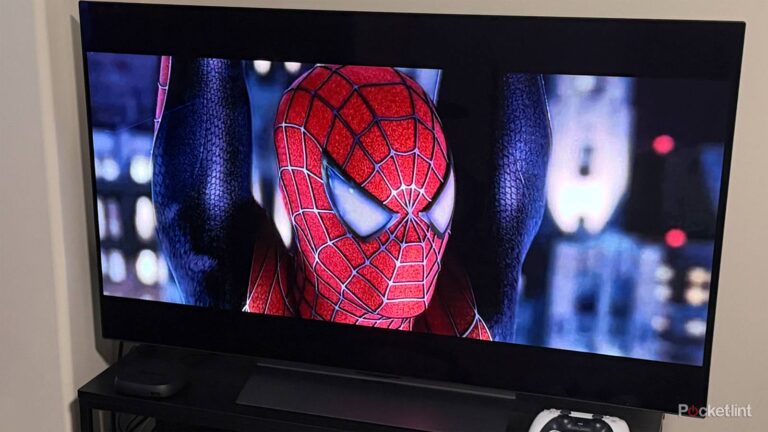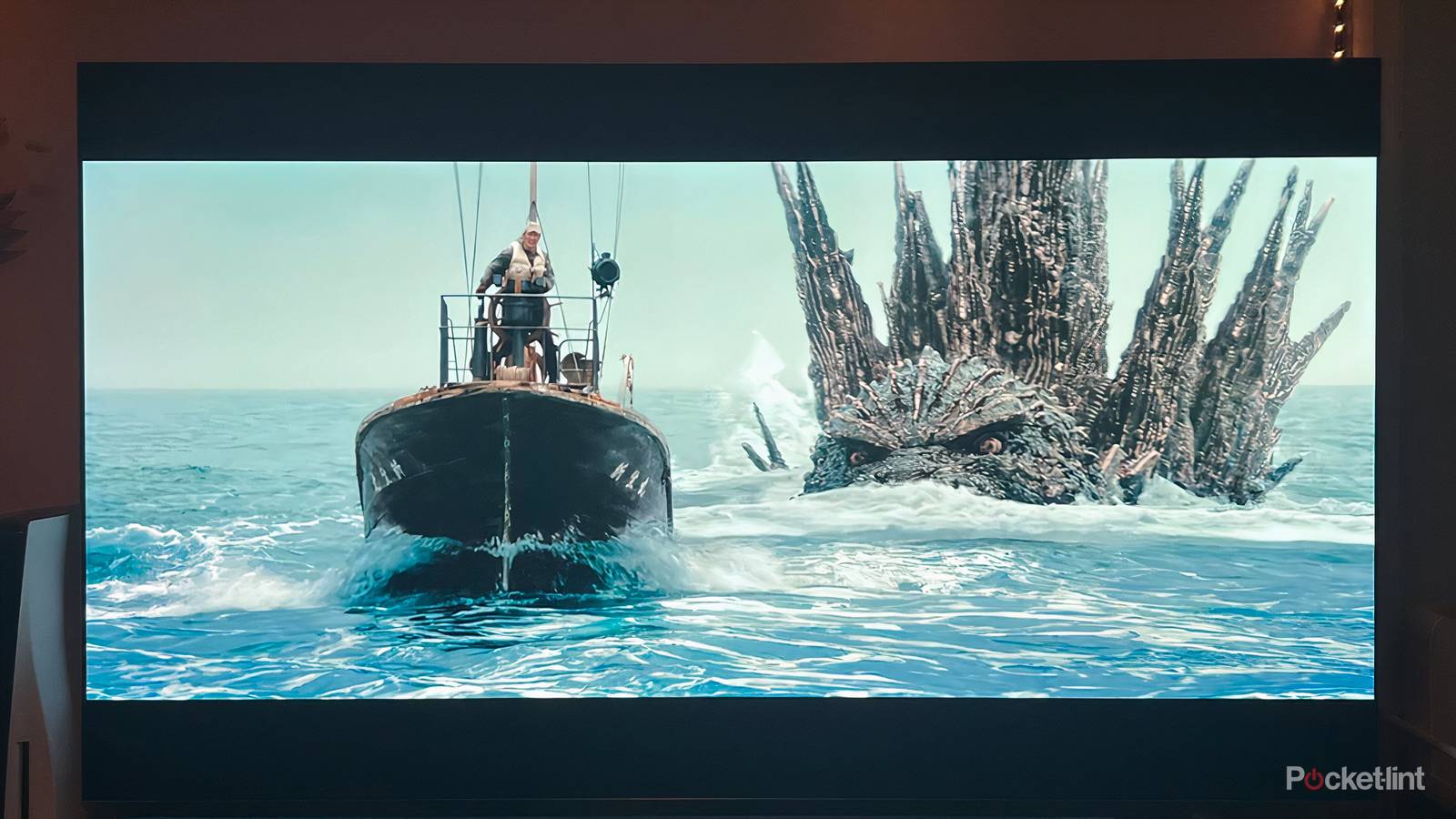
There are a lot of picture settings and plenty of ways you can adjust the image on your smart TV to your liking. However, without knowing exactly what each setting does, every attempt to improve the image can actually end up making it worse.
Settings like contrast and color temperature are crucial to enjoying the best image. But perhaps one of the most misunderstood and underutilized picture settings is sharpness. Here’s everything you need to know.
What does sharpness change on a smart TV?
Defining borders to enhance contrast

Sharpness is a setting that looks at the edges and borders of images on the screen. It’s not really about detail so much as it is about contrast. By altering the boundaries between objects on the screen, contrast can be changed as well.
Sharpness is known as edge enhancement because it adjusts edges so that they appear more or less pronounced. Lines may become darker or a halo may be noticeable as you increase sharpness. Lowering the sharpness, on the other hand, reduces that edge, making images on screen and objects next to each look more natural.
By adjusting the edge, sharpness influences contrast. Images can look like they blend in with one another, or they can look distinct. The border created between two images on screen allows for you to better see them as different; that’s how contrast works. Reducing sharpness blurs those boundaries, reducing contrast as a result.
LIke all picture settings, however, you don’t want to keep sharpness super low; but you also don’t want to go too high.
Sharpness problems to watch out for
Be careful pushing the setting too far either way

Adjusting sharpness to either extreme can mean a drastically different and ultimately unfaithful image on screen. When sharpness is too low, images can look softer and more blurred. What you’re watching may look natural to the point of being flat, as if you’re looking at something boring or dull. Everything in a scene can seemingly seem int the background, and overall make for a distracting viewing experience.
Conversely, going too hard on sharpness creates new problems of its own. As sharpness increases, edges become finer, which can result in a grainy texture on screen. You may start to see black lines surrounding objects. You can create halos around brighter images that make them look like they’re glowing, in turn hiding any detail present.
It’s worth remembering how TV settings, including sharpness, really operate. You’re taking source material and using your TV to change it on the screen. You’re not actually changing anything natively, you’re changing the image artificially using software processes. The resulting quality depends on how well those software processes actually function. Pushing them too far can make the image worse.
Sharpness best practices
Study the image as you change the setting

If you’re going to decide to tinker with sharpness, exercise caution so that you don’t ruin the image. The best way to approach changing the setting is to make sure you don’t go too far in either direction. If you’re towards the end of one end or the other, you’re likely going to upset the image. Keep the dial in the center.
Of course, it’s important to know how your TV allows you to adjust sharpness. Most models will feature a standard range that you can increase or decrease. Note the neutral or default setting and investigate how much you can change it. The starting value and increments may vary from model to model, but what’s important is that you know the starting point and that you don’t venture too far.
As you adjust, take note of specific details on the screen. Two things that can help you determine sharpness quality are faces in the foreground and buildings in the background. For faces, check out features to make sure they look natural; look at hair and identify the boundaries. You want there to be definition and contrast. However, you don’t want any dark borders, fine grain, or exaggerated edges to appear. That’s the sign to stop.
Buildings can also help you optimize sharpness. Again, you want a definition, but you want to avoid any halos that end up blurring the boundaries. If you see anything that starts to glow or starts to create shadows without any definition, then you’ve gone to far.
Genre, source material, and resolution make a difference
Don’t touch sharpness for every title

Whether you want or need to adjust sharpness can depend on the source material and the genre you’re watching. Ultra-high definition titles, especially ones on Blu-ray, don’t need much adjustment. You’ll want to keep sharpness close to its neutral position if you change it at all. 4K native content is going to be filled with detail that doesn’t need to be artificially altered. Especially if you have a 4K TV and proper HDMI connection or high internet speeds.
If you’re watching titles that are only in HD, however, you may want to adjust the sharpness to improve contrast.
Genre is noteworthy, too. Reality TV, live broadcasts, and sporting events can stand to have the sharpness adjusted. That’s because often these titles are shot and produced to cater to a wide range of TV sets and audiences. THey are designed to look good on poorer TVs, which means they don’t look the best on the best TVs. That’s where superior models with quality software can enhance a mediocre native image.
Consider Filmmaker Mode and picture presets
Avoid excessive changes and software upgrades

If you’re watching anything new and relatively modern, especially if you’re watching a high-quality source, then you’re best served not touching sharpness or really any other setting. Altering sharpness, contrast, brightness, and employing features like motion smoothing are useful if you’re watching older titles or content that is of poor source quality.
However, all these changes can make things that are new and of current quality much worse. If the native content is made of high quality, and metadata that instructs your TV to adjust on the fly, then going in and changing things on your own is going to mess up those processes. You should set up Filmmaker Mode, if available, to turn on automatically when any compatible titles are started. Filmmaker Mode strips away all these extra TV processes and instead adheres to the director’s vision.
With Filmmaker Mode, you’re getting the proper aspect ratio, industry standard color temperature, and everything else the director wants you to experience. If you don’t have Filmmaker Mode, consider using other picture presets for any new titles. Settings like Movie or Natural are ideal; these keep the image warm and the settings tempered. Avoid dynamic or vivid settings that turn down the color temperature and boost brightness.
Sharpness is a tool for tinkering. You’ll want to use it to make slight changes to specific titles in order to improve the picture, but it’s not a setting that you want to overuse. Do not lead with it; consider how it works in tandem with other settings and opt for picture presets for anything new and exciting you might be watching.