


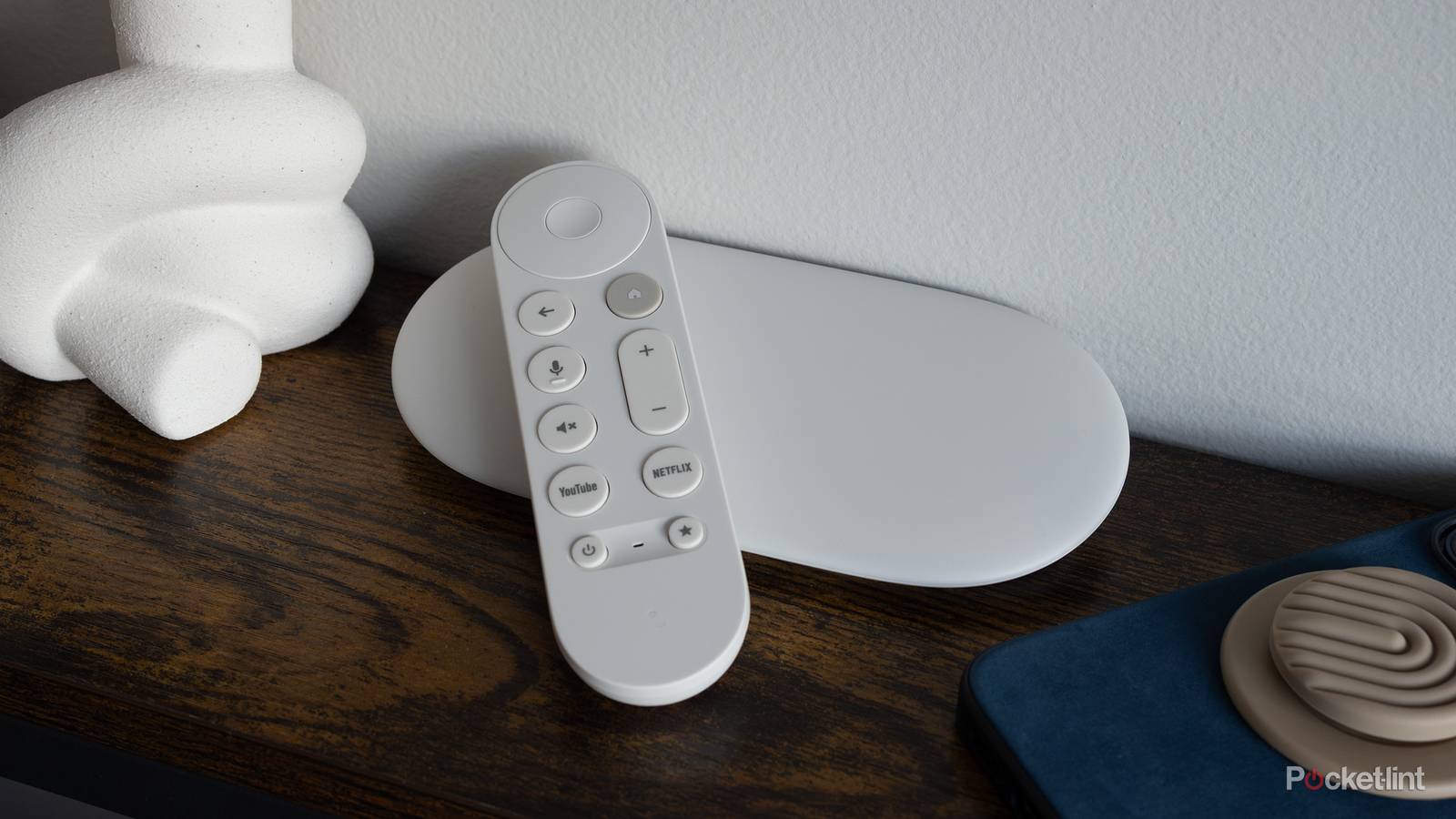
Naturally, the main reason to buy a Google TV Streamer is to add a better interface to your TV, whether it’s already smart or one of the holdout dumb models out there. While I tend to think of Roku OS, Fire TV, and even Tizen as being functional platforms, they all have their quirks and irritations, so some of you may just prefer Google’s approach. It makes plenty of sense to add a Streamer if you’ve got a Google-based smart home setup.
If you’re going to hinge your whole home theater on single device, it’s wise to learn its ins and outs. This list isn’t meant to be comprehensive, mind you. It’s just to get you pointed in the right direction, and you’ll no doubt figure out a lot of the smaller things over time. When in doubt, it can’t hurt to explore menus on your own.
Switching to apps-only mode
When your needs are straightforward

For some people, the default Google TV homescreen is needlessly complicated. There’s usually a huge advertising banner, and row after row of recommendations that you may not care about in the slightest. I know that when I flip on my TV, I either have a specifc title in mind or plan to browse specific apps — I’m not going to watch something just because a thumbnail was shoved in front of me. More on that problem in a later tip.
This not only removes the normal banners and recommendation carousels, but search and voice commands.
You can cut out the noise by heading to Settings -> All Settings -> Accounts & Sign In -> [profile name] -> Apps only mode. If you ever want to reverse this, just head back to the same menu.
Google isn’t kidding about the mode’s name, though. It not only removes the normal banners and recommendation carousels, but search and voice commands. That means you’ll have to open up individual apps to find anything, which can deprive you of one of the advantages of Google TV — the ability to track down videos regardless of their host service. Indeed you can’t add anything to your universal Watchlist either, so apps-only should probably be reserved for people who only use a handful of services.
Use the Watchlist – on and off off your TV
Never forget a movie again

If you’re like me, you’ve seen enough of the cinematic canon that you’re always on the hunt for cult favorites.I’d rather watch Samsara or The Color of Pomegranates again than yet another Marvel movie. The more obscure a release is, however, the less likely it is to show up in your current subscriptions, much less get any promotion to remind you. That makes it important to bookmark titles the moment you decide you’re interested.
You can add anything on the Google TV homescreen to your collection by clicking and holding it, then choosing Watchlist. What’s more useful is the ability to bookmark movies from the web. As long as you’re signed into your Google account, searching for a movie (or TV show) via google.com will bring up an info panel with yet another Watchlist button. You’ll find the same within video details in the Google TV mobile app.
Just remember to prune your Watchlist occasionally. If you don’t, it’s going to quickly balloon out of control, forcing you to scroll too much to get past titles you’ve already seen or have simply lost interest in. There’s no shame in that, by the way — it’s rare for a movie you weren’t already anticipating to blow you away.
Configure the remote’s shortcut button
Jump to you what you actually care about

Two of the shortcut buttons on the Streamer’s remote are spoken for — they always point to YouTube and Netflix. The third one, marked with a star, can be customized to execute one of three different actions: opening the Google Home (smart home) panel, launching a favorite app, or switching device inputs.
If you haven’t tried this before, just hit the Star button. You’ll be prompted to select one of the three actions, and get a confirmation when it’s ready. Things are slightly more complicated when configuring the input shortcut — you have to select or add devices with the plus icon, then hit the Star button to switch through all your inputs. Once you’ve picked a preferred input, you’ll be asked to confirm that the shortcut works.
That’s just about it. If you want to reassign the Star button later, all you need to do is tap and hold it for a couple of seconds instead of using a quick press.
Kill off those autoplay trailers
Who wants these other than corporations?

Google isn’t immune to the bane of autoplaying show and movie trailers. Streaming services know they only have a short time to get your attention, and neither they nor Google seem to care how jarring this can be. It can also slow down your browsing, and eat into your data limits if your internet provider still imposes caps. A single autoplay trailer may not have much impact — but they can snowball, and there’s no sense dealing with this problem if you don’t have to.
You can disable autoplay very quickly. Head over to Settings -> All Settings -> Accounts & Sign In -> [profile name], then toggle off Autoplay trailers. You’ll still see stationary graphics where the trailers used to be, but that’s it. While you’re here, you might consider disabling autoplay for all profiles if you’re sharing your space with anyone.
Open up a virtual remote on your phone
More handy than it ought to be

A recurring issue with any media streamer or TV I own is losing the remote. My wife or son will leave it somewhere that’s counterintuitive to me, prompting a frantic search for the next minute or two. It might be a minor hassle, but that makes me glad that app-based remotes are de facto in 2026.
If you want to take advantage of Google’s option, you’ll need your Streamer pre-configured in the Google Home app. That’s part of the device’s initial setup process, but if you haven’t gone through that yet, you can get started by opening the app and selecting Add -> Device -> Scan QR Code. You’ll need to sign into a Google account if you haven’t used Home before.
Android users get some extra convenience here. For later access, they can just tap on the Home tile, or add a shortcut to their Quick Settings menu.
Otherwise, simply find your Streamer’s tile in the Devices section. Tap and hold on it, then select Open Remote. You’ll be prompted to enter a numerical pairing code from your TV when you’re doing this the first time. Android users get some extra convenience here. For later access, they can just tap on the tile, or add a shortcut to their Quick Settings menu. Of course, iPhone owners get similar advantages if they have an Apple TV 4K.

- Dimensions
-
6.4 x 3 x 1-inch
- Connective Technology
-
Wi-Fi, Bluetooth
- Brand
-
Google
- What’s Included
-
Remote