


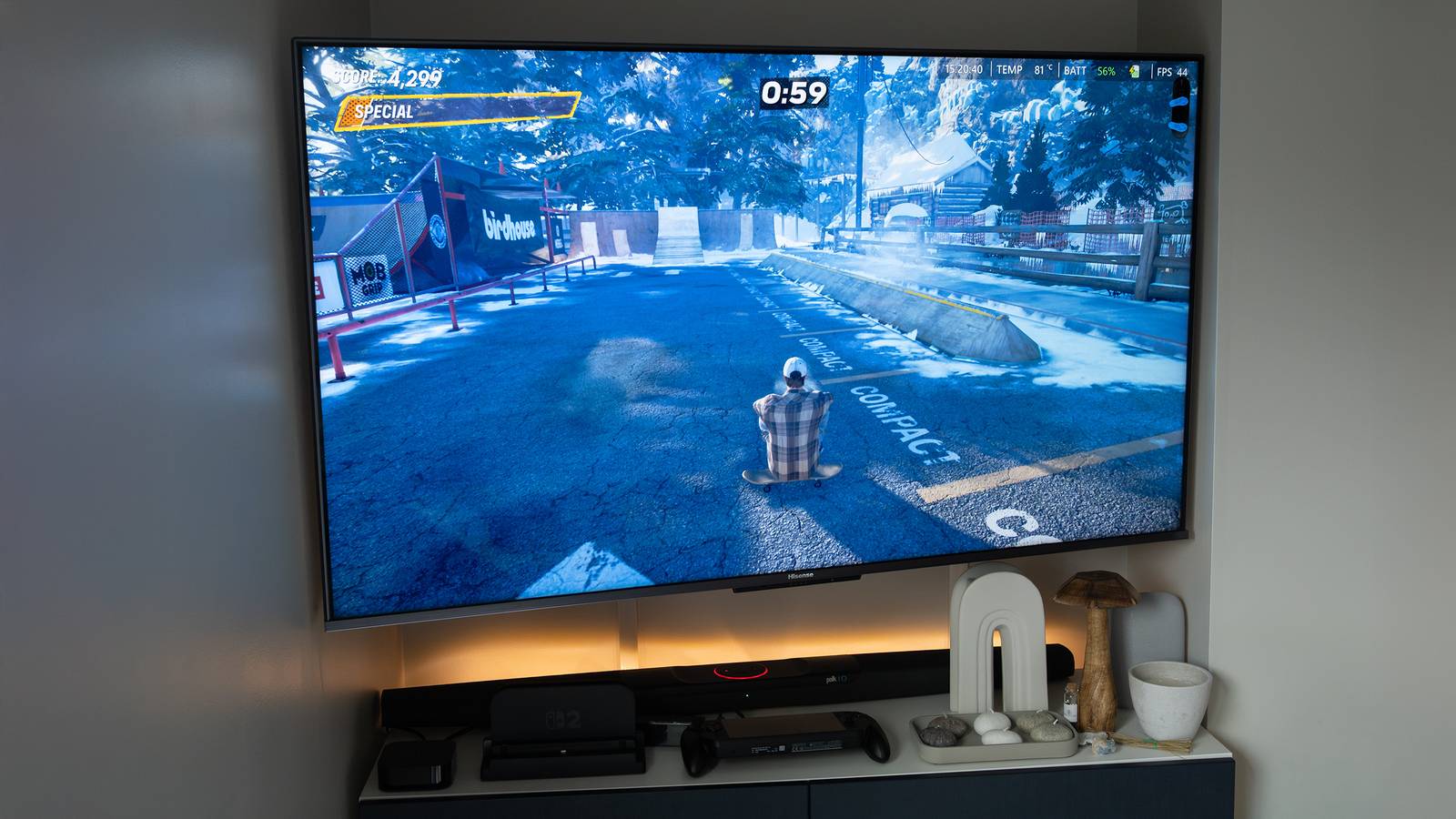
Input lag is probably one of your minor considerations when shopping for a new TV. More often, people are concerned with specs like screen size, panel tech, refresh rates, or the platform it’s running. It can matter quite a lot in some circumstances, though, above all gaming.
Case in point: on a podcast I listen to, Giant Bomb, one of the hosts discovered that while his sister was excellent at some of the hardest action games out there, this was because she’d been trained on wildly bad input lag that forced her to overthink every move. After he changed a few TV settings, these games were almost a breeze. I wasn’t even surprised — sometimes, a split second in an action game can mean the difference between parrying an attack or repeating a boss encounter for the tenth time.
Even if you don’t play games, input lag can be an annoyance. In extreme scenarios, it can make scrolling through menus feel like a slog, or connecting a computer more trouble than it’s worth. There are a few ways you can deal with input lag short of buying a new TV, thankfully.
Switching inputs to Game Mode
Or another equivalent option

A feature most TV makers brag about today is their image processing. They’ll talk about how it enhances every aspect you can fathom, usually crediting some sort of custom AI, especially now that companies want you to associate that term with the most cutting-edge tech. Spoiler alert: you’ve probably been using some form of AI for decades, even if it was just playing against the CPU in Tetris.
This processing is normally a great thing, but there’s an inherent delay caused by your processor having to analyze raw frames and render new versions of them. This won’t matter much in the middle of a movie or TV show — but once any real-time interaction is involved, it can become a serious problem. As I mentioned, it’s most likely to impact gaming, but it could also drive you crazy in other circumstances.
The shotgun solution to this is Game Mode. This disables image processing, which isn’t really needed on consoles and computers anyway — their GPUs are doing most of the hard work, such as anti-aliasing to smooth out jagged edges. On HDMI 2.1 inputs, Game Mode should be triggered automatically by Auto Low-Latency Mode (ALLM) when a compatible device is connected. With HDMI 2.0, there should be an option to select Game Mode in your TV’s individual input settings.
Usually, you should leave Game Mode off for devices like Blu-ray players and media streamers. While it can be tempting if their interfaces feel slow, they aren’t equipped to render the best possible output on their own, and you probably won’t gain much in the process. It’s best to come up with an alternate solution.
A final note on this one — you may be able to accomplish something identical to Game Mode if there’s an option labeled “PC” or “Computer.”
Turning on Filmmaker Mode
Slay the demon that is motion smoothing

This option is available on any TV worth owning in 2026. It sounds pretentious, but it’s a fact that the default picture modes on TVs often sabotage the way a movie or show is supposed to look. Saturation can be too high, sharpening too aggressive, the white balance too cool or warm. Perhaps the worst is when motion and noise are smoothed out. Those things sound great on paper, but in practice, they can make video look chintzy or outright bad.
Somewhat like Game Mode, Filmmaker Mode disables all post-processing, but it does more than that. It locks framerates and aspect ratios to the original source material, and sets a very specific white point, D65 (approximately 6500K, for the color nerds out there). It’s actually triggered automatically by a video’s metadata in some cases. Being an industry standard, though, you can also force it using a TV’s picture or input settings.
If you don’t like the way Filmmaker Mode looks on your TV, you can try adjusting some processing options, but be careful — you may inadvertently end up back where you started. I’d recommend limiting your tweaks to brightness, or small white balance changes if you’re finding things too blue- or amber-tinted.
Until Dolby Vision 2 and HDR10+ Advanced are commonplace, at least, one thing that should always be off is motion smoothing. This is meant to solve issues like motion blur by inserting artificially-generated frames. It’s not only processor-intensive, however, but often poorly handled, resulting in the dreaded soap opera effect. That’s so named because it can make $200 million blockbusters look like they were shot on the same camera as a ’90s episode of General Hospital.
Matching device resolution to the TV
A counterintuitive fix

This one might sound strange on the surface, given that most TVs are now 4K. That’s four times as many pixels to render as 1080p, which is why you need a powerful console or PC to run games at 4K and maximum detail.
When it comes to input lag, though, pumping 1080p video into a 4K TV might be your problem. That’s because it’s forcing your TV to upscale, invoking that image processing I’ve been harping on about. Ordinarily, that’s not a big deal, but it’s something you should consider if you’re trying to bring lag down as low as possible.
The big catch here is what your other devices can handle. Although consoles like the PlayStation 5, Switch 2, and Xbox Series X can handle 4K, they’re often forced to drop to lower resolutions with some games to maintain smooth framerates. Even a relatively powerful PC may have to run games at 1080p or 1440p if its graphics card doesn’t have enough VRAM. There’s no reason a media streamer shouldn’t be operating at 4K, though, unless it’s a low-cost model that lacks any 4K support whatsoever.
Disabling reduction features
A beast with many heads

Noise reduction makes even less sense than motion smoothing. The latter can legitimately fix issues like judder. Noise, on the other hand, is unlikely to be a problem with any Hollywood-caliber digital production. In some cases, reduction can actively ruin video, particularly anything with film grain. In trying to remove that grain, it can make characters and objects look way too smooth, almost waxy. I’d argue that if the tech were perfect, it would still strip some of the charm away from watching older movies — or anything by Quentin Tarantino.
This section is headlined “reduction features” because noise tech sometimes goes under other names, and isn’t necessarily geared towards noise in the way photo and video pros think of it. You might, for example, see an “MPEG Noise Reduction” option, which actually smooths out compression artifacts. This can destroy image detail just the same — so it’s best to leave it off, with or without the hit to input lag. The only surefire way of dealing with compression is to watch video at a higher bitrate, may mean fixing problems with your Wi-Fi or internet if you’re streaming and know the source material is high-quality.