


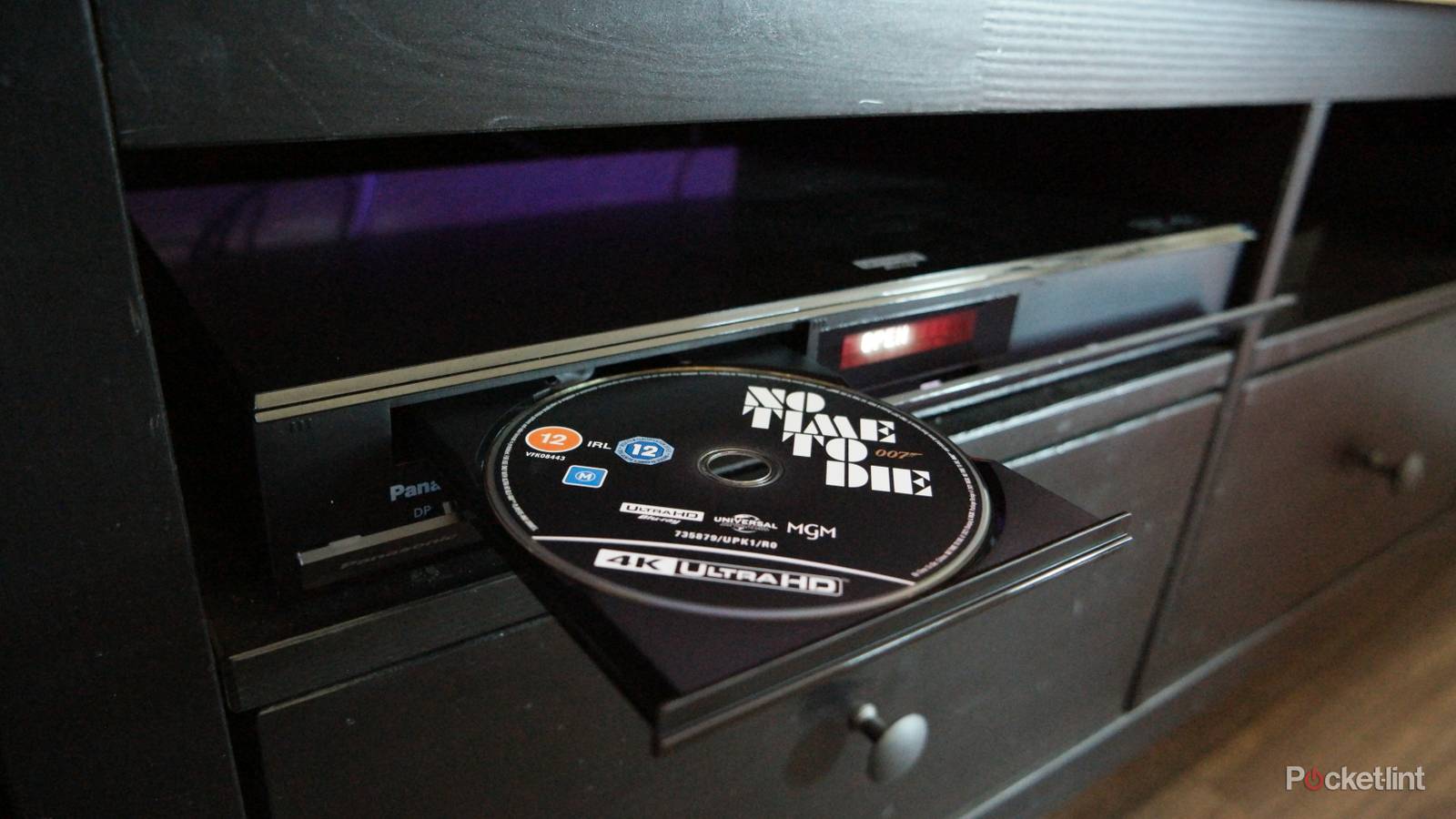
If you’re getting into physical media, and more specifically 4K Blu-rays, then you don’t have as many picks for a Blu-ray player as you’d think. Sony and Panasonic are your major names for dedicated players, and your Xbox Series X and PS5 work perfectly fine — although it sounds like the next-gen versions of those two consoles won’t have disc drives anymore.
Anybody looking for Dolby Vision support has to get a dedicated player, and many people go for the Panasonic UB820. This is a great player, and despite its age, it’s still one of the best 4K Blu-ray players money can buy today. It’s also a step up from the Sony X-700K thanks to the fact that Dolby Vision automatically toggles on depending on the disc. The Sony player has to be manually changed, so it’s a hassle if you like to watch things without Dolby Vision with any regularity.
If you have a Panasonic player, you might notice that you have two different Dolby Vision options to pick from. While both of these give you Dolby Vision visual quality, they don’t do it in the same way.
You’ll typically want to use option number one
Default is the way to go

It’s easy to get confused by having too many choices, and when you are looking at something like Dolby Vision Mode 1 and Dolby Vision Mode 2, I don’t blame you for having questions. Simply put, Mode 1 is when you want your TV to handle the Dolby Vision output, and Mode 2 is when you want your player to handle it. In most cases, especially for modern TVs, the processor is more than up to the task for Dolby Vision. In fact, it’s probably a better processor than what you have in your Blu-ray player, so you should let the TV handle it.
Dolby Vision Mode 2 is for when your Blu-ray player is needed to do the heavy lifting. It will automatically tailor Dolby Vision to what works best for your screen. The good news is that you most likely don’t need to do this, and you’ll be perfectly fine sticking with Dolby Vision Mode 1. If your TV is from this decade, I wouldn’t worry about it at all.
You can almost treat Dolby Vision Mode 1 as a passthrough mode, as it makes sure the signal is passed along to your TV from the disc, so the superior processor can handle it. It’s similar to how your TV passes the audio along to your audio receiver and lets that handle the audio if that’s how you have everything set up.
This is also one of those scenarios where if you don’t notice any imperfections or problems, it’s probably best to leave things alone. You’d probably know if your TV is having trouble with Dolby Vision, and if you do see issues, then you can swap to the other mode and see if that fixes anything.
Dolby Vision settings matter on your TV as well
Lots of things to do with Dolby Vision

When you get your player all sorted, the job isn’t done when it comes to Dolby Vision. If you have a TV with Dolby Vision, you probably have some more settings that you can change. On my Sony Bravia X90J, there’s a pair of Dolby Vision settings to pick from — Bright or Dark. As you might’ve guessed by the name, one of them is for bright rooms while the other is for dark rooms.
If you have your TV facing opposite a window with no good way to control the glare from outside, you’re better off using the bright setting. This helps your TV get bright enough to fight off glare, but it comes at a hit to the overall picture quality, in my opinion. I much prefer the look of Dolby Vision Dark, so if you’re able to get the lighting under control in your room, it’s the option that I would pick.
Ultimately, I’d rather have Dolby Vision than not, so if I had to settle for Bright, I’d still take it. Dolby Vision Dark looks like it’s more in line with how things are supposed to work, and since I put up a pair of blackout curtains to cover my living room window, it’s been smooth sailing. Not everybody is able to do this, which is where Dolby Vision Bright comes in handy. There are a lot of people who are happy with the way it looks, and since it’s just a few button presses to swap back and forth, there’s really no reason not to try out both of them. Just do me a favor and make sure you leave all of your motion smoothing features turned off.


