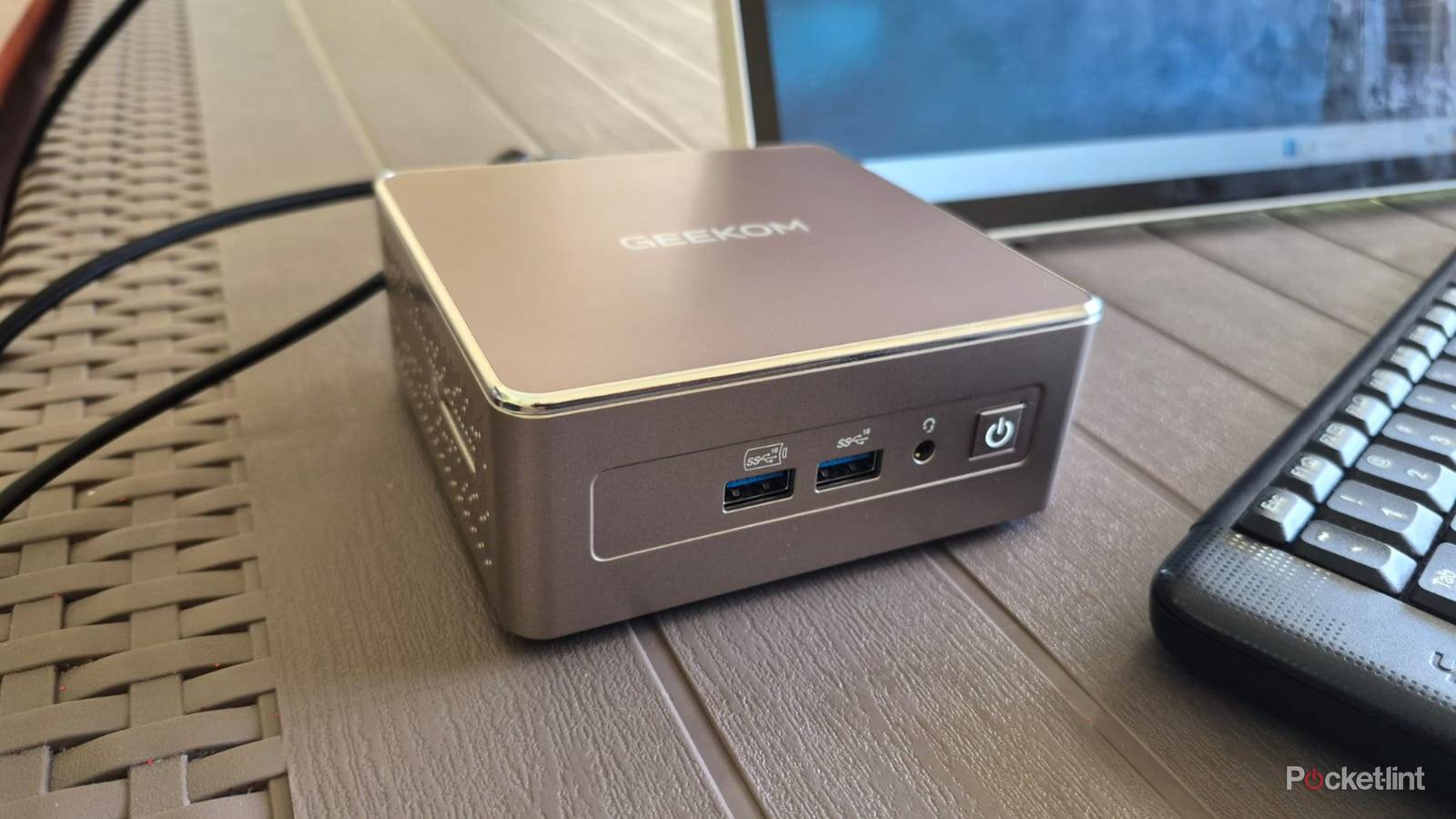
Not too long ago, I suggested that a mini PC could make for an excellent media streamer, and I stand by that. I should acknowledge, however, that the mini form factor is not only unnecessary, but unrealistic for a lot of people. If you’re reading this, you may have already spent a small fortune on a powerful laptop. The inconvenience of repeatedly plugging that into your TV could be a small sacrifice next to spending several hundred dollars more on a box that may never budge from your living room.
With that in mind, I thought it might be worth tackling the idea of streaming from any kind of Windows PC. Done right, you’ll get features you’d never receive from an Apple TV 4K, or even an Nvidia Shield. But you do have to be firmly aware of the specs, tweaks, and accessories involved in creating a smooth experience.
What are the advantages of using a Windows PC with your TV?
Don’t stop at movies

Even more so than with a Mac, the leading benefit is horsepower. The absolute cheapest PCs will be disappointing. Once you step out of that realm, though, you’re going to crush the responsiveness of most dedicated streamers. There shouldn’t be any performance bottlenecks to 4K HDR or Dolby Atmos (more on this later), and even PCs with all-in-one processors can handle tasks that dedicated media streamers can’t, like transcoding videos for media server platforms like Jellyfin and Plex.
Where things really get wild is on PCs with dedicated graphics cards. That opens up access to a huge choice of 3D games from sources like Steam, GOG, and the Epic Games Store. If you choose the right GPU, you’ll not only beat an Apple TV for gaming, but Macs and game consoles, too. Some games are essentially unplayable on anything else. Sure, there is an Xbox version of Flight Simulator 2024 — but you’ll get a much smoother and prettier experience on a well-equipped PC, not to mention access to mods, more peripherals, and VR options. Some pilots legitimately use the PC version to train.
Higher performance enables more than just gaming, naturally. You can run web browsers, productivity tools, and other apps that you’d never find in the TV app stores for Amazon, Apple, Google, or Roku. Speaking of media servers, the right Windows apps will not only let you host and download videos, but rip them from your Blu-ray and DVD collections. The process of building a media library can be daunting — but the result is being able to watch videos without any subscription fees, or even internet access in many situations.
Using a PC also grows your general storage and control options, for instance letting you stash videos on an external SSD, or use a Steam Controller for couch-friendly gaming and UI navigation. There’s no limit on peripherals, really. If you wanted, you could add a mouse, keyboard, webcam, and USB printer, turning your TV into a full-blown workstation.
What you need to know to get started with PC streaming
The battle is won before it begins

Before anything else, perhaps, you might want to settle on what you plan to do on your TV, and match your peripherals accordingly. Most people should stick with a wireless mouse and keyboard combo, whether it’s sitting on a lapboard or coffee table. You’ll be able to control most apps with ease, including games, as well as web-only streaming services. If you expect to focus on gaming, you should probably pick up a gamepad, such as the Steam Controller or something from 8BitDo. The advantage of the former is its trackpads — you might not need a mouse at all if you expect to spend most of your time in media apps or Steam’s Big Picture mode.
When it comes to a PC’s specs, I’d strongly suggest 16GB of RAM or more, and something with a dedicated graphics card, even if gaming is a minor or non-existent interest. That’s because a card can help accelerate video playback and transcoding, or in some cases, open up format support. The Nvidia RTX 5070 in my laptop includes Dolby Vision and HDR10+ among its HDR standards. There’s a possibility that integrated graphics processing will be stuck with HDR10, which uses static metadata instead of something adaptable.
Even with capable hardware, your PC might not support all the media formats it needs out of the box. The only major HDR standard built into Windows 11 is HDR10, and it’s missing Dolby Atmos audio, too. It’s probably going to be up to your PC or GPU maker to enable Dolby Vision or HDR10+. If your PC isn’t licensed for Atmos, you’ll have to download the Dolby Access app from the Microsoft Store, or use playback apps that support passthrough audio, such as VLC.
Your home theater system needs to be properly equipped and configured, too. For a start, make sure you’re using an HDMI 2.1 or 2.2 connection, whether native or via a DisplayPort adapter. The 2.1 standard is required for a variety of technologies, including 4K at 120Hz or higher, and eARC support if you’ve got a compatible speaker and want lossless audio. The most important addition is probably VRR, which keeps refresh rates in sync with framerates. PC framerates can vary wildly, particularly in games. A mismatch between frame and refresh rates will lead to visual artifacts like screen tearing.
I recommend using an ARC or eARC soundbar for audio. You can, if you like, connect speakers or headphones directly to a PC, but none of the other devices linked to your TV will be able to reach them. The two ARC formats are meant to share audio around your system. As a bonus, HDMI-connected speakers support CEC, meaning you can use your regular remote for volume control, and expect them to turn on and off automatically.
One of the greatest issues tends to be readability. As sharp as 4K might be, it often makes text hard to read from the opposite side of the room. One of your first stops in Windows, then, should be Settings -> System -> Scale, or else Settings -> Accessibility -> Text size. On your TV, switch chroma subsampling (under picture/display options) to 4:4:4. Your TV is probably defaulting to 4:2:2 or 4:2:0, which can make text look blurry.
Lastly, if the idea of ripping or downloading video sounds appealing, be cautious about the resolutions and bitrates your files use. Higher numbers are preferable for fidelity, but this inevitably comes at the expense of storage. A 4K Blu-ray rip of The Return of the King (Extended Edition) might occupy 67GB — so you can see how maintaining that quality across an entire movie library would quickly fill up a 1TB drive that’s shared with Windows and its apps. To keep things manageable, it’s best to stream videos when it’s convenient, and keep ripped videos on an external movie drive. That way, your movies can be easily transferred between devices, or plugged directly into your TV if necessary. You also don’t want to find part or all of your collection trapped on an internal drive if things go haywire — something I’ve dealt with personally.


5/5