



I’ve already written a surprising amount about TV settings you need to change for optimal picture quality, and honestly, a lot of them may be obvious to you. Excessive sharpness results in noticeable artifacts, and motion smoothing too often results in the soap opera effect, making expensive blockbusters look like a ’90s episode of General Hospital. Purists, meanwhile, will just jump straight to Filmmaker Mode, and make few if any changes.
Something I learned admittedly late, though — just a couple of years ago — is that by default, a lot of TVs cripple what your HDMI devices are capable of. If you’ve been unimpressed by what a new game console or media streamer is showing onscreen, it may be that you need to flip a single setting on each of your inputs.
The story of HDMI Standard
Trading one user backlash in favor of another

That default setting goes by the name HDMI Standard. If your TV’s interface describes it at all, it’s likely in a vague way. On Google-based TVs, for instance, you’ll see something like “Prioritize compatibility with connected device.” Superficially, that sounds like a good thing you should avoid messing with, since the last thing anyone wants is a peripheral that fails to work at all.
The trouble is that in order to maximize compatibility, Standard reverts to the lowest common denominator. Or denominators, I should say. Resolution may be limited to 1080p instead of 4K, and even if 4K is enabled, it might be saddled with a 30Hz refresh rate. That means that any video over 30 frames per second won’t look as smooth as it should, and will probably experience visual glitches, namely stuttering and screen tearing.
There’s more. Standard may also limit you to 8-bit color with 4:2:0 chroma subsampling. Those terms won’t mean much to the average person — but more bits translate into a wider color palette, and chroma subsampling reduces color information for the sake of data compression. To get the most out of HDR (high dynamic range) formats like Dolby Vision, you need at least 10-bit color, and either 4:2:2 or 4:4:4 subsampling (the latter being zero compression).
The trouble is that in order to maximize compatibility, Standard reverts to the lowest common denominator.
For gaming, it gets worse. Standard doesn’t support ALLM (Auto Low-Latency Mode), which switches an input over to Game Mode automatically. That in turn disables unnecessary image processing that results in input lag, affecting gameplay. Using Standard also blocks VRR (Variable Refresh Rate), which adjusts refresh rates on the fly to match framerates. It’s extremely important for preventing those glitches I mentioned above, given that games rarely stay locked at a consistent framerate, unlike a movie.
Standard can even sabotage your audio. Without it, HDMI speakers are limited to the vanilla ARC (Audio Return Channel) pipeline. That supports surround formats like Dolby Atmos, but without eARC you can’t get lossless fidelity in the form of Dolby TrueHD or DTS-HD Master Audio. That may be a big deal if you’re a cinephile who prefers to watch movies on Blu-ray with a high-end speaker system. On streaming services, compressed quality is the norm.
Why would TV makers set your inputs to Standard if all this is at stake? The answer, I’m guessing, is preventing angry complaints from people connecting older devices like DVD players or cable boxes. These can’t necessarily handle the higher bandwidth these features require, resulting in issues like flickering or total signal loss.
HDMI Enhanced comes to the rescue
What you need to do

The remedy to all of these deficiencies is switching the settings for each HDMI input from Standard to Enhanced. I need to emphasize the point of switching each input — there’s likely no way of changing all your inputs at once. On Google TV devices, you can likely find these options under Settings -> Channels & Inputs -> External Inputs. Look for similar options on other platforms, with the caution that some TV makers like to relabel items in a way that makes things needlessly complicated. Samsung, for example, replaces the term Enhanced with branding like Input Signal Plus or HDMI UHD Color.
There may be different tiers of Enhanced output too, as with the TV pictured in the last section, which has options that my own Google TV (a Hisense U68KM) doesn’t. In that sort of situation, any selection with Dolby Vision (or another HDR standard) is fine for media streamers and Blu-ray players, but any recent game console or PC needs to have VRR active, for the reasons I’ve previously explained.
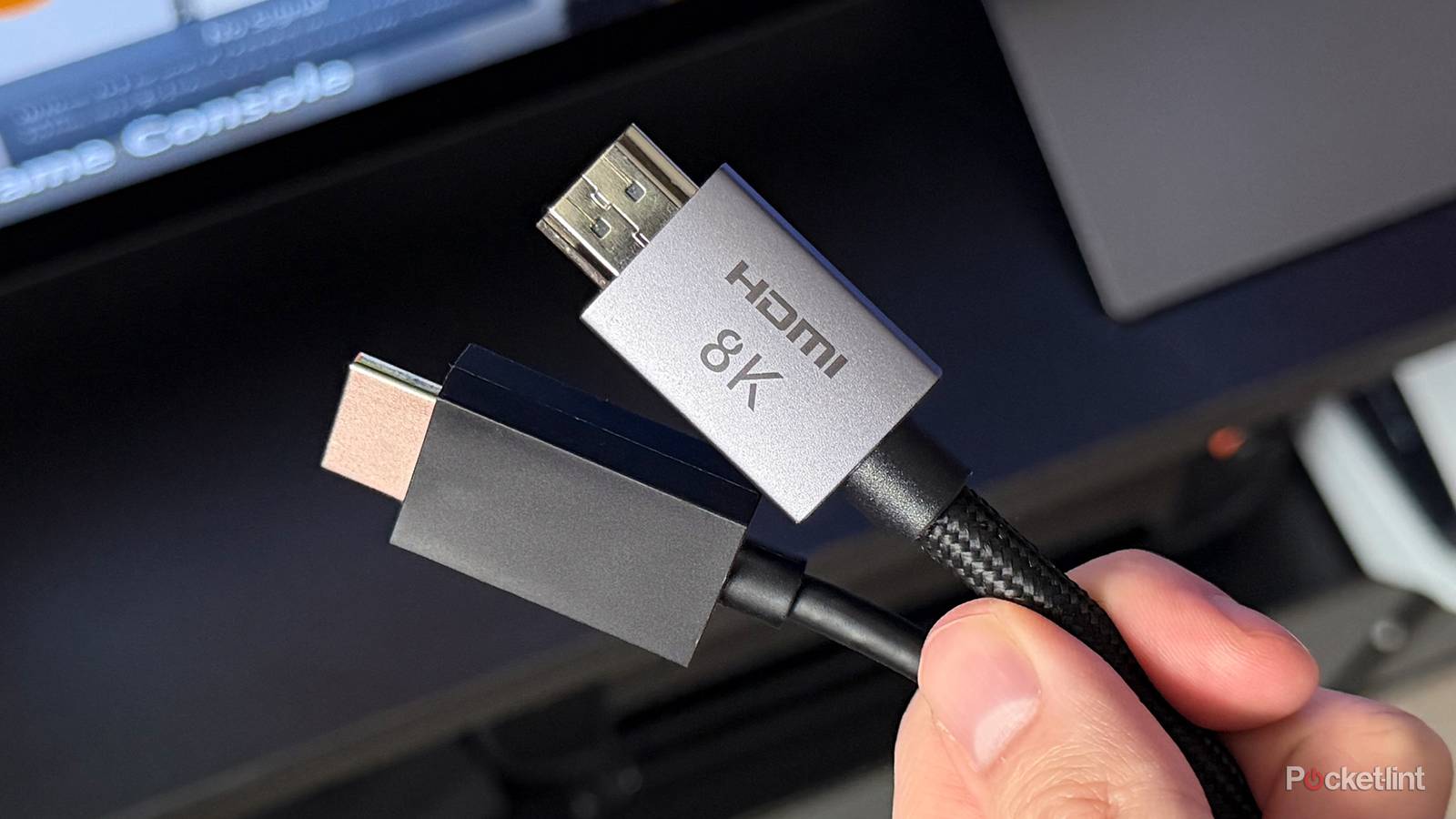
So what is Enhanced actually doing behind the scenes, you ask? Effectively, it’s opening up the bandwidth necessary for features in HDMI 2.0 and 2.1. The former supports up to 18Gbps (gigabits per second), while 2.1 jumps to 48Gbps. It’s that massive discrepancy that reserves technologies like VRR, lossless audio, and 4K/120Hz for the highest tiers of Enhanced when they’re not unified.
Bear in mind that everything in your device chain has to support the same version of HDMI (or better) to exploit its full feature set. If your TV and media streamer support HDMI 2.1, but your cable or receiver is stuck at HDMI 2.0, you’ll only get 2.0-level features. Similarly, you’ll bottleneck yourself if a peripheral is 2.1-ready, but you plug something into a 2.0 port by accident. If your ports aren’t labeled clearly, you can find the necessary info in your paper or online user manuals.
Is that really all I need to change?
Possibly, maybe, not necessarily

Well, probably not — it’s just that without toggling Enhanced, all the rest may be pointless. As you can see, this may unlock a range of HDMI options, including ones that let you select 10-, 12-, or even 16-bit color, and scale between chroma subsampling levels. You may also find similar settings on a console or media streamer, which need to match your TV. If you’ve got no choice but to hook up a PC or console via HDMI 2.0 instead of 2.1, you’ll need to set Game Mode manually instead of relying on ALLM.
Once your inputs are primed, it’s best to spend a few minutes tweaking Picture settings, or at least testing preset Picture Modes that aren’t Dynamic or Vivid.
Naturally, turning Enhanced on doesn’t magically adjust things like brightness, sharpness, or color saturation, either. Once your inputs are primed, it’s best to spend a few minutes tweaking Picture settings, or at least testing preset Picture Modes that aren’t Dynamic or Vivid. Those tend to wreck the appearance of content in the name of drawing your eye to a store’s demo unit. If you really want to see movies and shows the way they were intended, you should do what I suggested in my intro — switch to Filmmaker Mode, then make minor adjustments to compensate for problems specific to your TV. It’s common for that mode to appear too dark to a lot of people, and you’re actually doing directors a favor by ensuring you can see all the detail they meant to include. Just make sure that deep shadows stay black instead of gray.