



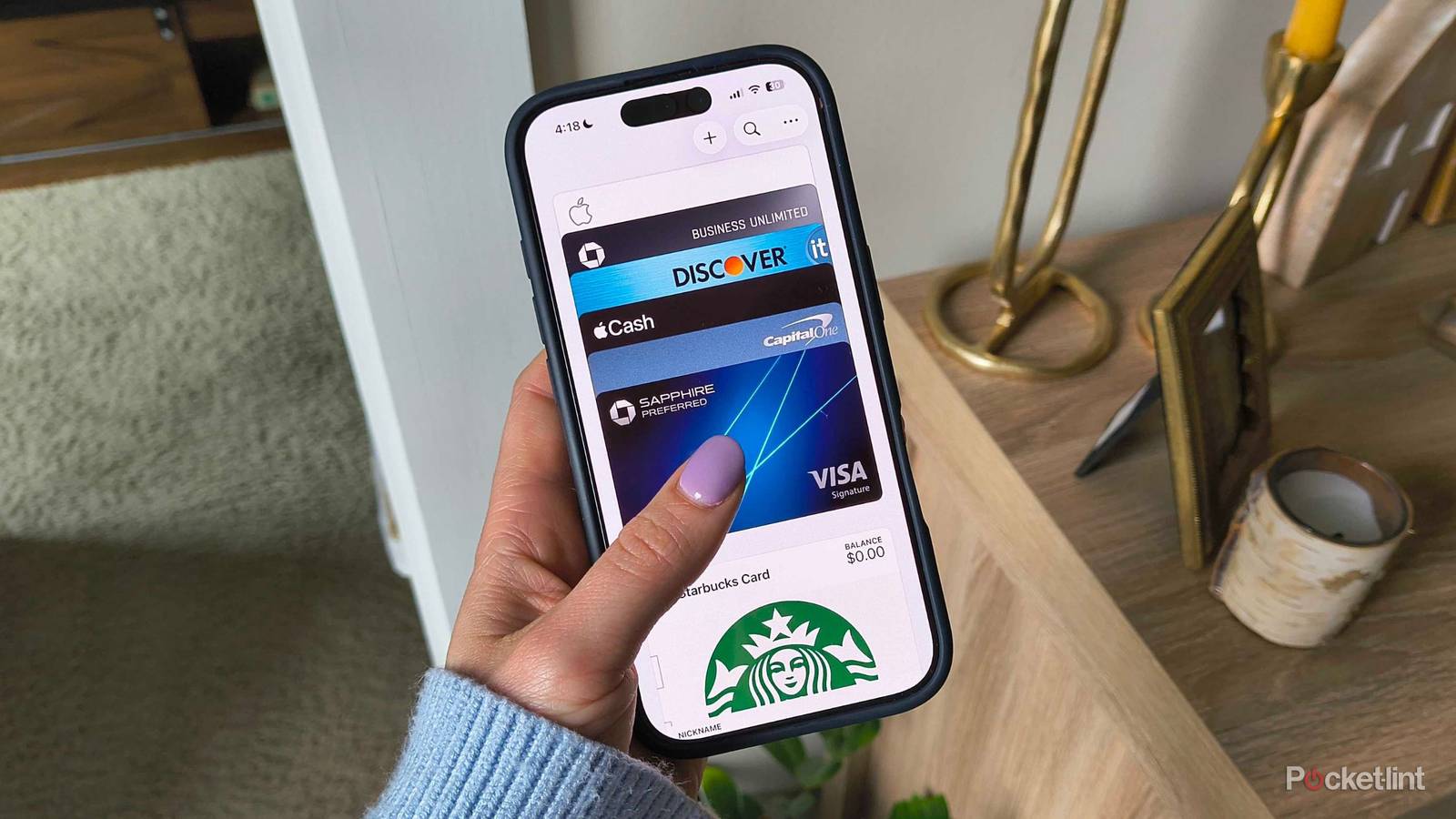
iOS 26 is still bearing fruit months after release. Some upgrades were right in your face (like the controversial Liquid Glass look), but others quietly filled cracks in the system without most users even noticing. One such feature that continues to be useful every day for me is an Apple Wallet upgrade that expands way beyond the simple digital card stack.
Thanks to iOS 26, AutoFill makes entering credit card information feel far friendlier to the entire system, not just Safari. Before, using AutoFill to quickly enter credit card information felt a little clunky, especially if you were outside Safari. I remember inconsistencies like my CVV or expiration dates refusing to fill in. I’d have to get up from my desk, walk over to my purse, and read the card the old-fashioned way, which made the ‘convenience’ of AutoFill rather moot.
Now, AutoFill is systemwide and managed through the Apple Wallet app, not stowed away in Safari. Here’s how that will help you make purchases easier, faster, and ultimately less painless (though I can’t say your bank account will thank you).
How is AutoFill different than before
Apple Wallet was for paying; AutoFill was its own thing

Before, when you made an online purchase in Safari, you could automatically fill out the credit card fields to save time checking out. The problem was that it felt like a Safari-centric feature, as it didn’t play as nice elsewhere. The process felt clunky the moment you left the browser, very unlike the smooth way Passwords or Contact AutoFill worked.
iOS 26 involved an overhaul to drag AutoFill information out of Safari and into Apple Wallet, where Apple Pay was already a buttery process. Now, AutoFill pulls card details straight from Wallet, even when you aren’t using Apple Pay. Wallet now doubles as a means to complete a transaction (like tap-to-pay) and store card information for AutoFill inside of it.
That means no more clunky copy-and-pastes or empty fields when you’re just trying to buy movie tickets. Now, you tap the field > AutoFill > choose the card you want to use > and authenticate with your biometrics, like Face ID. Boom, time for Zootopia 2.
When will I use this?
And how to use the new AutoFill feature

Many websites and online payment portals allow you to use Apple Pay, which is arguably the cleanest and fastest checkout. However, some merchants or smaller organizations don’t support Apple Pay — and sometimes the button is downright buggy. You also might need to paste your card information on the fly, which is what makes this new feature so convenient.
The next time you go to a checkout page and see fields asking for card information, tap into any of the fields. I typically choose the card number first. Then, you’ll see the AutoFill prompt near the keyboard either as a card suggestion above the keys or inside the copy/paste menu as AutoFill > Credit Card. From there, you’ll choose a credit card, confirm with biometric authentication or a passcode, and iOS 26 will do the rest for you.
If it’s not showing up, make sure you have an AutoFill card saved by going to Wallet > More (the three dots) > AutoFill, authenticate, and make sure at least one card is listed. Once you’re in there, you can also add a new card (by using your camera to scan it or entering the information manually) and confirm which cards are available to AutoFill.