


When you spend a lot of time thinking about how you work, and the fundamentals of the hardware and software you use every day, it’s easy to get into your own head. Does my mouse feel slow and annoying to use because of some software setting I’ve messed up? Does it have something to do with how it’s designed? Or have I just been thinking too long about computer interfaces?
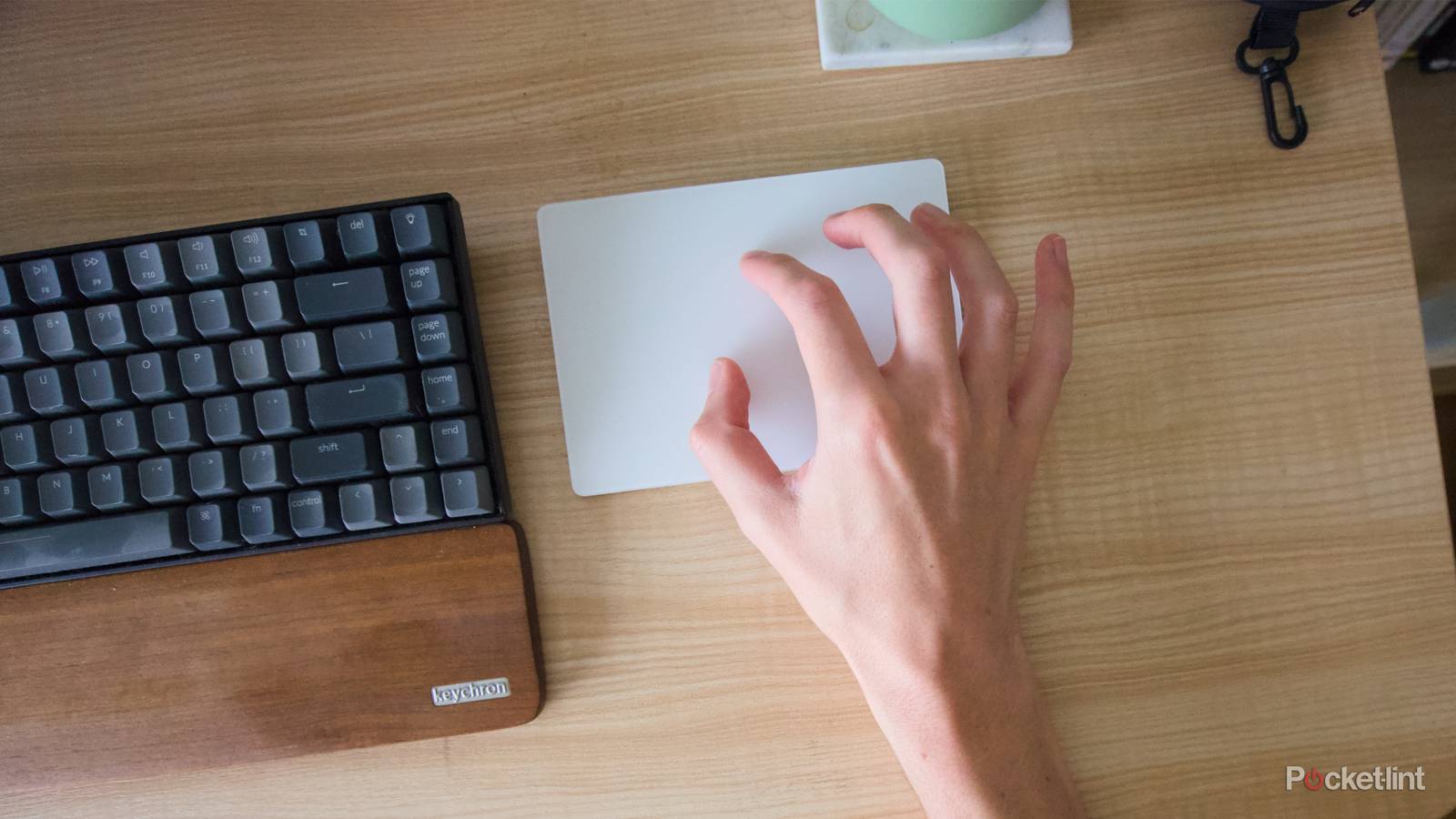
There likely isn’t only one answer, but to get myself out of a similar funk that had me questioning the merits of my Logitech Lift mouse, I decided to try something different. I want the experience of using my laptop — whether connected to a monitor or on my lap — to feel fast and fluid. Even though it’s five or so years old, I never have any problems when I’m using it out and about, but for some reason connected to a mouse and next to a fiddly mouse pad, everything feels wrong. To shake myself out of that feeling, I threw caution to the wind and swapped my ergonomic mouse for Apple’s Magic Trackpad 2. It turns out having a more flexible and gesture-based way to control my computer made all the difference for me, and it just might do the same for you.
A laptop experience for your desktop
Apple’s Magic Trackpad makes navigating its software much more intuitive
As someone who grew up with easy access to one of Apple’s white polycarbonate MacBooks and who’s used a MacBook Pro as their primary computer for years, I’m no stranger to the company’s trackpad wizardry. I don’t think I realized how much I missed using a trackpad, whether it’s the built-in one in Apple’s laptops or a Magic Trackpad, until now, though, after spending several years working with my laptop connected to an external monitor, mechanical keyboard, and Bluetooth mouse.
The Magic Trackpad was originally pitched as a way to get multi-touch gestures on Apple’s desktop Macs when it first launched the accessory in 2010. Two-finger scroll has been part of the company’s laptops for decades, but Apple didn’t call its trackpads “multi-touch” until 2008, the year after the company released the original iPhone. The trackpad would later become haptic — with vibration and pressure sensors that simulate a “click” — with the release of the Magic Trackpad 2 in 2015, but other than the option to “Force Click” things (the Mac version of Force Touch) to pull up contextual information, a preview, or a definition, the basic functionality remained the same.
You can also set up the Magic Trackpad to register a click just by tapping, no extra pressure needed.
Apple’s trackpad works for pointing and clicking, but also supports a variety of gestures. You can use two fingers to scroll, zoom in, zoom out, and move backwards and forwards between pages of an app. With three fingers, you can swipe between full-screen apps or open desktops and swipe up to access Mission Control and view your open apps, swipe down to see all the windows you have open in a given app, or pinch to open your Applications folder. It can seem like a lot to remember, but it quickly becomes second nature. In comparison to my Logitech mouse, which only has a middle mouse button and forward and back buttons, it feels a lot more capable, too.
The Magic Trackpad makes my computer iPhone-like
Touch makes everything a bit more fluid

That the first Magic Trackpad was released after the iPhone is no mistake. As an accessory, it incorporates a lot of the touchscreen intuitiveness of Apple’s phone into the day-to-day task of navigating macOS. That’s most obvious in the inverted scrolling the trackpad uses by default (it can be changed in System Settings), where you push up to scroll down, but any time I’m swiping between open apps or pinching to get to my application folder, the experiences start to feel familiar.
In my opinion, using a trackpad with macOS makes it feel faster, and makes it much easier to get around, especially with your other hand on the keyboard.
In my opinion, using a trackpad with macOS makes it feel faster, and makes it much easier to get around, especially with your other hand on the keyboard. In creative software, like Pixelmator Pro, I also found it really handy to be able to zoom or rotate an image without having to remember a shortcut. That’s a small improvement, but it’s one I think I could really adapt to. It would take me much longer to get the hang of, but it’s also not hard to imagine someone using a Magic Trackpad 2 and a traditional mouse to have access to gestures and fine pointer control at the same time. The only real concern I have are the same ergonomic ones that got me to use Logitech’s mouse in the first place: using this trackpad can’t be good for my wrist long-term.
You might just want a big trackpad
A simple change can make a big difference

In retrospect, there was nothing wrong with my computer’s operating system or any of the accessories I was already using. They’ve gotten me through years of work and non-work, and my budget being what it is, they’ll get me through many more. What returning to the Magic Trackpad 2 did do is make me reconsider my setup and if there are things I already own that could make it more enjoyable and easy to use. For fear of someday developing carpal tunnel, I’m not sure if I’ll stick with my trackpad for the foreseeable future, but it has clarified for me that I really like having the convenience of gestures, and replicating that in some other way is something I really want to explore.
You should try a trackpad for yourself, if, like me, something about your current computer setup seems wrong. But if you already know that a trackpad isn’t your speed, there’s a multitude of USB-C accessories for macOS worth trying. Even Logitech offers its own take on a macro pad that could recreate some of the convenience of trackpad gestures.