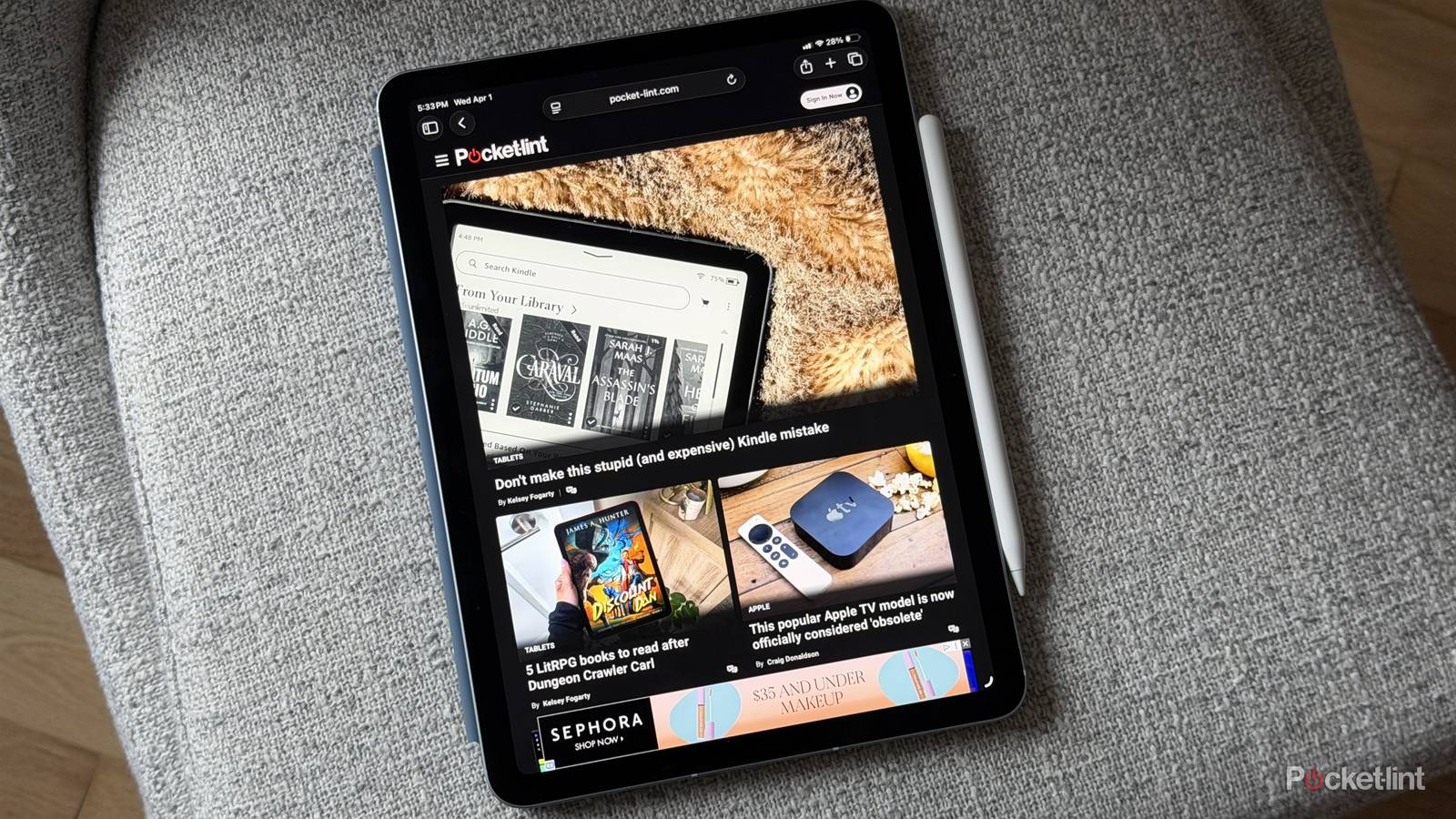
Some of you might not even remember, but when Steve Jobs first introduced the iPad in 2010, one of the biggest points he tried to sell us on was reading. Apple even launched its own bookstore, now Apple Books, using a price-fixing deal with publishers to try to take on Amazon. The antitrust lawsuit it lost wasn’t worth it, in the end. The Kindle Store still reigns supreme, and people buying a then-$599 tablet probably had a laptop replacement in mind.
People do read on iPads though, and that’s more feasible now that there are cheaper and lighter models available. If you play your cards right, you can read a lot of material for free — or at least no more than a subscription to your favorite newspaper or magazine. That might change your life if you’re trying to make the best use of a train or bus commute.
Offline reading modes in your favorite iPad browser
Don’t think you have to stick to Safari

The two biggest iPad browsers — Safari and Chrome — both have offline reading features. Of the two, I’d pick Safari, since its feature is easier to access, and may be more reliable, if some online accounts are to be believed. Chrome is also based on Safari when it’s running on iPadOS, so you’re not necessarily gaining much except for syncing Chrome bookmarks.
There are limitations to all offline reading modes, mind you. You can’t count on them working with paywalled sites, which may actively block such tools in an attempt to prevent piracy. Modes may also be broken if a page requires a login, is built as a JavaScript application, or uses infinite scrolling. When a page is successfully scraped, complex elements like videos aren’t cached at the same time. It’s all about the text.
To save a page in Safari, just tap the Share icon (the square with an up arrow) while you’re still online, then Add to Reading List. You can also tap and hold an unopened link to accomplish the same thing. To see a list of everything you’ve saved, open the app’s sidebar, then tap Reading List. Make sure everything is automatically cached by going to Settings -> Apps -> Safari and turning on Automatically Save Offline under Reading List.
With Chrome, you can stash your reads by tapping More (the triple-dot icon) and Add to Reading List. Go to More -> Reading List when you’re ready to look at something. Chrome should automatically save everything you add, but if you’re worried about the app failing when you need it, it may help to visit the page again before you go offline.
What if you want bulletproof reading options?
A few alternatives

With some pages, you may be able to “print” them as PDF files. PDFs aren’t as convenient as pages saved directly to Safari or Chrome, naturally — but if this works, it’s better than nothing, and you can import PDFs into apps like Apple Books. Be sure to check formatting, since these conversions may not include everything you’re expecting.
To really guarantee offline access, you may need to turn to a dedicated content app. There’s a catch, though — offline functions may be tied to a paid upgrade. In the case of Apple News, you have to pay for a News+ subscription or Apple One Premier, and that might be a bit much if all you want to do is read a few articles occasionally. I’d only spring for the fee if I was expecting to read supported publications several times per week.