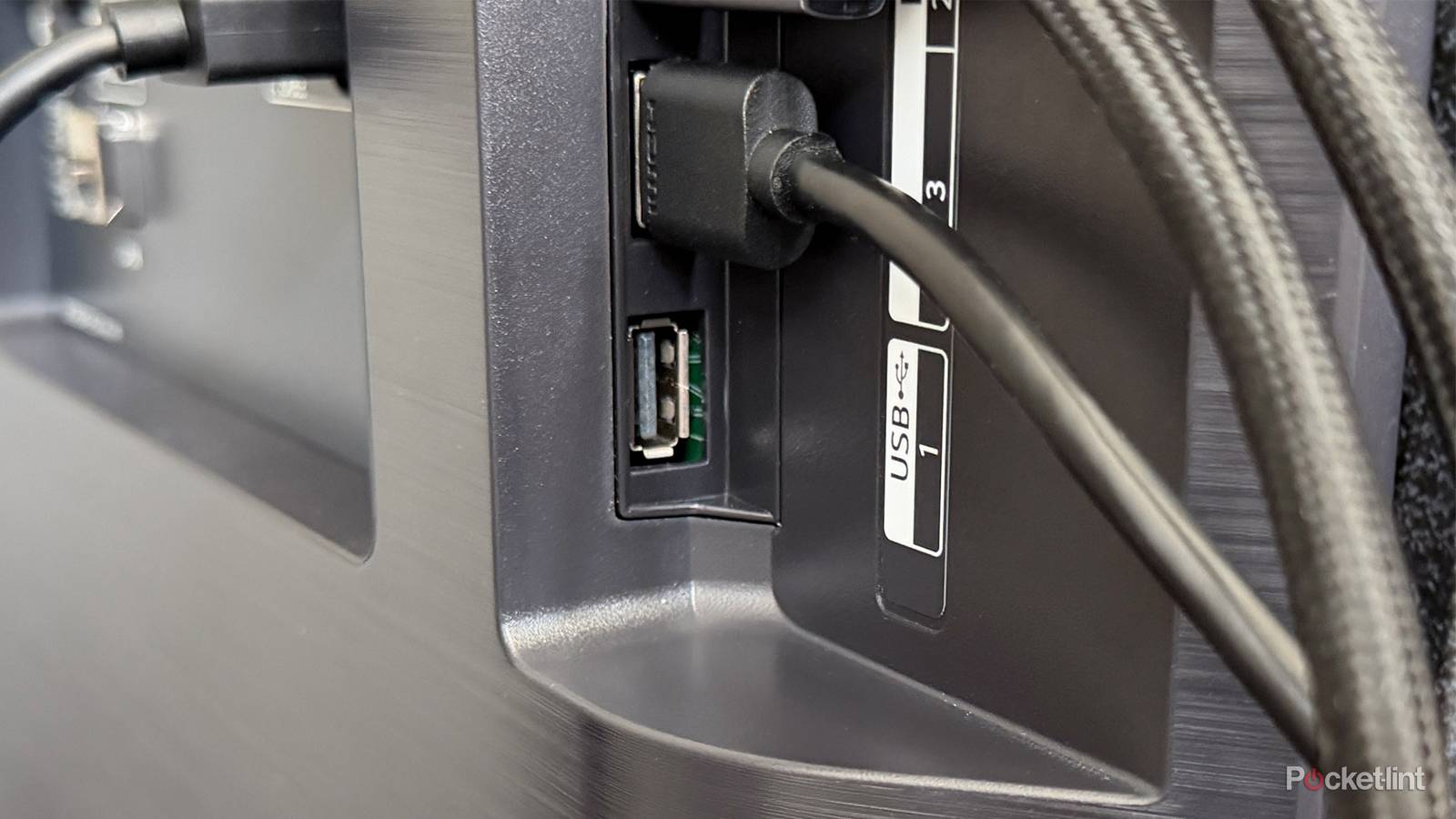
When it comes to the ports on the back of my TV, I’ve always been pretty selective about how I use them. I’ve managed to fill every HDMI port just fine, but the optical and Ethernet ports have stayed empty for years, and for good reason.
As far as the optical port goes, HDMI eARC is a much better option for my soundbar setup because it supports much higher-quality uncompressed audio, so there’s really no reason to go back to optical anymore. And the Ethernet port isn’t much more appealing either. It’s capped at 100 Mbps, and my Wi-Fi comfortably outperforms that, so it ends up being redundant.
That leaves just its USB ports.
Sure, there are plenty of things you can technically do with a TV’s USB port, like charge your phone or power LED lights. But neither of those has ever made much sense to me. Your phone would take forever to charge, since the USB ports on TVs aren’t all that powerful, and lights are usually better off plugged into a proper power outlet.
So, what should you actually use your TV’s USB ports for then?
In my view, there are only three things truly worth plugging into your TV’s USB ports, and each can have a fundamental impact on how you use your TV every day, for the better.
Streaming isn’t the only way to watch movies on your TV

While streaming is undoubtedly the most popular way to watch shows and movies these days, it’s far from the only option. You can still connect a Blu-ray player or gaming console to your TV to watch movies on disc, but one of the oldest tricks in the book is to use your TV’s USB port to connect an external storage device, whether that’s a hard drive, SSD, or flash drive, to watch something.
Most smart TVs come with a built-in media player, and if yours doesn’t, you can usually download one from the TV’s app store. These media players let you browse and play files stored on external drives. So if you have an old hard drive sitting around packed with movies, TV shows, home videos, or photos, you can plug it into your TV’s USB port and enjoy everything right on the big screen.
…it’s worth checking which formats your TV supports before plugging in a drive, otherwise it may not be detected at all.
I’ve done this on my LG TV countless times, and it works surprisingly well. I simply plug my external hard drive into one of the USB ports, and a pop-up appears asking if I want to browse its contents. I select yes, and within seconds, all the media stored on the drive appears on-screen, ready to play with the click of a button.
The main thing to keep in mind is that smart TVs can be picky about drive formats. For example, webOS on my LG TV only recognizes USB drives formatted as FAT32 or NTFS. Because of that, it’s worth checking which formats your TV supports before plugging in a drive, otherwise it may not be detected at all.
Unlock faster Ethernet
An adapter can solve the Ethernet port problem TVs have

One of my biggest complaints about modern smart TVs is how slow their Ethernet ports are. That’s because TV manufacturers continue to ship TVs with 10/100 Ethernet ports, which are capped at 100 Mbps. In many cases, newer Wi-Fi standards like Wi-Fi 6 and Wi-Fi 6E can easily outperform that.
Fortunately, your TV’s USB port offers a surprisingly simple workaround. By plugging a USB-to-Ethernet adapter into your TV, you can bypass the built-in Ethernet port and unlock faster wired speeds.
That said, don’t expect full Gigabit performance. Most TVs still use USB 2.0 ports, which don’t have enough bandwidth to reach 1 Gbps. However, they can still exceed the built-in Ethernet port’s 100 Mbps limit, with many adapters capable of delivering speeds of up to 480 Mbps when connected through USB 2.0.
So if you want the reliability of a wired connection without being held back by your TV’s built-in 100 Mbps Ethernet port, a USB-to-Ethernet adapter is a straightforward and cost-effective solution. For example, you can get a UGREEN USB-to-Ethernet Adapter for $12, and it’s one of the easiest ways to improve your TV’s network performance using only its USB port.

- Brand
-
UGREEN
- Input
-
USB
- Output
-
Ethernet
Connecting streaming devices
The most common use case

The very first thing I ever used my TV’s USB port for was powering a streaming stick.
Some of the most popular streaming sticks on the market can be powered entirely by your TV’s USB port, including the Roku Streaming Stick, Roku Streaming Stick Plus, and, more recently, the new Fire TV Stick HD. That said, not every streaming device is designed to be powered this way.
Some streaming devices that require wall outlets will still turn on when plugged into your TV’s USB port, but unless the manufacturer explicitly says it’s supported, it’s better to stick with the included wall adapter. Otherwise, you can run into issues where the device doesn’t get enough power, leading to sluggish performance or stability problems.
In my own setup, I’ve used both a Roku Streaming Stick Plus and the new Fire TV Stick HD powered directly from my TV’s USB port, and they’ve worked without any issues. So if you’re looking to move away from your TV’s built-in OS in favor of something faster, smoother, and more reliable, a streaming stick is a great option, regardless of whether it runs on USB power or needs a wall outlet.