



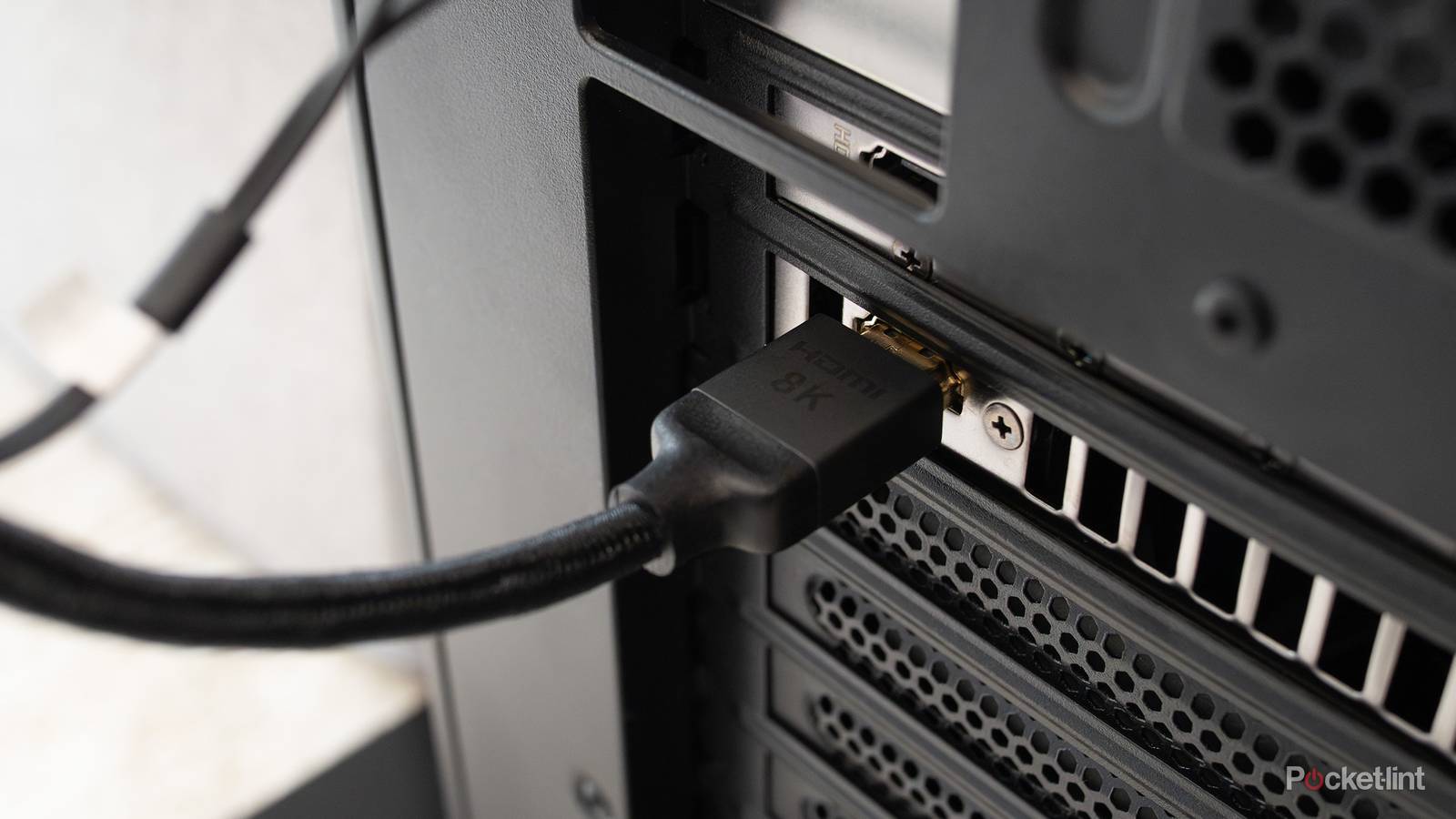
Cables can be confusing enough on a PC without bringing video into the picture, no pun intended. USB-C was supposed to help straighten things out, but on top of there being several different data rates, it can often be hard to tell if a port will charge at 5W, 100W, or 240W. On top of that, there are multiple varieties of Thunderbolt to consider, two of them riding on USB 4.
One thing’s for sure, though — when you’re hooking up an external display, you should always prefer DisplayPort (including its USB and Thunderbolt forms) over HDMI. You won’t necessarily have a terrible time with HDMI, but you may be undermining what your PC is capable of, especially in a workstation setup. There aren’t many circumstances in which HDMI is preferable, and I’ll get to those towards the end of this piece.
What makes DisplayPort better than HDMI?
Fit for purpose

Physically, the two standards’ typical connectors look extremely similar, to the point that you may have accidentally mixed them up at some point. HDMI has 19 pins instead of DisplayPort’s 20, but the only way to tell the difference at a glance is that DisplayPort has one corner cut off instead of HDMI’s two.
Where the real difference lies is bandwidth. The two most common versions of HDMI, 2.0 and 2.1, top out at 18 and 48Gbps (gigabits per second) respectively. Their DisplayPort equivalents are 1.4 and 2.1, which raise bandwidth to 32.4 and a massive 80Gbps. HDMI 2.2 does offer 96Gbps (more on that spec later), but having only emerged in 2025, it’s probably not on any of the hardware you own.

Quiz
HDMI Ports & History
Trivia Challenge
Think you know your HDMI versions from your ARC from your eARC — put your display tech knowledge to the ultimate test!
HistoryVersionsFeaturesHardwareStandards
In what year was the first HDMI specification (version 1.0) officially released?
Correct! HDMI 1.0 was released in December 2002 and became commercially available in 2003. It was developed by a consortium of electronics manufacturers including Sony, Panasonic, and Philips as a successor to analog standards.
Not quite — HDMI 1.0 arrived in late 2002 and hit the market in 2003. It was a landmark moment for home entertainment, replacing bulky analog connections with a single digital cable capable of carrying both audio and video.
Which founding companies were part of the original HDMI consortium that developed the standard?
Correct! The original HDMI founders included Hitachi, Panasonic, Philips, Silicon Image, Sony, Thomson, and Toshiba. Together they created a royalty-bearing standard that would go on to dominate home AV connectivity worldwide.
Not quite. The founding seven companies were Hitachi, Panasonic, Philips, Silicon Image, Sony, Thomson, and Toshiba. Notably, Apple was not an early backer, and Samsung joined later as a major adopter rather than a founding member.
Which HDMI version first introduced support for 4K video at 60 frames per second?
Correct! HDMI 2.0, released in 2013, boosted bandwidth to 18 Gbps and introduced 4K resolution at 60Hz. It was a crucial upgrade for the emerging 4K TV market and also added support for 32 audio channels.
Not quite — it was HDMI 2.0, released in 2013, that first enabled 4K at 60fps. HDMI 1.4 could handle 4K but only at a sluggish 30fps, which was fine for still images but not smooth enough for video or gaming.
What does the ‘ARC’ in HDMI ARC stand for?
Correct! ARC stands for Audio Return Channel, introduced in HDMI 1.4. It allows a TV to send audio back down the HDMI cable to a soundbar or AV receiver, eliminating the need for a separate optical audio cable.
Not quite — ARC stands for Audio Return Channel. Introduced with HDMI 1.4, it was a clever addition that lets your TV send audio upstream to an external speaker system using the same cable already carrying video to the TV.
What is the maximum bandwidth supported by the HDMI 2.1 specification?
Correct! HDMI 2.1 supports up to 48 Gbps of bandwidth, a massive leap from HDMI 2.0’s 18 Gbps. This allows it to handle 8K at 60fps, 4K at 120fps, and features like Variable Refresh Rate (VRR) for gaming.
Not quite — HDMI 2.1 delivers a whopping 48 Gbps of bandwidth. That’s nearly triple the 18 Gbps of HDMI 2.0 and enables next-generation features like 8K resolution, 4K/120Hz gaming, and Dynamic HDR all over a single cable.
HDMI was designed as a digital successor to which widely used analog video interface?
Correct! HDMI was conceived as a successor to component video, the analog standard that dominated home theater setups in the late 1990s and early 2000s. HDMI combined audio and video into one cable, something component video could never do.
Not quite — HDMI was designed to replace component video (YPbPr), the three-cable analog system common in home theaters. While DVI is a digital cousin of HDMI and shares much of its underlying technology, component video was the primary analog standard HDMI aimed to supersede.
Which HDMI version was the first to support Ethernet data sharing over the HDMI cable?
Correct! HDMI 1.4, released in 2009, introduced the HDMI Ethernet Channel (HEC), which allows a 100 Mbps network connection to be shared between devices over the same HDMI cable. It was a forward-thinking feature, though rarely implemented by manufacturers.
Not quite — HDMI 1.4 was the first version to include the HDMI Ethernet Channel when it launched in 2009. In theory it lets devices share a broadband connection without extra cables, though in practice very few products ever took advantage of this feature.
What key improvement does eARC offer over the original ARC in HDMI 2.1?
Correct! Enhanced Audio Return Channel (eARC) introduced in HDMI 2.1 supports high-bandwidth, lossless audio formats including Dolby TrueHD, DTS:X, and object-based formats like Dolby Atmos. Original ARC was limited to compressed formats like Dolby Digital 5.1.
Not quite — the big leap with eARC is its support for uncompressed, lossless audio and object-based formats like Dolby Atmos and DTS:X. Standard ARC could only pass compressed audio, meaning audiophiles with high-end soundbars were missing out until eARC arrived with HDMI 2.1.
Your Score
/ 8
Thanks for playing!
All of these formats support HDR (high dynamic range), and all but HDMI 2.0 support Display Stream Compression (DSC) to spike refresh rates when your graphics card is compatible. But right out of the gate, DisplayPort’s extra bandwidth gives it the edge in this department. Using 10-bit color — the minimum for HDR — DisplayPort 1.4 can hit 97Hz at 4K resolution, whereas HDMI 2.0 is stuck at 55Hz. HDMI 2.1 can manage 153Hz, but that’s almost pathetic next to DisplayPort 2.1’s 267Hz, which is more than anyone could possibly need.
There are also two features exclusive to DisplayPort that you may want to exploit, namely Multi-Stream Transport, and Alt Mode over USB-C and Thunderbolt cables.
Refresh rate matters because it dictates whether your screen can keep up with the framerates it’s being tasked with. Many games and operating systems target framerates of 60fps or higher, which means that HDMI 2.0 may not be able to keep up, at least at 4K. This can translate into visual artifacts like tearing and stuttering.
On top of this, only DisplayPort and HDMI 2.1 (or later) support VRR, short for variable refresh rate sync. This can be just as important for avoiding artifacts, since any mismatch between framerate and refresh rate will cause problems. In fact Nvidia’s related G-Sync technology won’t necessarily work over HDMI with some monitors, so there may be no choice but to use DisplayPort if you want to take full advantage of that new GeForce RTX card.
There are also two features exclusive to DisplayPort that you may want to exploit, the first being Multi-Stream Transport (MST). This lets you daisy-chain multiple DisplayPort-compatible monitors, instead of having to use a hub, dock, or multiple ports on your GPU. You’re still capped by the source port’s peak bandwidth, but it can make for a much tidier desktop setup.
DisplayPort’s Alt Mode, meanwhile, allows video signals to be carried over USB-C and Thunderbolt cables. That can potentially let you connect a monitor when you don’t have a DisplayPort cable handy, and in fact, some monitors are explicitly designed around this technology. If you’ve got a laptop port with both Alt Mode and enough power delivery, all you may need is a single cable to charge and extend your desktop. Gaming laptops are usually excluded from this perk, unfortunately, since USB-C Power Delivery tops out at 240W.
Are there any downsides to DisplayPort?
Not many, but they matter

There’s only one problem to speak of, really, and that’s device compatibility. You’ll pretty much only find DisplayPort on monitors and computers, which has a few implications.
The obvious one is that it can’t connect natively to a TV, at least in the vast majority of cases. You’ll need some form of DisplayPort-, Thunderbolt-, or USB-to-HDMI adapter, at which point you should probably use your computer’s HDMI port if it has one. Usually, this isn’t a big deal — but with some 4K TVs now sporting refresh rates and response times good enough for gaming or office work, it’s kind of a shame that DisplayPort isn’t de facto on new TVs.
You can’t feed native DisplayPort through a soundbar or a receiver, or take advantage of ARC and eARC, which means HDMI is the backbone of some unique setups.
By extension, DisplayPort won’t work with some of the peripherals HDMI does, at least not in the same way. You can’t feed native DisplayPort through a soundbar or a receiver, or take advantage of ARC and eARC, which means HDMI is the backbone of some unique setups. It might almost be worth trading a monitor for a TV just to use a Sonos Arc for sound instead of conventional PC speakers. You’d need to connect the Arc and your PC to separate HDMI ports on the TV, but that would be a minor hurdle as long as you had the room for such a gigantic speaker.
Is it really a crime to use HDMI for a monitor?
Hopefully, an increasingly trivial debate

No, of course not. It’s just that for it to achieve parity with DisplayPort, you’re going to need HDMI 2.1 on your computer, monitor, and cable, which can be a tough ask sometimes. HDMI 2.0 has had some surprising staying power, despite 2.1 coming along in 2017, and bringing serious benefits not just in terms of refresh rates but support for eARC, dynamic HDR, and lossless Dolby Atmos. Blame device makers wanting to skimp on production costs.
Apart from MST, there may not be much incentive to push for a DisplayPort 2.2 standard, which doesn’t even seem to be on the horizon.
As I mentioned earlier, DisplayPort offers the potential for a streamlined desk setup that’s hard to ignore. I’m not using a multi-monitor setup myself at the moment — but I’d absolutely love to, given that even on a 16-inch laptop, there’s just not enough screen space to write and read research material simultaneously, never mind keep Slack and Spotify windows visible. I’d automatically gravitate towards a daisy-chained DisplayPort setup instead of something that would clutter up my already limited desk space.
I’m curious about how HDMI 2.2 will affect things going forward. 96Gbps is a colossal amount of bandwidth, enough for fully uncompressed 4K at 240Hz, or 8K at 60Hz. Apart from MST, there may not be much incentive to push for a DisplayPort 2.2 standard, which doesn’t even seem to be on the horizon as far as I can tell. Once computer and GPU makers get into gear with the latest HDMI format, that may be the choice for raw power, at least for a little while.