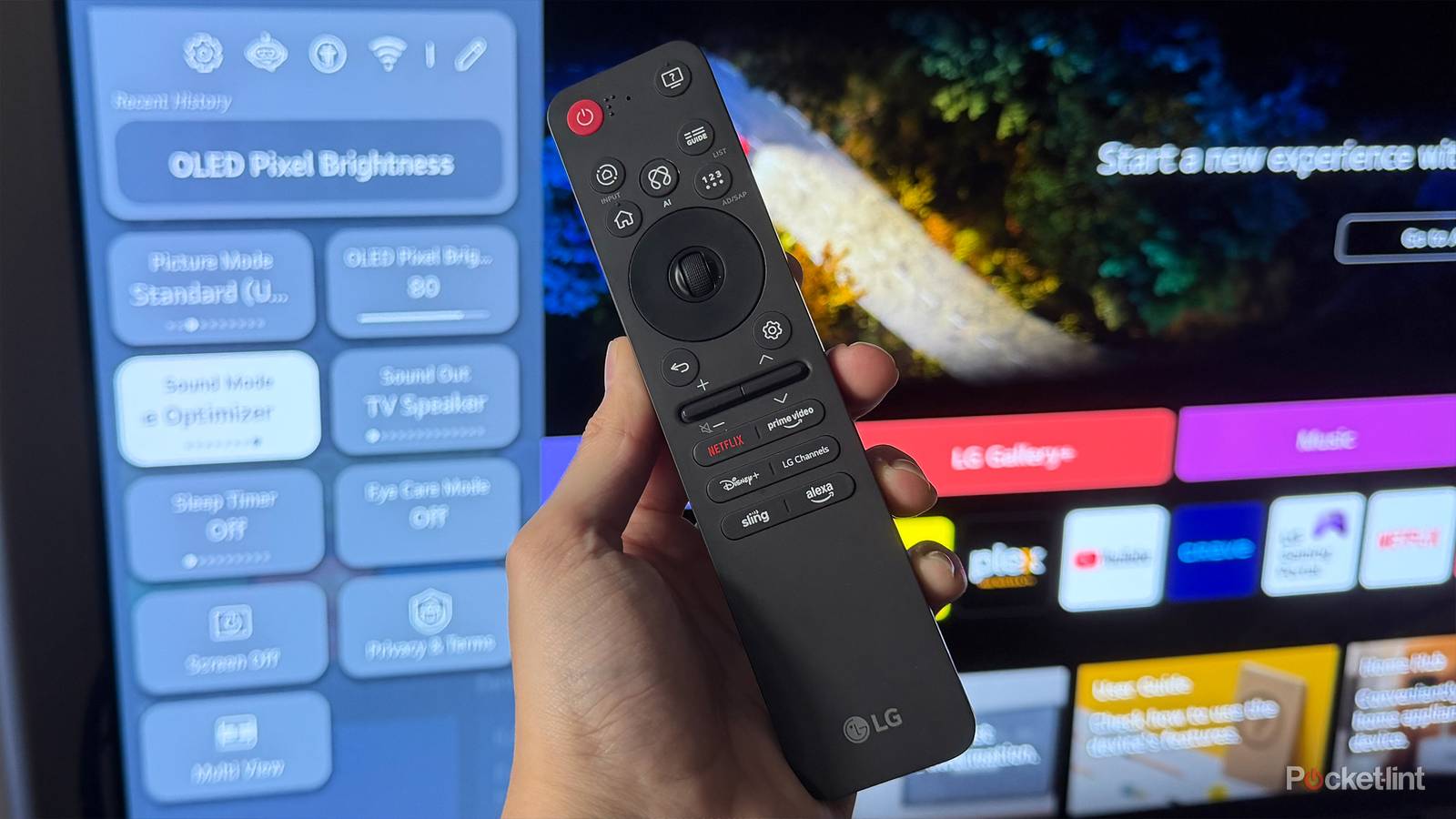
When I first unboxed my LG C5 TV last year, I was pretty blown away by it. As my first OLED TV, the picture quality immediately stood out, with vibrant colors, deep blacks, and rich contrast unlike anything I’d experienced before. Whether I was streaming, gaming, or watching 4K Blu-rays, it was hard not to be impressed. And since I picked it up on Black Friday at a hefty discount, I was extremely happy with it.
That said, there was one thing about the TV that left me scratching my head at first: the Magic Remote. It was the first TV remote I’d used without number buttons (aside from Roku and Fire TV remotes), and the first with a built-in gyro sensor that lets you point and click around the screen with a pointer, similar to a Wii remote.
I’ll be honest, I wasn’t particularly impressed with it at first, as I found it a bit finicky. But the more I used it — and the more shortcuts I discovered — the more it grew on me. Over time, I realized it could make navigating my LG TV much quicker and less frustrating. Whether you’re trying to jump straight into the full settings menu, switch inputs, or launch apps faster, there are genuinely useful tricks you can use with this remote if you know which buttons to press and how to press them.
With that in mind, here are some simple Magic Remote shortcuts I’ve been using that have made using my LG TV smoother and more convenient — and hopefully they’ll do the same for you.
Quick Settings doesn’t have everything you need
The first shortcut I want to highlight lets you jump straight into the full settings menu, which is handy if you’re tweaking your TV’s picture mode, adjusting brightness, pairing Bluetooth audio devices, or changing other settings.
On the LG Magic Remote, pressing the Settings button doesn’t actually open the full settings menu. Instead, it brings up the Quick Settings panel on the left side of the screen, giving you access to a handful of frequently used options. To reach the full settings menu, where every option is available, you then have to select the Settings option again. It’s not a huge inconvenience, but it does feel like an unnecessary extra step when all you want to do is access the full menu.
Fortunately, there’s a much faster way to access all the settings on your LG TV. Instead of tapping the Settings button on your Magic Remote (the gear icon), press and hold it for a few seconds. This opens the full settings menu immediately, giving you direct access to Picture, Sound, General, Support, and all the other settings on your TV.
So if you’re tired of seeing the Quick Settings panel pop up every time you press the Settings button, try holding it down instead. It’s a simple shortcut, but one that can save you a surprising number of clicks over time.
Switch HDMI inputs faster
You can avoid LG’s Home Hub altogether
This next shortcut is the one I use most because it lets you switch inputs without opening LG’s larger input menu.
By default, pressing the Input button on the Magic Remote opens LG’s Home Hub app, where you can change inputs, manage smart home devices, control casting devices, and handle Bluetooth audio connections. It’s a useful menu, but I’ve found it can take a few seconds to fully load, which is a little frustrating when all I’m trying to do is switch between HDMI devices.
That’s where this shortcut comes in handy. Instead of tapping the Input button, press and hold it. Doing so opens a compact input menu at the bottom of the screen, letting you quickly switch between connected HDMI devices without opening the Home Hub.
I use this shortcut constantly when jumping between my Switch 2, PS5, Fire TV Stick, and Roku. Like the settings shortcut, it only saves a few seconds at a time, but those seconds add up over time, and I find it just makes the whole experience of using my LG TV much smoother.
The back button has two useful purposes
Switch apps and exit apps faster
The last shortcut I want to highlight involves the back button. Most people use it simply to return to a previous menu in an app, but it actually has a couple of extra tricks that make navigating your LG TV much easier.
The first shortcut comes into play when you’re inside an app. Instead of repeatedly pressing the back button to work your way out of menus and exit an app, just press and hold it instead. Doing so immediately exits the app you’re using and takes you straight back to your LG TV’s home screen. So, if you’re finished watching something and want to move on swiftly, it’s a handy shortcut to know.
The second back button shortcut is the one I use more often. When you’re already on the home screen, pressing the back button opens a menu at the bottom of the screen called Recent Lists. This menu shows the apps and HDMI inputs you’ve used recently, letting you quickly jump back to them or close them if needed.
It’s especially useful if you’re constantly switching between streaming apps and connected devices. Whether you’re jumping back into Netflix, returning to your PS5, or switching to a streaming stick you were using earlier, the Recent Lists menu is one of the fastest ways to get there — and all it takes is a single press of the back button from the home screen.
All in all, while these remote shortcuts are pretty simple, they can save you a surprising amount of time when using your LG TV every day. Since I started using them, I’ve found myself spending a lot less time fighting with menus and being a lot less frustrated with my LG TV overall.

- Display Size
-
42, 48, 55, 65, 77, or 83 inches
- Operating System
-
webOS
- Display Type
-
OLED