Much like Apple CarPlay, Android Auto is a useful tool that transforms your smartphone into an in-vehicle infotainment hub when out on the road. For the most part, the feature’s utility is confined to when you’re behind the wheel, with no official method for interacting with the purpose-built interface when away from your car.
Interestingly, there are several third-party applications that can brute-force Android Auto’s dashboard directly onto any modern Android smartphone. This can be performed either through the use of a wired USB connection, or wirelessly using Wi-Fi Direct and other cord-free communication protocols.
Here’s the lowdown on how to set up Android Auto without a motor vehicle serving as an intermediary, as well as why you might want to get such a system up and running to begin with.

- Developer
-
Google
- Subscription cost
-
No
Android Auto is a platform that works with Android smartphones. It integrates into your car’s infotainment system to display compatible software applications on your screen.
How to use Android Auto without a car
Third-party software to the rescue
The Google Play Store hosts a variety of purpose-built applications that can facilitate the Android Auto experience sans-vehicle, including the popular Headunit Reloaded. In my case, I went with Headunit Revived, which provides similar functionality.
To use Android Auto without a car via Headunit Revived, follow these steps:
- Download and install the Headunit Revived application on your target Android device (the one you want to use as a dedicated Android Auto display).
- Download and install the WiFi Helper companion application onto a secondary Android device (the one you’ll use to facilitate the connection process).
- Within Headunit Revived, navigate to Settings > Wireless Mode > Helper Connection Strategy and select WiFi Direct (P2P), followed by Save.
- Next, within WiFi Helper, navigate to Settings > Connection Mode and select Wi-Fi Direct.
- Continuing with WiFi Helper, go to Settings > Wi-Fi Direct Device Name(s) and enter the same name that appears near the top of the Headunit Revived application.
- Finally, tap on the Start Android Auto button within WiFi Helper, as well as the WiFi button within Headunit Revived.
Once everything is set up, Android Auto’s interface should appear on-screen on your target Android phone or tablet. The interface will function as its own dedicated application, which can be left and returned to through Android’s standard multitasking carousel.
It’s worth noting that to get everything properly up and running, you’ll have to accept various application permissions across both Headunit Revived and WiFi Helper. These system-level permissions are required for the two applications to work their collective magic and to get Android Auto fully running without a vehicle.
A surprisingly competent home office dashboard
Excellent for controlling media and the like

Now, you may be wondering why exactly you’d want to use Android Auto outside the confines of a car’s built-in dashboard display. This is a fair question, and it’s one I initially had as well, but once I began to actually use Android Auto at home, the answer became obvious.
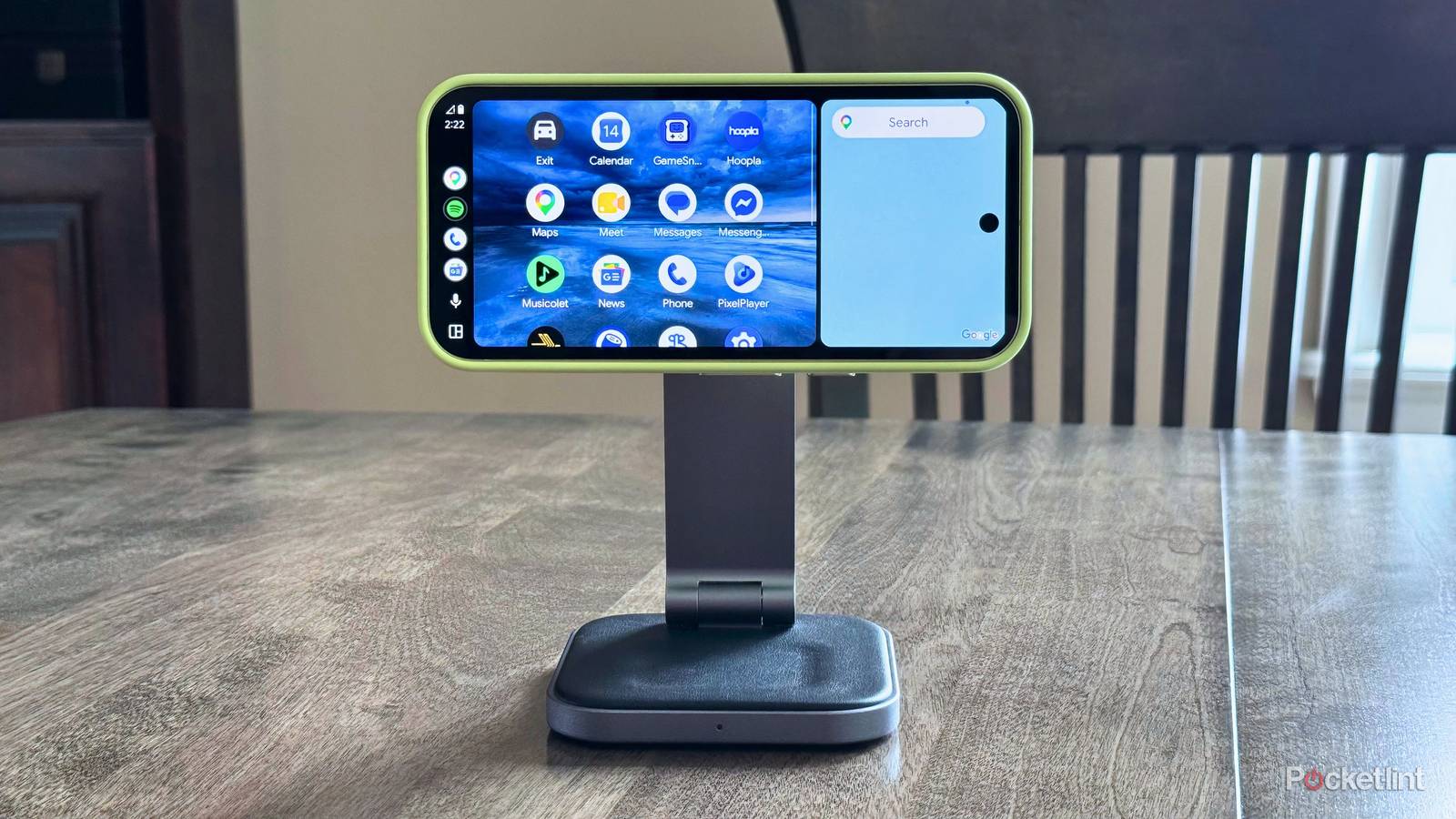
You see, the Android Auto interface works surprisingly well as a quick-access dashboard when stationed at a desk or in an office setting. Music controls, dialer buttons, and home screen icons are all big and convenient to press, and glanceability is overall on point. Plus, the system works excellently with Gemini voice commands, again with easy-to-glance pop-ups and user interface elements throughout.
…the Android Auto interface works surprisingly well as a quick-access dashboard.
Of course, not everything is perfect right out of the gate. I was able to lock in display density and orientation using the built-in tools within Headunit Revived, but the rounded corners of my Google Pixel 10 don’t play nice with the rounded edges of Android Auto. As such, the edges are cut off in a way that isn’t exactly visually pleasing.
Additionally, there’s no way to remove maps (whether it be Google Maps, Waze, or otherwise) from the forefront of the Android Auto experience. In a car, this makes total sense as you’d want GPS information front-and-center, but sitting stationary at a desk, I have little use for the feature and would prefer to have the real estate taken up by another application.
A magnetic stand will come in handy
Transforming your old Android phone into a proper desktop dashboard

Even with these gripes in mind, I’m enjoying my time with Android Auto outside the context of my vehicle. Far from being a simple proof of concept, the setup genuinely functions as a useful companion dashboard when sitting at my desk, streamlining my access to music, my phone dialer, and other essential functions.
Of course, to best take advantage of Android Auto at home, I’d suggest investing in a stand or other accessory to prop up your target phone or tablet. Personally, I default to Satechi’s 2-in-1 Wireless Charging Stand, which pairs well with my Pixel 10 and its Pixelsnap array of rear magnets, but any similar stand should get the job done.
…I’d suggest investing in a stand or other accessory to prop up your target phone or tablet.
When propped up on a stand, my Pixel 10 running Android Auto brilliantly complements the iMac sitting directly next to it on my desk. There’s less context switching as I no longer need to juggle as many windows on macOS — Android Auto assumes menial task duties instead.
Needing to rely on a separate device with WiFi Helper installed to get the ball rolling does add a bit of extra friction to the experience, to be sure, but it’s a small price to pay for what is essentially a full-blown desktop dashboard sitting right by my side at any and all times.