


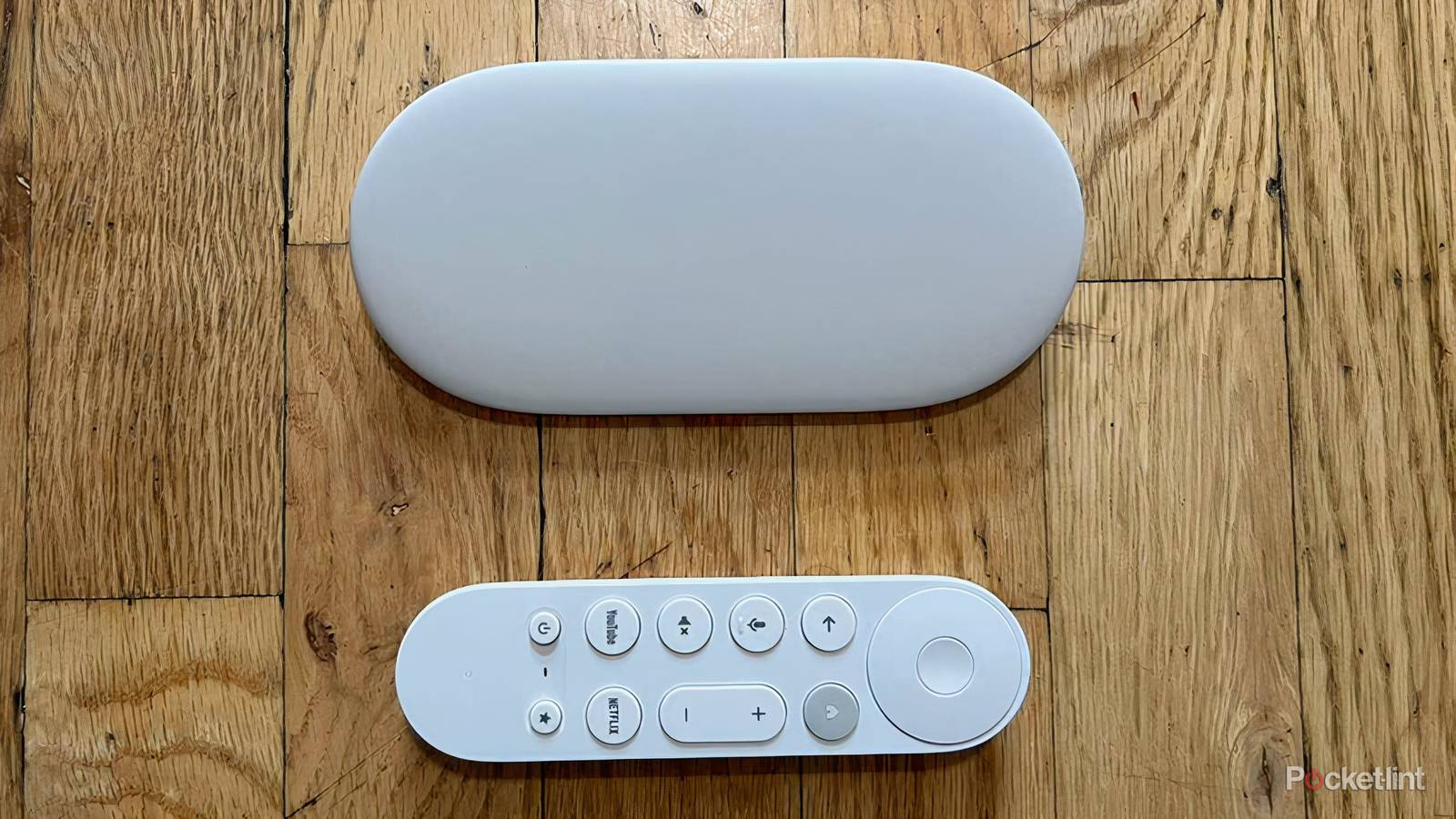
Having previously owned every streaming device Google has put out, I’d naturally recommend the Google TV Streamer to most people looking for a new streamer, but there’s also plenty I’d advise them to do once it’s set up, too. As always, there’s a lot to love, like a genuinely useful Google TV interface, Gemini handling the heavy lifting in search, and a $100 price (often $80 on sale) that doesn’t feel like a compromise.
But I won’t pretend it’s flawless. Google has been characteristically slow with updates (the last major one before June 2026 landed back in October 2025), and when the new build finally arrived, the notes proudly mentioned Thread 1.4 and a fresh security patch, then waved vaguely at “other bug fixes and performance improvements.” Which bugs? Google didn’t say.
Take the audio-sync problem owners have reported for over a year on these devices, where the sound drifts a second or so ahead of the picture. A fix was promised, but whether the June build delivered it, the notes won’t tell you. So, users who have already learned workarounds for these annoyances will, as far as we can tell, have to dig in on their own.
If you’ve also encountered issues with your Google TV Streamer, you’re in the right place. These are the issues I think are worth knowing about, and how to get around each one without too much work.
The random reboots aren’t a hardware fault
A default display setting is doing this, and one toggle stops it
If the Streamer drops to a black screen mid-show and then reloads what you were watching, it’s natural to assume you’ve got a faulty unit, and plenty of owners have done exactly that before landing on the real cause. On Google’s own support forum, the reboots were traced not to the hardware but to a display setting: Preferred Dynamic Range, tucked under Advanced Display Settings (Settings > Display & Sound > Advanced Display Settings > Dynamic Range Preference), which ships set to “Match content dynamic range.”
Switching it from the default did indeed stop the crashing for many people, and since it costs nothing to change, I’d try it before you even think about a replacement.
The interface gets sluggish over time
A monthly cache clear, and some honesty about 32GB of storage

The Streamer feels superfast when it’s fresh out of the box, but after a few months of apps installed and caches built up, like any tech, it starts to drag. Menus start hesitating, and apps suddenly take a beat longer to open. The fix is pretty boring, but reliable: clear the cache.
The setting is a bit hidden under Settings > System > Storage > Internal shared storage > Cached data (or, for individual apps, under Settings > Apps). There’s no downside to having a clear-out — you stay logged into everything, and the box usually feels much zippier afterward. I do this with my own device about once a month, the same way you’d descale a kettle.
If that doesn’t help, storage is probably the culprit. The Streamer tops out at 32GB, and Google TV’s own footprint claims a good chunk of it before you’ve added a single app, so the space it needs to run smoothly disappears faster than you’d think. If you, like me, collect random apps that you open maybe once or twice before forgetting all about them, I’d go through and delete any that are gathering dust.
There’s also an Apps Only Mode buried in the account settings that strips the home screen back and takes some load off the system, if you’d rather not play babysitter to your storage.
Apps still freeze and crash
A restart handles most of it, updates handle the rest

Every so often, an app locks up mid-stream or refuses to open at all. Sometimes it’s the app’s fault, sometimes it’s the OS, but the result is the same: a black screen and the same sense of frustration. A restart clears most of it, and Settings > System > Restart is quicker than reaching behind the TV to pull the plug (though the unplug-and-wait-a-minute trick still works if the remote’s being stubborn).
While you’re in there, check that auto-updates are on under Settings > Apps > Manage Updates — a surprising number of app problems are nothing more complicated than a build that’s three versions out of date. If there’s one app that’s a repeat offender, clearing its cache on its own often resolves the issue before you reach for a full restart. Pocket-lint has a fuller troubleshooting toolkit if you’d rather work through it methodically.
Wi-Fi is the weak link
Placement helps, but a cable is the real answer

This is the one that frustrates me the most, partly because it’s the one Google could have designed around most easily. Over Wi-Fi, the Streamer is fine until it isn’t — it’s the odd buffer, a 4K stream that drops to a lower resolution, or a download that stalls for no obvious reason. Forcing the device onto your 5GHz band under Settings > Network & Internet improves speed, and 2.4GHz helps if range is the issue, but neither one is a real cure.
One thing worth ruling out before you blame the band is Google’s own connection advice to keep the device clear of the TV and away from other cables, because crammed in behind the panel, it picks up interference on both Wi-Fi and the remote’s Bluetooth. A short HDMI extension to bring it out into the open is an ugly but effective fix.
Of course, unlike the old puck-style Chromecasts, the Google TV Streamer is a flat set-top box meant to sit on a media console rather than dangle directly from an HDMI port.
What actually fixes the connection for good, though, is going wired. That Gigabit Ethernet port is the Streamer’s stroke of genius, and plugging in sidesteps the flaky Wi-Fi problem entirely. It runs up to 10 times faster than the 10/100 ports still fitted to many streamers and smart TVs, and on movie night, that means a clean 4K HDR stream rather than being interrupted by a spinning wheel two minutes in. If you can run a cable to the thing, I’d run one.
So why is it still my pick?
The Google TV Streamer is still my pick because it gets right what its rivals mostly don’t, and none of the snags above are dealbreakers once you know the moves to counter them. If you already own one, none of this should send you to Amazon looking for a new bit of tech.
But if you’re in the middle of choosing and Google’s patchy update record gives you pause, that’s totally fair. There are Fire Stick alternatives worth a look if you’d rather not bet on a release schedule, but for most people, most of the time, this is still the box I’d put forward for consideration. I’d just go in knowing the workarounds, most of which owners found before Google did, rather than holding out for an official fix.

- Dimensions
-
6.4 x 3 x 1-inch
- Connective Technology
-
Wi-Fi, Bluetooth
- Brand
-
Google
- What’s Included
-
Remote
- Bluetooth codecs
-
Bluetooth® 5.1