


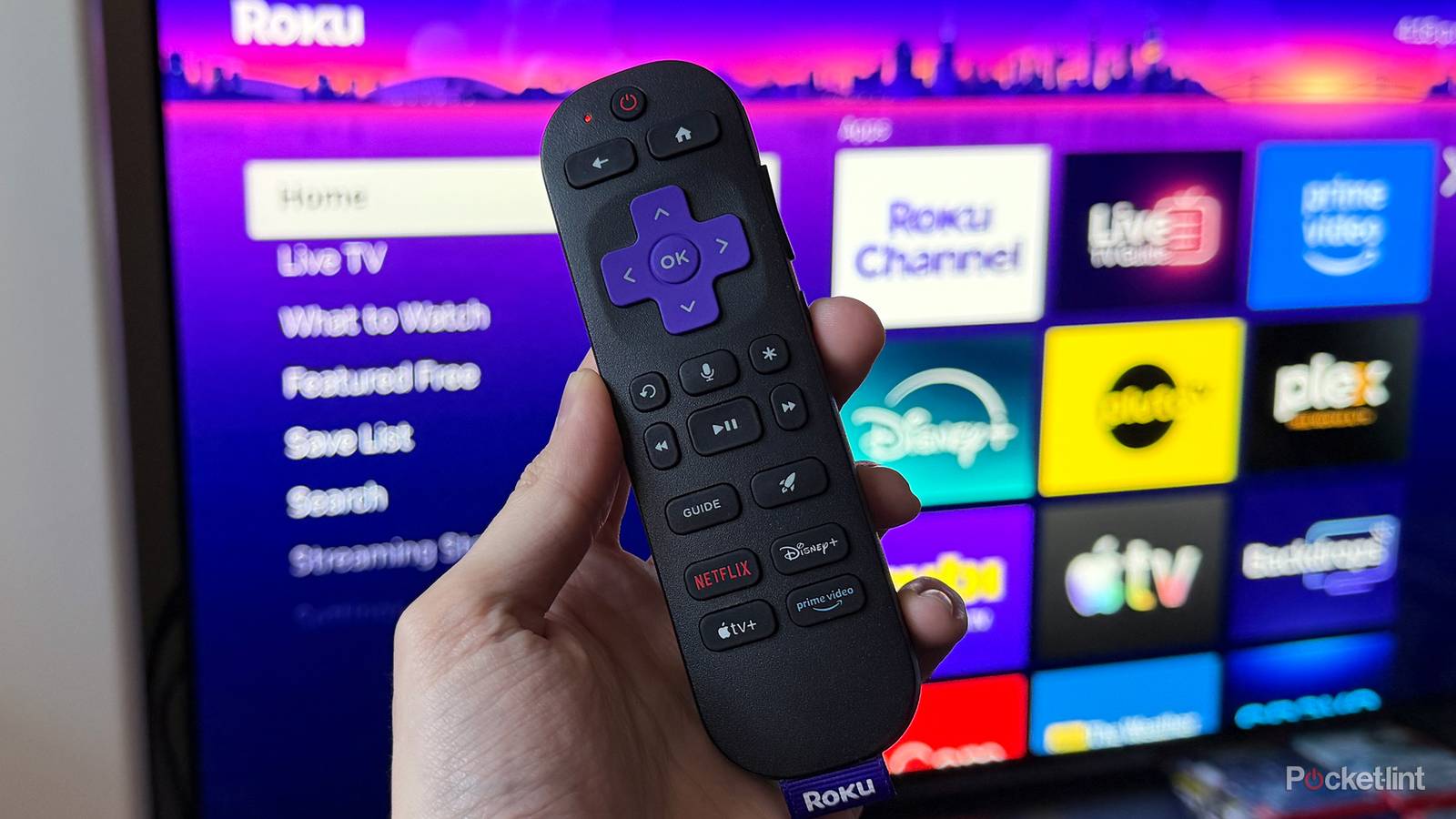
I primarily use a Roku Ultra to stream shows and movies on my TV, but I’ve recently been testing a Google TV Streamer to compare the two. While I still prefer the Roku Ultra overall, there are a couple of things the Google TV Streamer has that I wish my Roku Ultra had. One is its Gigabit Ethernet port, and the other is an optional feature I think every streaming device should have: Apps only mode.
Apps only mode on the Google TV Streamer does exactly what its name suggests. It removes most of the bloat from the home screen, making it super easy to quickly access all your installed apps. There’s still a single row at the top with movie and show recommendations, but beyond that, the interface is refreshingly clean. If your goal is simply to turn on your streamer, open an app, and start watching without being bombarded by recommendations and ads, Apps Only mode is an almost perfect way to do that.
After using it on the Google TV Streamer and thoroughly enjoying it, I wondered whether I could recreate a similar experience on my Roku Ultra. While Roku doesn’t offer a dedicated Apps Only mode, there are several settings you can tweak to make the home screen feel much cleaner. With a few simple changes, you can cut down on clutter, minimize recommendations and ads, and make your apps the main focus, so you can get to streaming as quickly as possible. Here’s how I transformed my Roku home screen to feel much closer to an Apps Only mode, and how you can do the same, whether you have a Roku Streaming Stick, Roku Ultra, or Roku smart TV.
How I made my Roku home screen much cleaner
This works on both the old and the new home screens, except for one setting

There are three main changes I made to my Roku home screen to create an Apps Only-like experience. First, I hid the Recommendation Row so there aren’t any recommendations sitting above my apps. Second, I increased the size of the app tiles to make them stand out more. And finally, I removed the menu items I never use to reduce clutter.
To make these changes on your own Roku, head to Settings > Home screen.
The first option you’ll see is Recommendation rows. By default, it’s set to Show, but you can change it to Hide. This removes the recommendation row above your apps, so you no longer have to scroll past it every time you want to open a streaming service.
Next, you’ll see a Tile size option that changes the size and layout of the apps on your home screen. By default, it’s set to Smaller, but I prefer switching it to Larger because it makes the app icons much more prominent. This one really comes down to personal preference, so if you prefer fitting more apps on the screen at once, you can leave it on Smaller.
The above changes also work with Roku’s new home screen design. If you’re using the new interface, I also recommend setting Quick Access to Hide for an even cleaner look.

Finally, if you’re using Roku’s older home screen, you can reduce clutter even further by hiding menu items you don’t use. The older interface includes options like Live TV, What to Watch, and Featured Free in the left-hand navigation menu. If you never use them, there’s no reason to keep them around.
To hide them, go to Settings > Home screen > Menu items, then set any menu item you don’t want to see, such as Live TV, to Hide. This trims the number of menu items, making it quicker to reach the options you actually use. It’s worth noting that Menu items can’t be hidden on the new home screen design because it now uses a “Dynamic Menu” that is only visible on the home screen when you open it.
All things considered, I’m much happier with how my Roku home screen looks after these changes. It’s not a true Apps Only mode like the Google TV Streamer offers, but it’s about as close as you can get, and I really like how much cleaner and more streamlined the experience feels. I’d definitely recommend giving it a try to see whether you prefer the more app-focused experience on your Roku.

- Dimensions
-
4.9 x 5.0 x 1.0 inches
- Connective Technology
-
Bluetooth® streaming, 802.11ax dual-band MIMO Wi-Fi 6 (2.4 GHz / 5 GHz), 10/100 Base-T Ethernet
- Brand
-
Roku
- Audio outputs
-
Digital stereo over HDMI, DTS Digital Surround pass through over HDMI, Dolby Atmos decode via HDMI (with compatible speakers)


