


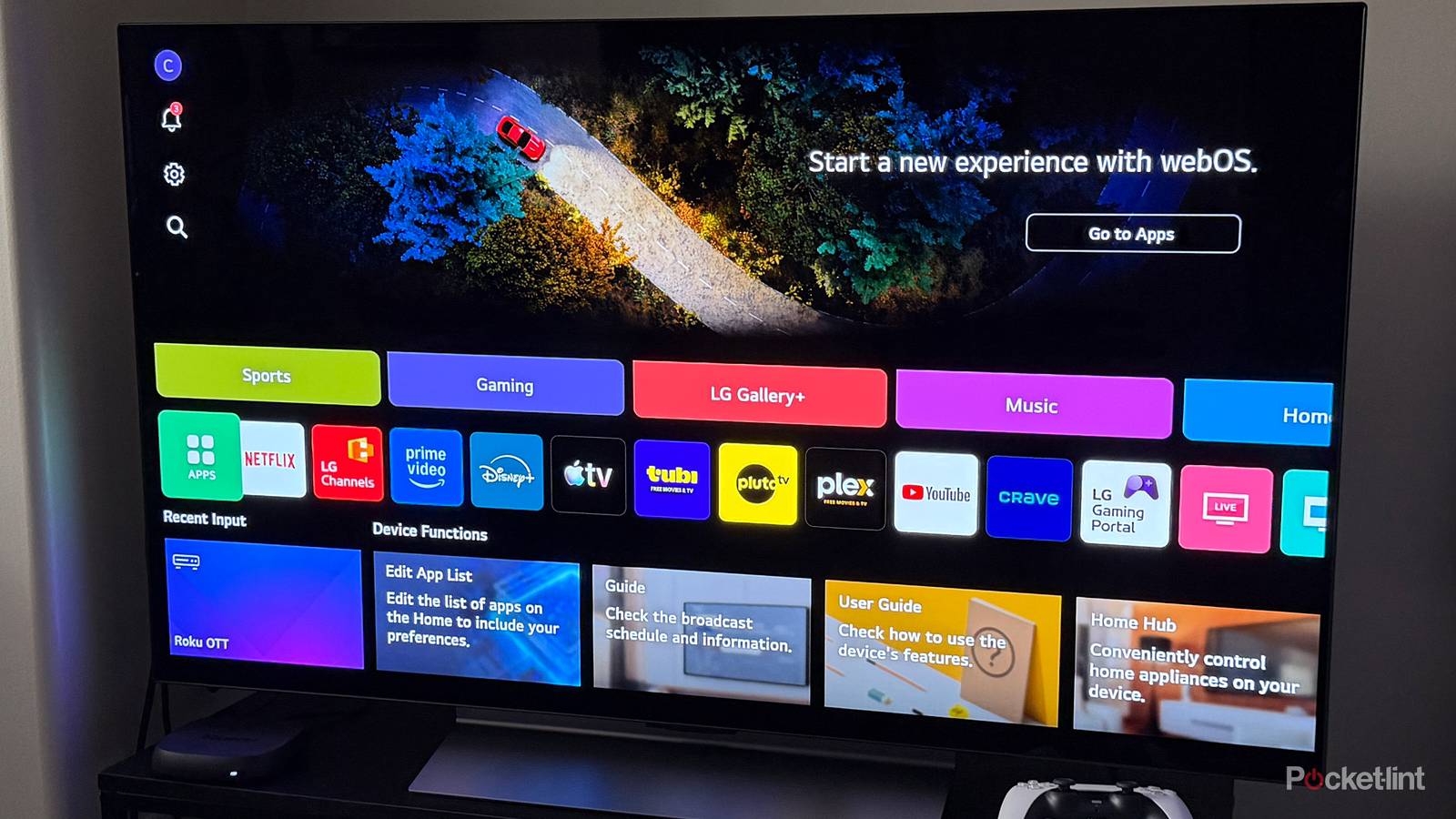
From the moment I powered on my LG C5 TV for the first time last year, I’ve been impressed by its quality every day since. As my first OLED TV, it has completely blown me away, especially compared to my old Samsung LCD TV, with its deeper blacks and richer, more vibrant colors. It’s made both streaming and gaming far more enjoyable, and since I picked it up on Black Friday for $500 off, I have absolutely no regrets about my purchase.
But that’s not to say the experience has been entirely perfect. Right out of the box, I had to adjust the picture quality to get it just right by diving into the settings menu and disabling some power-saving settings. I also had to find a way to disable the home screen ads that LG stuffs onto its TVs, which make the home screen look more like an ad billboard than an easy way to launch streaming apps or change the input your TV is using.
Fortunately, LG TVs have a pretty comprehensive settings menu that lets you customize the experience and fix a lot of the little annoyances you might run into. And recently, I came across a setting that’s made the everyday experience of using my TV noticeably better, and if you use a streaming device or a game console with your TV, this is definitely one you’ll want to turn on.
The setting I’m referring to here is the option to change what screen appears when you power on your LG TV. By default, it boots straight to the home screen, which I’ve honestly found pretty useless, but you can change it so the TV opens to your most recent HDMI input instead. That means every time you turn on your TV, it’ll go directly to your PS5, Fire TV Stick, Switch 2, or whatever device you last used, rather than dumping you onto the home screen first. It makes jumping into streaming or gaming much quicker, and it’s a setting I wish I had thought of looking for sooner. Here’s how to enable it on your TV.
How to switch your LG TV’s Power On Screen
Jump into the action faster

Don’t worry, LG hasn’t made it too difficult to change your TV’s power-on screen to the most recent input. It only takes digging through a couple of menus in the settings to find it. Here’s how to do it step-by-step:
1. Open the Settings menu on your LG TV by pressing the gear icon on your remote.
2. Go to General > System > Additional Settings > Home Settings.
3. Select Power On Screen.
4. Change it to Recent Input instead of Home.
And voilà, just like that, now whenever you turn on your LG TV, it will automatically display the last HDMI input you used.
The two main devices I use with my LG TV are my Fire TV Stick 4K Max and Switch 2, and now when I turn the TV on, it jumps straight to whichever one I used last instead of showing the home screen, which I much prefer.
I still have to switch inputs from time to time depending on what I want to use, but having this setting turned on has truly made the overall experience much better. And honestly, the best part is that if you don’t want to, you barely ever have to see the home screen on your LG TV again.
The only use case where this setting might not be very useful is if you use the apps on your LG TV for streaming rather than a streaming device. In that case, you might want to keep the power on screen set to the home screen, as it’ll be more convenient. But as I said earlier, if you have a streaming device or console hooked up to your TV instead, you’ll likely want to enable this.
If you’re looking for more LG TV tips and tricks, I’ve covered a wide variety here on Pocket-lint, including ways to improve the picture quality and make casting easier.

- Display Size
-
42, 48, 55, 65, 77, or 83 inches
- Operating System
-
webOS
- Display Type
-
OLED