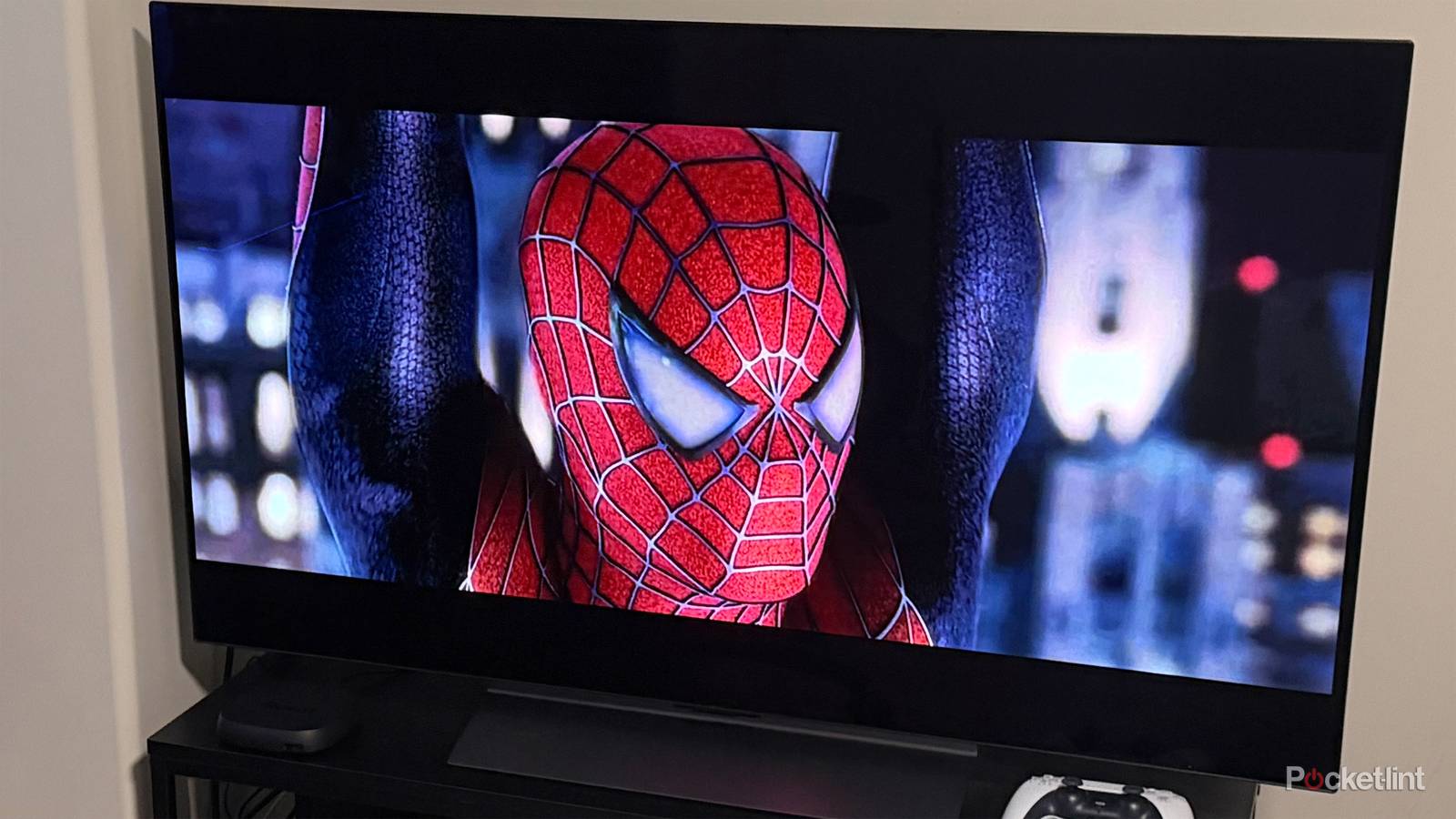
There are a lot of things that have impressed me about my LG C5 TV since I bought it last year, but what has really left me in awe is just how incredible it looks when displaying HDR content. Whether I’m gaming on my PC or PS5, streaming movies and shows, or watching 4K Blu-rays, the brightness, contrast, and colors are simply stunning with HDR10+ and Dolby Vision — thanks in large part to the TV’s OLED panel.
That said, while I’ve loved the HDR experience on my LG TV, it wasn’t perfect right out of the box. When I first tried it, something felt off. The brightness didn’t look quite right, and the colors in movies lacked the accuracy I expected. I knew that wasn’t how the content was supposed to look, so I spent some time digging through the settings menu to find a fix.
After making a few quick adjustments, I was able to significantly improve the HDR picture quality on my LG TV across HDR, HDR10+, and Dolby Vision content. The difference was immediately noticeable, making movies, shows, and games look as true to life as possible.
Here’s how I improved my LG TV’s HDR picture quality, and how you can easily do the same.
Turn off Energy Saving Step
Unlock your TV’s full potential

The first step to getting the best HDR picture quality from your LG TV is to disable a setting called Energy Saving Step. This feature automatically adjusts your TV’s brightness based on the lighting in your room using a built-in sensor. While it can help reduce energy usage and potentially save a few dollars on your power bill, it also limits how bright your TV can get.
If you’ve spent hundreds of dollars on a TV, you’ll want to take advantage of all the performance it offers. Turning off Energy Saving Step allows your LG TV to reach its maximum brightness, giving HDR content the impact it’s meant to have.
Thankfully, LG makes disabling this setting pretty straightforward. Here’s how:
1. Open the Settings menu on your LG TV.
2. Navigate to General > Energy Saving.
3. Select Energy Saving Step.
4. Choose Off instead of Auto.
Enable HDMI Deep Color
Get the most accurate colors

Next up, if you’re watching HDR content through a device connected to your TV’s HDMI port — whether it’s a 4K Blu-ray player, PS5, PC, Roku, or Fire TV Stick — you’ll want to make sure a setting called HDMI Deep Color is enabled.
Essentially, HDMI Deep Color allows your connected device to send more color information to your TV using higher color bit depths, such as 10-bit or 12-bit. This allows your LG TV to display more accurate and detailed colors when watching HDR content. Most HDR content is mastered in 10-bit color, while some formats, like Dolby Vision, can take advantage of 12-bit color if your TV supports it.
In the settings menu, LG describes HDMI Deep Color as a feature that “enhances the images of the input device to deeper and richer picture quality,” giving users the option to turn it on or off.
The good news is that HDMI Deep Color is usually enabled automatically when you connect a compatible device to your LG TV. That was the case with both my PS5 and PC. However, if you’re running into issues with HDR content, it’s worth checking that it’s turned on.
To do so, go to Settings > General > External Devices > HDMI Settings > HDMI Deep Color and make sure it’s set to “4K” (as you can see in the image above).
Switch to Filmmaker Mode
There’s more to it than just switching picture modes

Once you’re watching HDR content on your LG TV, it’s important to adjust your picture mode. The picture mode you use for SDR content doesn’t carry over when you switch to HDR or Dolby Vision, meaning you’ll need to set up a separate picture mode for those formats to make sure the colors and brightness look their best.
For me, the best picture mode for watching movies and TV shows is undoubtedly Filmmaker Mode. If you’re unfamiliar with it, Filmmaker Mode is designed to display content as close as possible to how the director and creative team intended it to look.
That means it uses more accurate colors, preserves the original aspect ratio and frame rate, and automatically disables unnecessary picture processing features like Motion Smoothing that can alter the look and feel of a movie or show. The result is a more natural and cinematic viewing experience that stays closer to the original source.
To switch to Filmmaker Mode on your LG TV, first make sure you’re displaying HDR or Dolby Vision content. Then, follow these steps:
1. Open the Settings menu on your LG TV by pressing and holding the gear icon on your remote.
2. Navigate to Picture > Picture Mode.
3. Select Filmmaker mode.
And voilà, just like that, any movie or show will now look much closer to how the creators intended, which is typically the best way to experience it, color and brightness-wise.
For gaming, whether it’s on a PC, Xbox, PlayStation, or Switch, I always change my picture mode to Game Optimizer. In Settings > Advanced Settings, you can enable “Filmmaker Mode Auto Start” so your TV automatically switches back to Filmmaker mode when it detects compatible content.

Additionally, to make sure Filmmaker Mode looks as good as possible, another setting I recommend enabling is called Filmmaker Mode Ambient Light. This feature is available when watching Dolby Vision content, and it automatically adjusts the picture based on your room’s lighting conditions. You can enable it by going to Settings > Picture > Advanced Settings > Brightness > Filmmaker Mode Ambient Light and toggling it on.
So, if you’re watching in a brighter room, it can help compensate for the extra light and make sure the picture remains easy to see while still looking accurate. The same applies when watching in a darker room, where it can make adjustments to help maintain the best possible viewing experience.
This setting is especially useful if your TV is in a living room with windows and changing lighting conditions throughout the day. However, if your TV is typically in a dark room with controlled lighting, you don’t necessarily need to worry about it.
Overall, if you want to get the most out of HDR on your LG TV, these are the settings that made the biggest difference for me. Whether I’m watching a 4K Blu-ray, streaming, or gaming, I’ve been amazed by what my LG C5 is capable of, and these simple adjustments have helped HDR content look its absolute best. I highly recommend giving them a try on your own LG TV.

- Display Size
-
42, 48, 55, 65, 77, or 83 inches
- Operating System
-
webOS
- Display Type
-
OLED