
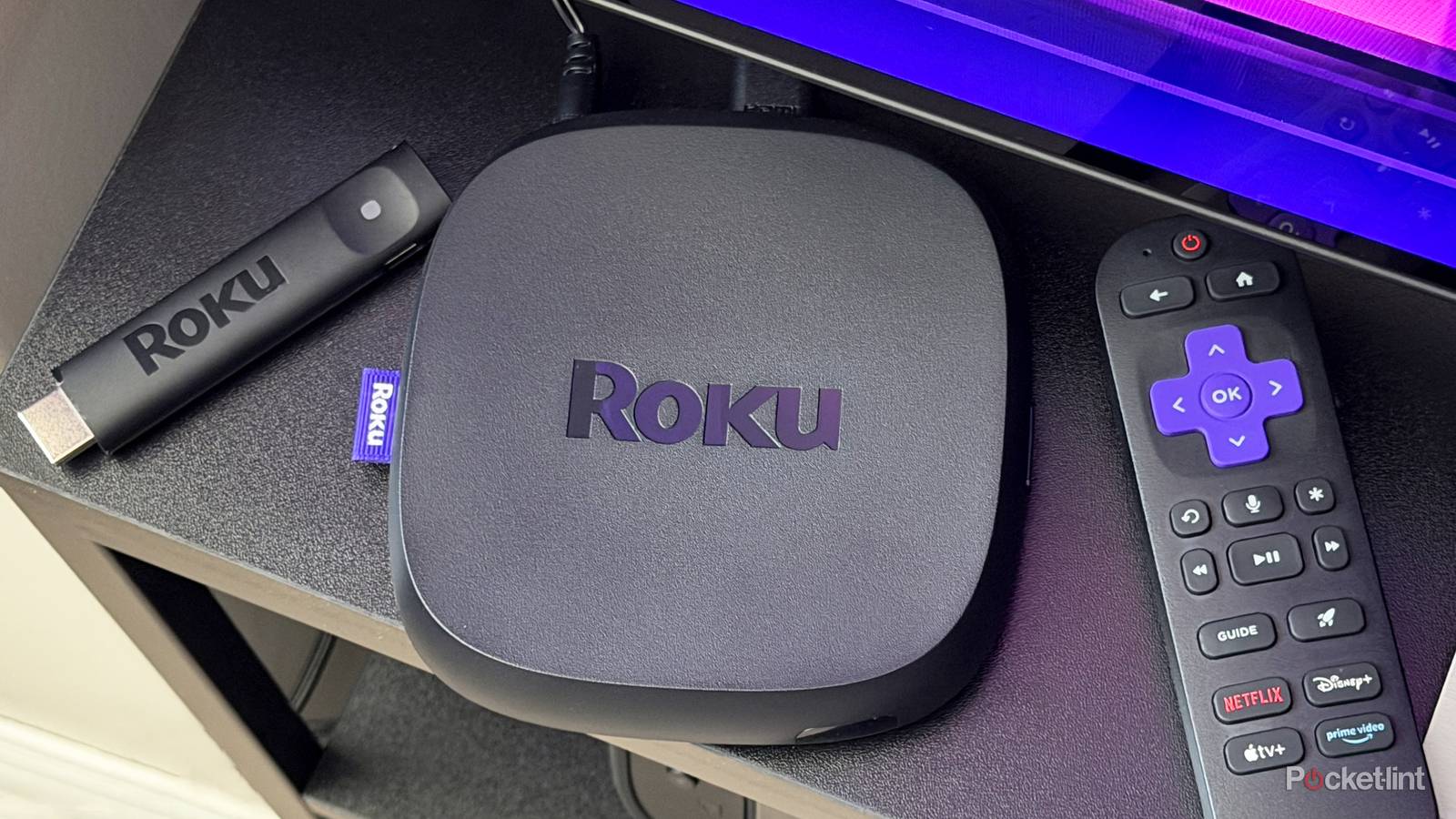
Over the years, I’ve spent plenty of time testing different streaming platforms, including Fire TV, Google TV, Apple TV, and Roku. For a long time, the Fire TV Stick 4K Max was the main streaming device I used with my living room TV because it offered everything I was looking for at an affordable price, including Dolby Vision, Dolby Atmos, and Wi-Fi 6E for faster networking.
At the start of the year, though, I decided it was time to try something different, so I picked up a Roku Ultra to see how it compared. It had been a while since I’d used a Roku, and to my surprise, I’ve ended up liking it much more than my Fire TV Stick 4K Max for a few simple reasons. The home screen feels far less cluttered, and I’ve also come to appreciate features it offers that my Fire TV Stick simply doesn’t, like Headphone Mode in the Roku app and the ability to use its USB port to play local media.
One issue I’ve recently run into with my Roku Ultra, however, is performance. While the Roku Ultra has more powerful hardware than Roku’s streaming sticks, that doesn’t make it immune to the same problem that affects virtually every streaming device over time. Whether it’s a Fire TV Stick, Google TV Streamer, Apple TV, or Roku, performance can gradually become more sluggish the longer you use it.
While this can be frustrating to deal with, the good news is that there are a few simple ways to fix it, whether you have a Roku Ultra, a Roku Streaming Stick, or a Roku smart TV, new or old. If your Roku device has started to feel sluggish, here are four tweaks that can help make it feel like new again.
Clear the system cache
The quickest way to improve performance

This tried-and-tested trick works on just about every streaming device. If your Roku has started stuttering while navigating menus or apps, or if apps keep freezing and the device becomes unresponsive, one of the simplest things you can do to try to fix it is to clear its cache.
If you’re unfamiliar with cached data, it’s temporary data that devices like Roku players and smart TVs store, so apps can load content faster the next time you use them. In most cases, cached data is a good thing, but if too much of it builds up over time, it can have the opposite effect, slowing down your Roku instead of helping speed it up.
However, clearing the cache on a Roku isn’t as straightforward because there’s no dedicated “Clear cache” button like you’ll find on many other streaming platforms. Instead, you have to press a specific button combination on your Roku remote to force the device to restart and clear the system cache.
Here’s how to do it:
1. Press the Home button five times.
2. Press the Up button once.
3. Press the Rewind button twice.
4. Press the Fast Forward button twice.
After entering the button combination in that exact order, your Roku will briefly freeze before the screen goes black and the device restarts. Once it’s back up and running, the system cache will have been cleared, and you should notice your Roku’s performance feels noticeably snappier.
Uninstall apps you no longer use
Freeing up storage space can help speed things up

Next up, another common culprit behind Roku performance issues is storage. If your Roku’s storage is full or nearly full, you may start experiencing stuttering, freezing, or app crashes. That’s because your device has very limited internal storage, and as it fills up, there’s less room for cache data and system processes.
If you have apps you no longer use, I’d recommend uninstalling them, especially if your storage is running low. Doing so can free up space and help prevent performance issues down the road.
If you’re only having problems with one specific app, uninstalling and reinstalling it can also help resolve performance issues.
Here’s how to uninstall an app on your Roku:
1. Go to the Roku home screen and highlight the app you want to remove (don’t open it).
2. Press the Star (*) button on your remote.
3. Select Remove app from the pop-up menu.
If you ever want to reinstall an app you’ve removed, just open the Roku Streaming Store, search for it, and download it again.
Reset your Roku’s network connection
This can resolve Wi-Fi issues

If the performance issues you’re experiencing on your Roku seem to be related to your internet connection, such as apps taking a long time to load, shows and movies buffering constantly, or streaming quality staying low even though you have a strong Wi-Fi signal, then the problem may be with the connection between your Roku and your router.
One thing that’s worth trying is resetting your Roku’s network connection. This clears all the network settings stored on your device, including saved Wi-Fi networks and passwords. After the reset, you’ll need to reconnect to your Wi-Fi, but doing so can often resolve persistent networking issues.
Here’s how to reset the network connection on your Roku:
1. Go to Settings from the Roku home screen.
2. Navigate to System > Advanced System Settings.
3. Select Network connection reset, then choose Reset connection.
4. Your Roku will restart.
5. Once it’s back on, go to Settings > Network > Set up connection and reconnect to your Wi-Fi.
If you have a Roku Ultra or a Roku TV with an Ethernet port, and you’re dealing with network issues, connecting it directly to your router with an Ethernet cable may provide a more stable connection and resolve the problem.
Last resort: Factory reset
If all else fails

If you’ve tried everything else to fix your Roku’s performance issues, and you’re still running into problems, one last-resort option is to factory reset your device.
A factory reset restores your Roku to its original out-of-the-box state, erasing everything on it, including your apps, login information, and any settings you’ve changed. While that means you’ll have to set everything up again afterward, it can also resolve stubborn glitches and performance issues by giving your Roku a completely fresh start. Once the reset is complete, you’ll be prompted to set up your device and sign in to your Roku account just like you did when you first bought it.
To factory reset your Roku, go to Settings > Advanced system settings > Factory reset and then enter the code on your screen.
Other quick tricks for improving your Roku experience
Two other quick tricks that can help improve your Roku experience are checking for software updates and cleaning up your home screen.
By default, Roku automatically checks for software updates every few days when your device is idle. However, if your Roku has been unplugged for a while, there’s a chance it could be missing important updates. Roku typically includes performance improvements and bug fixes in its software updates, helping keep its devices running smoothly. To make sure your Roku is up-to-date, go to Settings > System > Software update.
Finally, while this next trick won’t necessarily improve performance, it can make navigating your Roku feel faster by helping you get to your apps quicker. It involves removing some of the clutter from the home screen, such as the Recommendations and Quick Access sections. You can hide these by going to Settings > Home screen and setting Recommendation rows and Quick Access to Hide.

- Dimensions
-
4.9 x 5.0 x 1.0 inches
- Connective Technology
-
Bluetooth® streaming, 802.11ax dual-band MIMO Wi-Fi 6 (2.4 GHz / 5 GHz), 10/100 Base-T Ethernet
- Brand
-
Roku