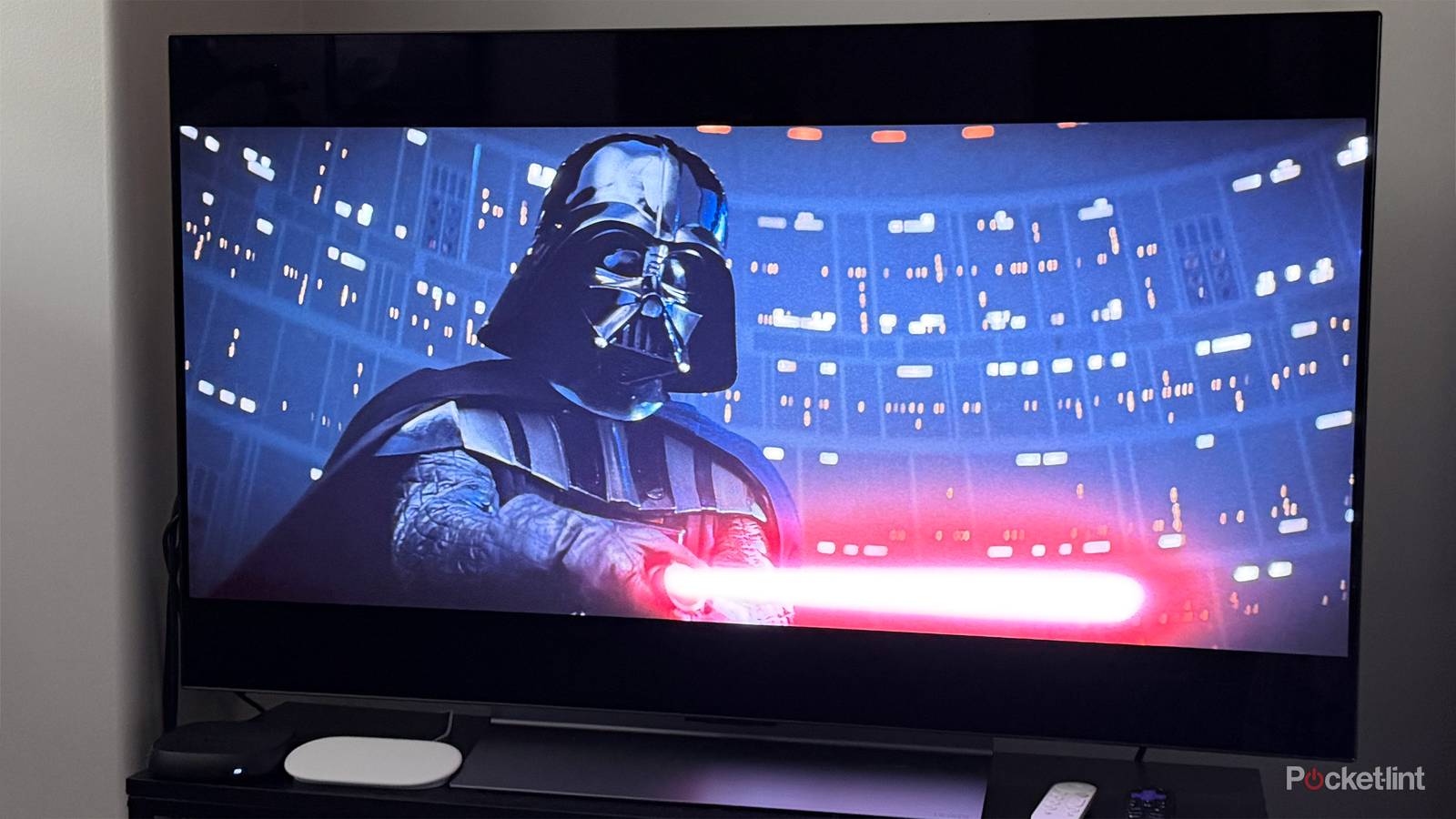
When I decided it was finally time to replace my aging Samsung TV last year, I figured finding the right new TV would take forever. Modern TVs have so many features to compare, from different panel types and refresh rates to HDMI ports and gaming features, that I expected the decision to be overwhelming.
As it turned out, I couldn’t have been more wrong. The moment I came across the LG C5, it became the easiest TV purchase I’ve ever made. It checked every box on my wish list: an OLED panel, a 120Hz refresh rate, four HDMI 2.1 ports, and even G-SYNC support so I could get the most out of my PC’s Nvidia GPU. That was more than enough to seal the deal, and the sale price certainly didn’t hurt either.
Over the past year, my experience with the LG C5 has been fantastic for both 4K gaming and streaming, and I don’t regret buying it for a second. Lately, though, I’ve noticed one issue: it doesn’t feel quite as fast as it did when I first took it out of the box. It’s not painfully slow by any means, but switching inputs takes a little longer than I’d like, and navigating the menus doesn’t feel quite as responsive anymore.
To be fair to LG, this isn’t unique to its TVs. Slower performance can affect just about any device over time, whether it’s a PC, smartphone, tablet, or streaming stick. The good news is that it’s surprisingly easy to fix. LG includes several built-in features and settings that can help improve performance and make your TV feel snappier. If your LG TV has started to feel sluggish, here are four tweaks that can help make it feel almost brand-new again.
Memory Optimizer
Speed up your LG TV almost instantly

Usually, the first thing I do when a device starts feeling sluggish, whether it’s my Roku, PC, or smartphone, is clear its cache. If you’re unfamiliar with cached data, it’s temporary data that devices, including smart TVs, store so apps can load content faster the next time you use them. In general, cached data is a good thing, but if too much of it builds up over time, it can slow your TV down rather than help it.
Fortunately, LG includes a handy feature called Memory Optimizer on its TVs to address this. Running it not only clears your TV’s cache — it also closes any running apps and background processes and frees up your TV’s RAM. The result is essentially a fresh start for your TV, which can help improve overall performance.
The whole process takes only a few seconds and can give your LG TV an immediate speed boost. Here’s how to use it:
1. Long-press the Settings button (the gear icon) on your LG TV remote to open the Settings menu.
2. Go to Support > Memory Optimizer.
3. Select Start.
Turn off annoying home screen ads
You can also try turning off Wi-Fi altogether

I’ll always remember turning on my LG TV for the first time and being absolutely shocked by how many recommendations and ads were packed onto the home screen. It didn’t feel like a TV; it felt more like an ad billboard sitting in my living room.
Beyond just being annoying, those ads can also impact your TV’s performance, since the operating system constantly has to load and display them in the background. So if you’re tired of seeing ads every time you turn on your LG TV and want to improve its performance wherever possible, disabling them is one of the easiest things you can do. Ever since I turned them off on my LG C5, the home screen looks much cleaner, and the TV feels faster and more responsive.
Thankfully, LG makes it pretty simple to disable these ads. Here’s how:
1. Go to Settings > General > System > Additional Settings > Home Settings.
2. Turn off Home Promotion.
3. Turn off Content Recommendations.
Once you’ve done that, the ads and recommendations on your home screen will disappear, and your TV should immediately look and feel a lot better.
Another way to potentially speed up your TV is by turning off its Wi-Fi connection. If you don’t use your TV’s built-in streaming apps and instead rely on another device, like a Fire TV Stick, Roku, Apple TV, or PS5, there’s really no reason for your TV to stay connected to the internet.
Disconnecting your TV from Wi-Fi not only prevents it from loading ads and recommendations in the first place, but also stops it from constantly fetching content and updates in the background. I’ve done this recently on my LG TV since I use a Roku Ultra for streaming and a PS5 and PC for gaming, so my TV doesn’t really need an internet connection. In my experience, it has made my TV feel snappier since it’s no longer working behind the scenes to load anything from the internet. If you’re in a similar boat, I’d recommend giving it a go.
Turn off the LG TV logo on shutdown
This makes turning off your TV much quicker

This next tip won’t necessarily make your LG TV faster when navigating menus or switching between inputs, but it can make one everyday interaction feel much quicker: turning your TV off.
When you power down an LG TV, you’ve probably noticed that it doesn’t shut off instantly. Instead, it briefly displays the LG logo on the screen before fully powering down. Personally, I’ve always found this a little annoying because when I press the power button, I just want the TV to turn off. I already know I own an LG TV; I don’t need to see the logo every single time I shut it down.
The good news? LG actually includes a way to disable its logo from appearing during shutdown, but the setting is hidden away in a somewhat secret menu. Here’s how to find it and turn it off:
1. On your LG TV remote, press the Settings button (the gear icon) three times in a row.
2. A new settings menu will appear on the right side of your screen, with Select menu item at the top.
3. Scroll down to Show Logo when turning off the TV and toggle it off.
After that, your LG TV should skip the logo flash and power off instantly.
Uninstall apps you don’t use
Clearing up storage space can help resolve performance issues

Finally, the last trick I’ve found worthwhile for speeding up an LG TV is uninstalling any apps you no longer use. Like any device, a smart TV only has a limited amount of storage space, so the more apps you download, the more that storage fills up. And if your TV’s storage gets close to being completely full, it can negatively impact performance.
With that in mind, if you have a bunch of apps installed on your LG TV that you haven’t used in a while, it’s worth uninstalling them to free up space and help prevent potential performance issues. Here’s how:
1. Go to the app list on your LG TV’s home screen.
2. Hover over an app you want to uninstall.
3. Hold down the Select button on your remote.
4. You’ll then see a new screen with all your apps, including an option to delete or hide the app you’ve selected.
It’s worth noting, too, that if you decide to uninstall an app and want to get it back later, you can go to the LG app store to easily redownload it.

- Display Size
-
42, 48, 55, 65, 77, or 83 inches
- Operating System
-
webOS
- Display Type
-
OLED