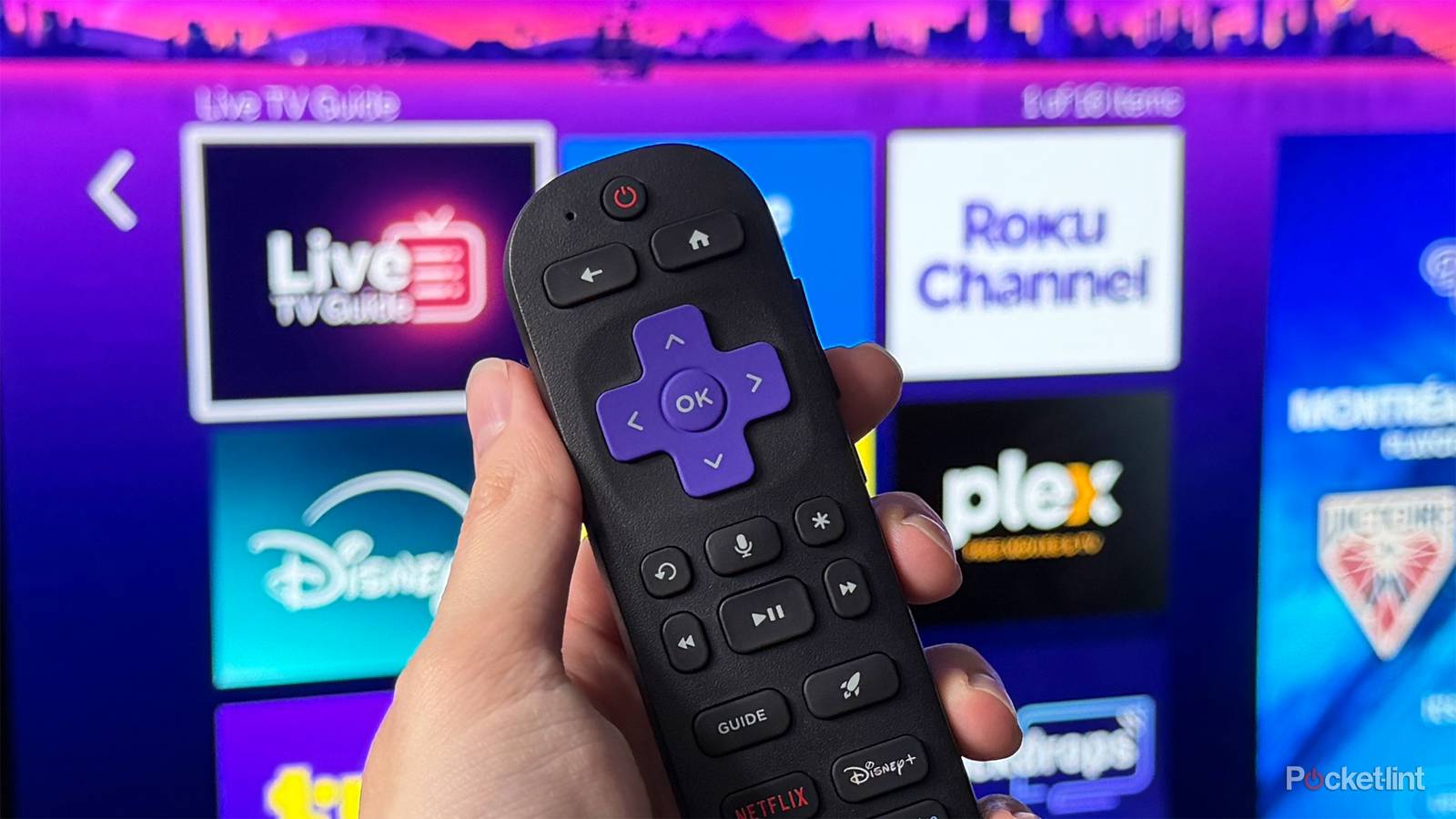
Ever since I plugged in my Roku Ultra for the first time earlier this year, I’ve been extremely impressed with it. The user interface is easy to navigate, customizing the home screen is simple, and having The Roku Channel front and center has been a huge plus. It offers a ton of free on-demand shows and movies, while the Live TV Guide is packed with hundreds of free channels to watch.
Coming from a Fire TV Stick 4K Max, all of those things stood out to me right away. But there’s one Roku feature in particular that I discovered hiding in plain sight that I’ve grown to really appreciate, and it’s made watching TV a lot more enjoyable, especially late at night. That feature is Headphone Mode.
If you’re unfamiliar with Headphone Mode, it’s available on most Roku devices, including the Roku Ultra, Roku Streaming Stick, and Roku-powered smart TVs. It lets you listen to whatever you’re watching through headphones or speakers connected to your phone or tablet, rather than your TV’s built-in speakers or sound system.
So if you’re watching TV by yourself or enjoying a show late at night and don’t want to disturb anyone else in the house, it’s an incredibly useful feature. Beyond the convenience it offers, I’ve also found it to be a surprisingly immersive way to watch TV. Best of all, Headphone Mode is easy to use and can be up and running in just a few seconds. Here’s how to get started.
How to use Headphone Mode on your Roku
You’ll need the Roku app

Since Headphone Mode uses whatever headphones or speakers you already have connected to your phone or tablet, you’ll first need to download the Roku app, which is available for free on both iOS and Android.
Once you’ve installed and opened the app, you’ll be prompted to sign in to your Roku account. From there, you can connect it to any Roku device you have on the same Wi-Fi network. In my case, I paired it with my Roku Ultra.
After connecting the app to your Roku, you’ll notice that your phone can also function as a backup remote, which is especially handy if you tend to misplace the real one. But beyond its remote functionality, you’ll also see a small headphone icon on the same screen (as shown in the image below). Tapping that icon enables Headphone Mode, and once you do, the audio from your Roku starts immediately playing through your phone instead of your TV.

I usually use AirPods with my iPhone, so turning on Headphone Mode lets me listen to whatever I’m watching on my TV through my AirPods instead. The same goes for any headphones or speakers you have connected to your phone or tablet.
It’s also worth noting that once you’ve gone through the initial Roku app setup, enabling Headphone Mode takes just a few seconds. Simply tap the headphone icon whenever you want to turn it on or off.
Additionally, some Roku devices let you connect headphones or speakers directly over Bluetooth. While I’ve tried that method as well, I’ve found Headphone Mode through the Roku app to be far more convenient and easier to use on a daily basis.
All in all, Headphone Mode has become my favorite Roku feature. It’s simple, works exactly as advertised, and has made late-night TV watching much more enjoyable and immersive. If you haven’t tried it yet, I highly recommend giving it a shot, especially if you’re someone who regularly watches shows or movies after everyone else has gone to bed.

- Developer
-
Roku
- Subscription cost
-
No