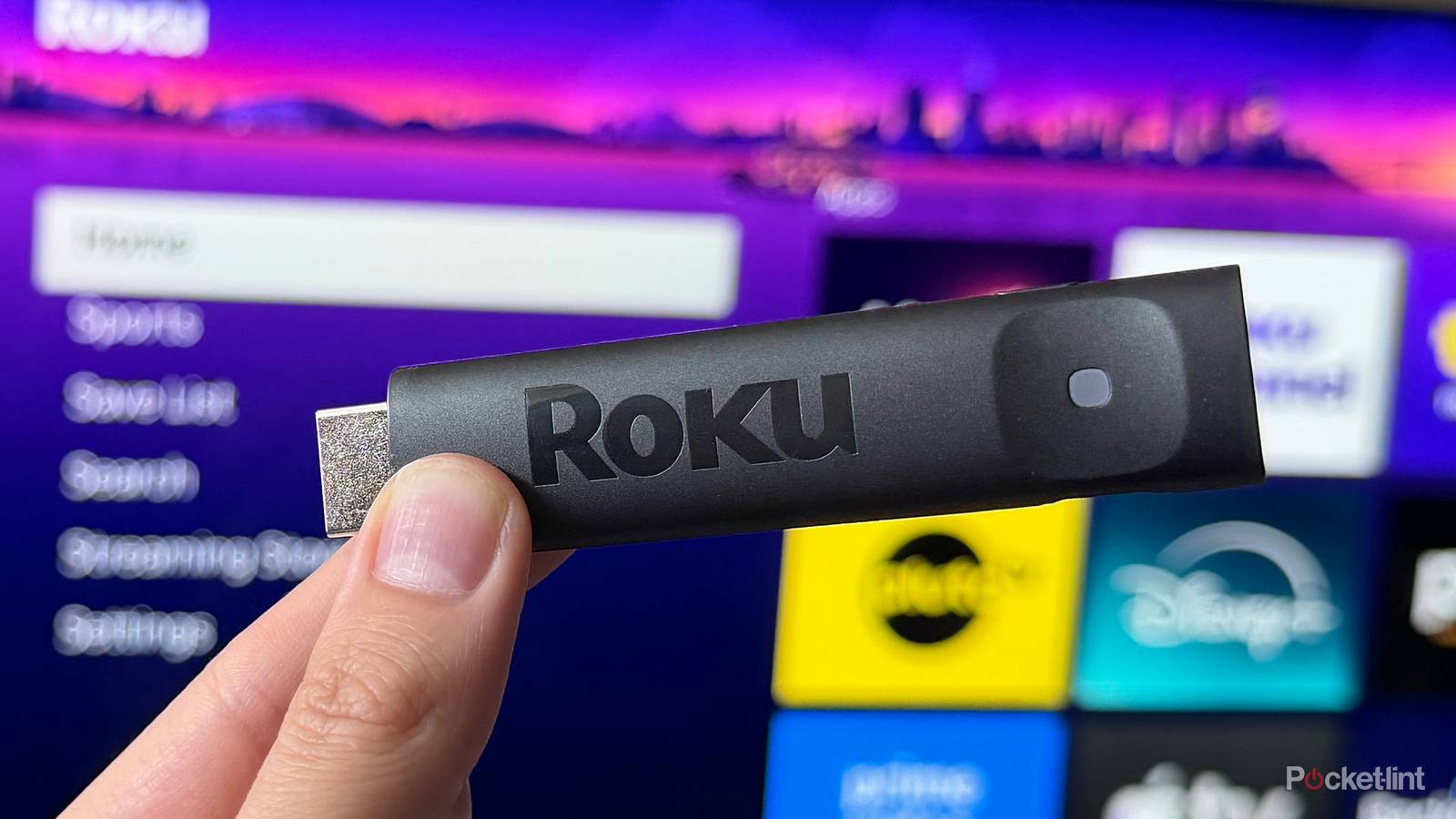
I use two Roku devices every day: a Roku Ultra with my living room TV and a Roku Streaming Stick Plus in my bedroom. I was previously a Fire TV Stick user, but I switched to Roku mainly for easier access to The Roku Channel, and I also really like features such as Headphone Mode.
But if there’s one thing about the Roku experience that annoys me, it’s the ads. I understand that ads are a big part of what keeps Roku devices relatively affordable and The Roku Channel filled with free content. And, in fairness to Roku, Fire TV and Google TV do the same thing. But I really don’t like the ads that automatically change your wallpaper to promote a movie, TV show, or product.
Not too long ago, I turned on both of my Roku devices, only to find their wallpapers replaced with giant ads for The Devil Wears Prada 2. Then earlier this month, the same thing happened with a giant ad promoting the FIFA World Cup.
I’m not a fan of Roku automatically changing my device’s wallpaper to advertise something, especially since it can make the home screen extremely jarring to use all of a sudden. So, after this happened twice recently, I decided to see if there was a way to turn them off.
Thankfully, there is a way to turn it off, and it’s a setting called “Sponsored wallpapers.” And don’t worry, it’s really easy to do. Now that I’ve done it, I regret not doing it sooner. Here’s how you can do it too.
Say goodbye to giant ads taking over your background

If you want to stop Roku from automatically changing the wallpaper on your device whenever it wants to advertise something, it only takes a few seconds. It’s worth noting that you can do this on any Roku device, whether it’s a Roku smart TV, Roku Streaming Stick, or Roku Ultra. Here’s how:
1. Go to the home screen on your Roku.
2. Navigate to Settings.
3. Select Theme.
4. Set Sponsored wallpapers to Off.
And voilà, just like that, Roku will no longer automatically change your device’s wallpaper to advertise something. You’ll still see all the other ads Roku has crammed into its user interface, but at least the background won’t be turned into a giant ad anymore.
Additionally, while you’re in your Roku’s theme settings, there’s an option to turn off Seasonal wallpapers. These aren’t exactly advertisements; they simply change your background to match the season, like for Thanksgiving or Christmas. If you’d prefer to keep your wallpaper the same all the time, you can toggle this off as well.
If you want to clean up your Roku even further, I’d also recommend turning off the Recommendation rows and Quick Access that appear on the home screen, making it easier to get to any app you want to use. You can do this by going to Settings > Home screen and setting both Recommendations rows and Quick Access to Hide.
All in all, I’ve always found it pretty annoying when Roku automatically changed the wallpaper on my device to promote something, and I’m honestly impressed that Roku even lets you turn it off, given how big a focus the platform has on ads. But I’m certainly not complaining, and I’m just glad I never have to see a giant ad plastered on the background of either of my Roku devices again.

- Dimensions
-
4.9 x 5.0 x 1.0 inches
- Connective Technology
-
Bluetooth® streaming, 802.11ax dual-band MIMO Wi-Fi 6 (2.4 GHz / 5 GHz), 10/100 Base-T Ethernet
- Brand
-
Roku