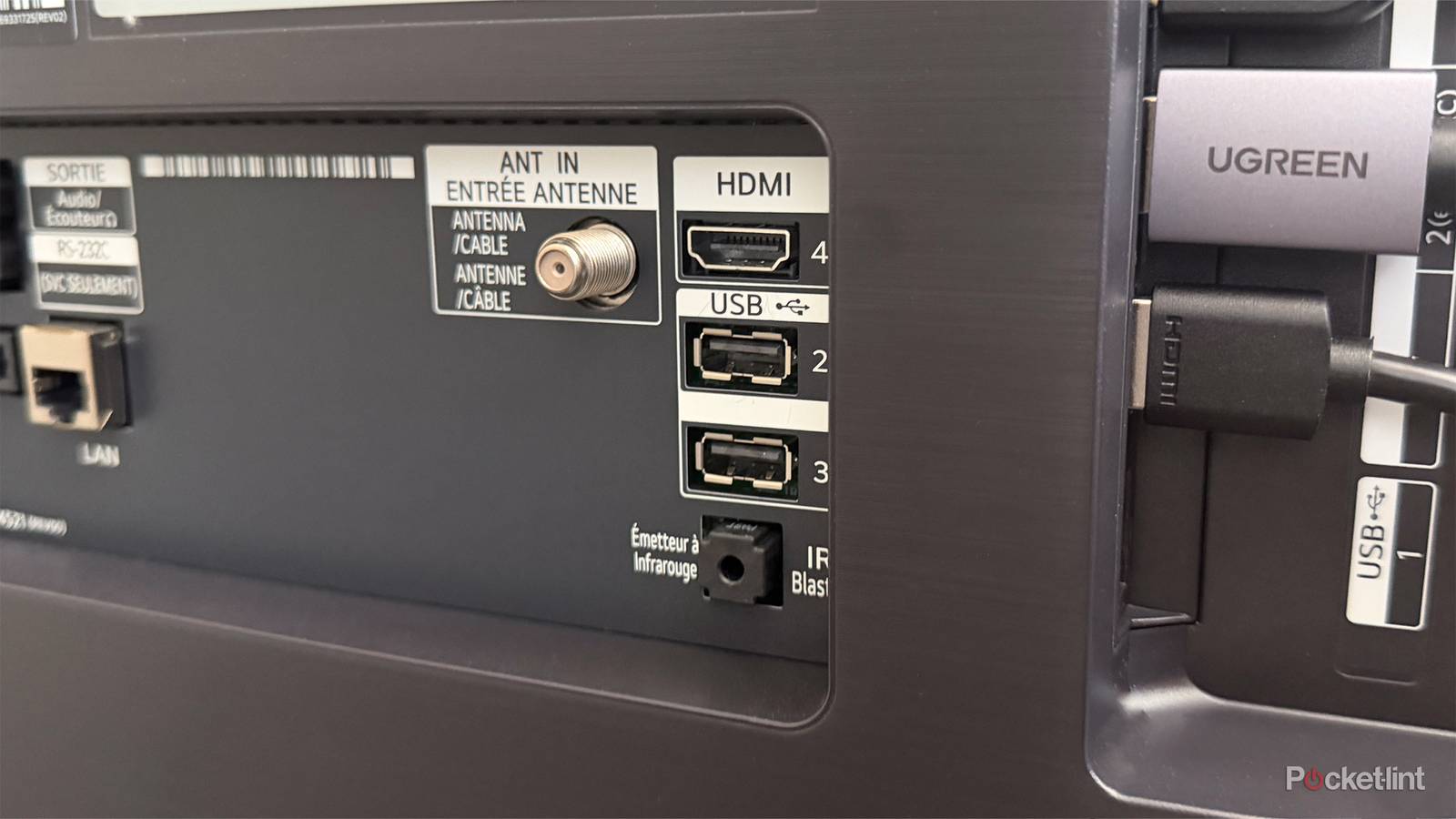
When I decided it was time to upgrade my TV last year, the LG C5 immediately caught my attention. Not only was it heavily discounted during Black Friday sales, but it also checked all the boxes on my TV wishlist, including an OLED display, NVIDIA G-SYNC support, a 120Hz refresh rate, and four HDMI 2.1 ports.
Over the past six months, I’ve used my LG C5 every day, taking full advantage of those features for gaming, streaming shows, and watching movies. It’s been an incredibly enjoyable experience and a massive upgrade over the aging Samsung LCD it replaced.
Recently, though, I started thinking about some of the features I hadn’t really used since buying the TV, specifically the ports on the back. Most LG TVs come equipped with an optical audio port, an Ethernet port, and one or more USB ports, and up until now, I hadn’t used any of them.
The optical port wasn’t particularly appealing since HDMI eARC is the better option for audio. The Ethernet port wasn’t much use either, as it’s limited to 10/100 speeds, meaning it tops out at 100Mbps, which is actually slower than my Wi-Fi. That left the USB ports as the only option worth experimenting with.
While a TV’s USB ports can technically be used for all sorts of things, from charging a phone to powering LED lights, those uses felt a bit pointless to me. A wall outlet does both jobs better. Instead, I decided to test how well my LG TV handled local media playback from a USB drive. The result? Well, let’s say the experience well exceeded my expectations.
It’s a plug-and-play experience

One of the most common uses for a TV’s USB port is plugging in an SSD, hard drive, or USB stick to play local media instead of streaming it. I’d heard about people doing this for years, but I wanted to see how well it actually worked in practice. At least on my LG TV, the answer is surprisingly good.
I plugged an old 2TB external hard drive I had lying around into my TV. It had a handful of movies stored on it, and as soon as I connected the drive to my LG TV’s USB port, a prompt appeared on the TV asking if I wanted to view its contents. I selected yes, and within seconds, I could browse everything stored on the drive. When I selected a movie to watch, in this case a despecialized version of The Empire Strikes Back, it opened instantly in LG’s built-in media player and started playback in 4K with Dolby Audio, with absolutely no lag or stuttering.
If you miss the prompt to view the files on your hard drive, go to the apps on your LG TV and select Media Player. You’ll then see the option to browse your drive’s contents.
The entire process took less than 30 seconds from start to finish, and it really opened my eyes to how easy local media playback can be on TVs. If all you want to do is watch a few movies or TV shows you’ve saved on a drive, you don’t necessarily need to go through the hassle of setting up a Plex server or connecting to a PC. Your TV’s USB port is all you need.
That said, there are some limitations to this experience: not every type of drive works with the USB port on LG TVs, nor does every file type.
Only two drive formats are supported on LG TVs
Most common video codecs are supported by webOS

While my experience watching local media through my LG TV’s USB port was mostly smooth, it wasn’t completely without issues.
Along with the portable hard drive I tested, I also have a portable SSD. However, when I plugged the SSD into my TV, it wasn’t recognized at all. After doing some digging, I discovered the problem wasn’t that it had stopped working, but that it was formatted incorrectly.
It turns out LG TVs only support drives formatted as FAT32 or NTFS. My portable hard drive is formatted as NTFS, which is why it worked right away, but my SSD is formatted as exFAT, so the TV couldn’t read it.
So if you’re trying to connect a hard drive or SSD to your LG TV, and it’s not showing up, the issue might simply be the drive’s file system. LG also recommends using USB hard drives with 2TB of storage or less, or USB flash drives with 16GB of storage or less.
…after finally trying it for myself, I have a much greater appreciation for the USB ports on my LG TV than I did before.
Another thing worth keeping in mind is that not every video codec is supported. That said, webOS, the operating system that powers LG TVs, supports most of the formats people are likely to use, including AVI, MP4, and MKV. If you’re curious, LG provides a full list of supported codecs on its website.
All in all, if you’ve never tried plugging an external hard drive, SSD, or USB stick into your LG TV’s USB port, I’d recommend giving it a shot. It’s a simple way to watch local media, whether that’s old movies, home videos, or other files you’ve saved over the years. It’s a quick plug-and-play experience, and after finally trying it for myself, I have a much greater appreciation for the USB ports on my LG TV than I did before.

- Display Size
-
42, 48, 55, 65, 77, or 83 inches
- Operating System
-
webOS
- Display Type
-
OLED