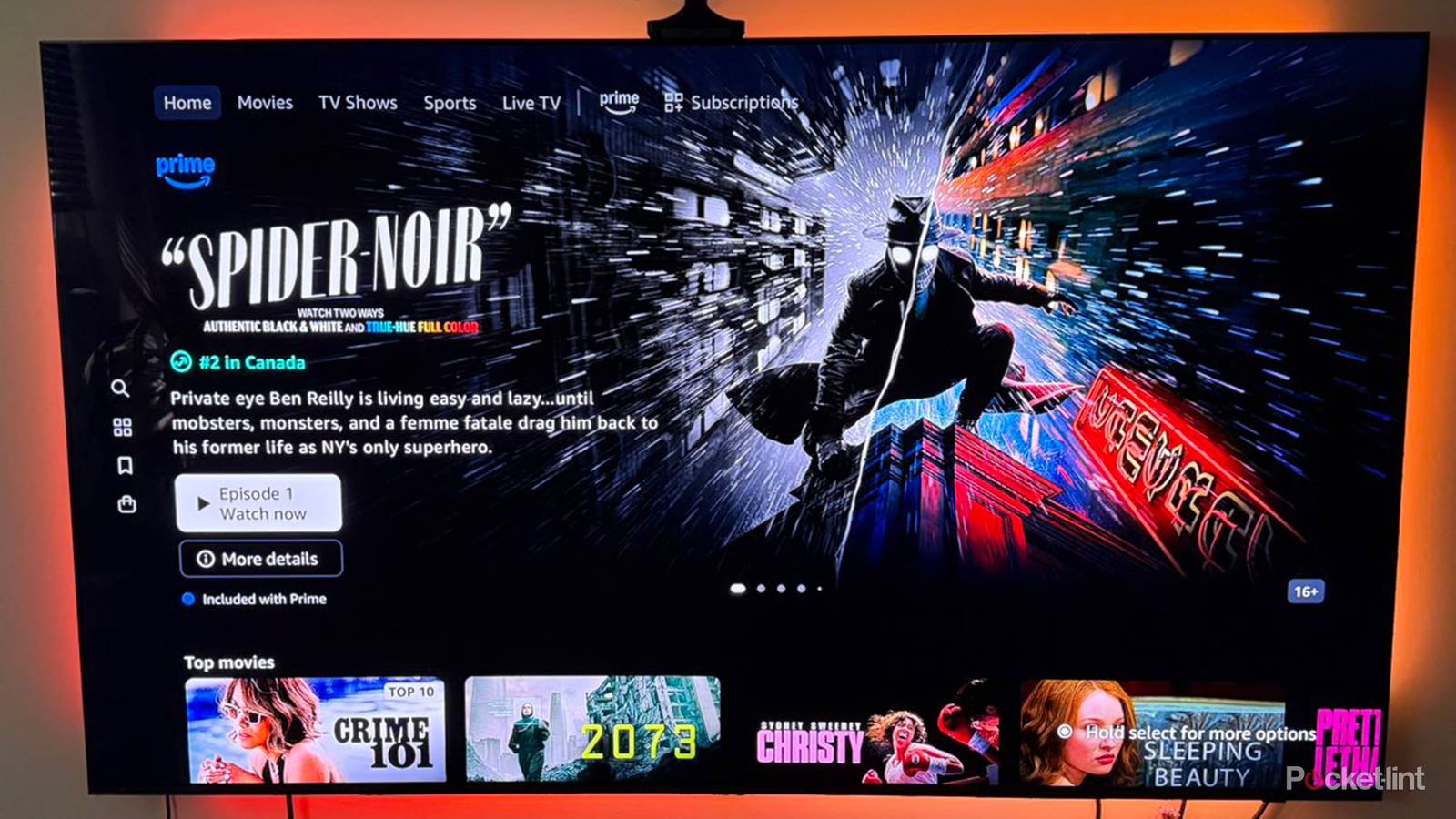
Something I’ve learned recently is that more people complain about overly dark images than I realized. They can be a problem at any level, it seems. High-end TVs are less likely to suffer from this than budget models, but they’re not immune, and nothing’s going to wreck a movie, game, or show faster than being unable to distinguish objects or characters. More people might’ve liked the “Long Night” episode of Game of Thrones if they could’ve understood who was fighting who.
There are a few potential culprits for indiscernible images that have nothing to do with someone cranking the brightness down. In a few situations, there might not be much you can do, but it’s always worth troubleshooting first. Here are a few tactics you can try.
Check HDR format options
A permanent fix is waiting in the wings

Nominally, the whole point of HDR is to extend the range of what you can see — it’s short for High Dynamic Range. That includes not just brighter highlights, but an expanded color palette and increased shadow detail. When it’s working as intended with compatible content, it’s arguably more impressive than native 4K.
Settings can radically impact how it appears, however, and nothing illustrates that more than Dolby Vision. Most TVs default to a mode called Dolby Vision Dark. This is preferable if you have a mid-range or high-end TV and like to dim the lights, but if you have budget set or you’re trying to watch in the middle of the day, it can be disastrous. You’ll want to switch to a mode like Dolby Vision Bright or Custom instead, depending on your TV. Note that Dark is gradually transitioning into something called Dolby Vision Filmmaker Mode, which is largely the same, except that it also disables most post-processing for the sake of artistic intent. More on this in a moment.
For Vision, HDR10, and HDR10+, there may be additional options available, particularly if you choose Vision Custom. It’s worth exploring and tinkering with these, particularly anything that directly involves brightness or contrast. Be cautious — ramping either element too high will wreck shadows and make everything look artificial.
HDR may no longer be an issue once Dolby Vision 2 and HDR10+ Advanced become mainstream, but don’t hold your breath. The first compatible TVs are just hitting the market, and it’s going to be years before a meaningful media catalog exists.
Switch to a different picture mode
The balance between accuracy and visibility

Your TV is preloaded with different picture mode presets for more than just subjective taste. Some modes tend to be inherently better for different genres or lighting conditions.
Whatever you do, avoid any “eco” or energy-saving modes. I’m normally in favor of saving power, both for financial and environmental reasons, but on a TV, these modes are pointless. They sabotage image quality so badly that you’re not getting what you paid for, and brightness is only the beginning. You’re not even saving that much money or energy, since modern LCDs and OLEDs are very efficient.
My usual recommendation is to try Filmmaker Mode (and/or Dolby Vision Filmmaker Mode) as a baseline. As I noted earlier, this disables almost all post-processing, but it also sets a specific white point called D65. This way, you’re most likely to see colors and brightness the way they were meant to be, assuming your TV has capable hardware.
That’s the catch, obviously.. Some people find Filmmaker Mode too dark on their TV, in which case you’ll need to switch to another mode, or tweak Filmmaker manually if your TV lets you. Avoid any “Dynamic” or “Vivid” modes, though. These tend to take processing to the extreme, ramping up not just brightness and contrast, but sharpening and saturation. Worse, they often enable motion smoothing and/or noise reduction, which are great in principle but terrible in execution. The first often results in the dreaded “soap opera effect,” while noise reduction can kill deliberate film grain. Quentin Tarantino will come to your door seeking revenge.
Disable any auto-brightness or auto-contrast modes
There may be exceptions

Like motion smoothing, auto-brightness makes perfect sense on the surface. While a sunlit space might demand as much brightness as a TV can manage, leaving things cranked in a windowless room isn’t just a waste of power, it’s dangerous to your eyes.
In reality, auto-brightness modes tend to be too conservative. Sure, levels will increase whenever your TV’s ambient sensor detects more light, but not far enough to ensure the best shadow detail, never mind strong colors or highlights. These modes are often just energy-saving features that should be toggled off immediately. You’re better off finding a dark scene in a favorite film, then testing manual brightness settings in typical conditions. Raise levels just high enough to catch every shadow detail without turning the shadows themselves gray. You’ll probably end up somewhere between 50 and 80%.
Some TVs may have auto-contrast modes as well. Your mileage with these will vary, but you’re likely better off disabling them. If they get contrast wrong, your TV may either crush shadows or leave images washed out.
The one significant exception to manual control is HDR. While modes like Dolby Vision IQ might still get things wrong sometimes, they are at least intended to improve picture quality rather than save energy.


4/5
- Dimensions
-
4.9 x 5.0 x 1.0 inches
- Connective Technology
-
Bluetooth® streaming, 802.11ax dual-band MIMO Wi-Fi 6 (2.4 GHz / 5 GHz), 10/100 Base-T Ethernet
- Brand
-
Roku