


With operating systems like Google TV, your home’s primary media-viewing display is much more like a smartphone than you may realize. I think most people see their televisions as a somewhat fixed experience where the most they can do is add apps, or “channels,” but that’s not the case. At all. I’ve been playing with Google TV’s operating system on a 75-inch TCL QM7L SQD-Mini LED with Google TV for the last couple of months.
With some TV operating systems, you can do things like change the wallpapers, the screensavers, load content like your own videos or stills, and even completely change the way your main screen, or “home screen,” looks entirely. There’s so much more functionality waiting for you if you take a few minutes to explore your options and make your living room viewing experience uniquely yours, and Google TV has one of the most configurable options, thanks to the large library of apps on the Google Play Store. I’m going to walk you through some essentials, including one that may already be on your TV!
LocalSend
Transfer files between your mobile device and smart TV
To a degree, this app is foundational to your ability to customize your Google TV so it fits you and your space. Part of customizing modern tech is being able to add your own wallpapers and screensavers, changing the appearance of your home and lock screens. For example, I rotate my phone’s lock and home screens between pictures of my wife and 4k anime or superhero images.
This app is a great one to have in your bag of tricks because it works across operating systems and devices. Think of it like Google’s Quick Share or Apple’s AirDrop, except it isn’t tied to any specific manufacturer or operating system. I’ll tell you briefly how it works into our TV use, but just know that you can also use LocalSend to share files between mobile devices as well. It works with almost anything. To use it between your mobile devices and a TV, download and install the app from the Play Store on your Google TV smart TV or streamer, or from the Play Store on a mobile device and select your TV as the device to download it onto. You’ll also need to download the app onto the device you’re sending from, which can be a phone, tablet, or computer. All devices must be on the same network, and they should all show up as devices available to exchange content with right when you launch the app. Once you see the other devices, the rest is straightforward.
For mobile devices, you don’t even need the app on both devices, since LocalSend lets you use a link or QR code from the sending device. Anywho, now you can send your favorite content to your TV to personalize it or view it. All of that without needing a flash drive or USB cable.
X gon’ give it to ya!
Easily move files between sources
In today’s “I want it now” culture, speed is important, and that’s where X-plore delivers. If you’ve ripped DVDs or other physical media that you own so that you can have a digital copy, or have home videos, you can easily, and most importantly, quickly access them via this feature-rich app that looks great on your TV’s display.
While I generally like to keep things fairly basic, this app looks like something from an earlier day, but that’s actually not a bad thing. All in one interface, you can see the file you want and where you’re sending it. There are technically three panels on the main screen: source, tool/command ribbon, and destination. Best of all, X-plore is meant to work with your TV remote’s D-pad, so navigation is fairly straightforward.

Two of my favorite features are the ability to see a colorful, visually interesting chart of the files on your TV and which ones are taking up the most space, and the ability to connect to quite a few cloud storage services. You can also easily scan your network for shared media storage on computers and network-attached storage. I like that you can have X-plore display an IP address, then go type that into your laptop’s internet browser and upload or download files directly over your home network. You’ll need to give a small “developer donation” to unlock that last feature, though. Totally worth it, if you’re going to use that feature.
Browse Here
A great TCL browser for everyone
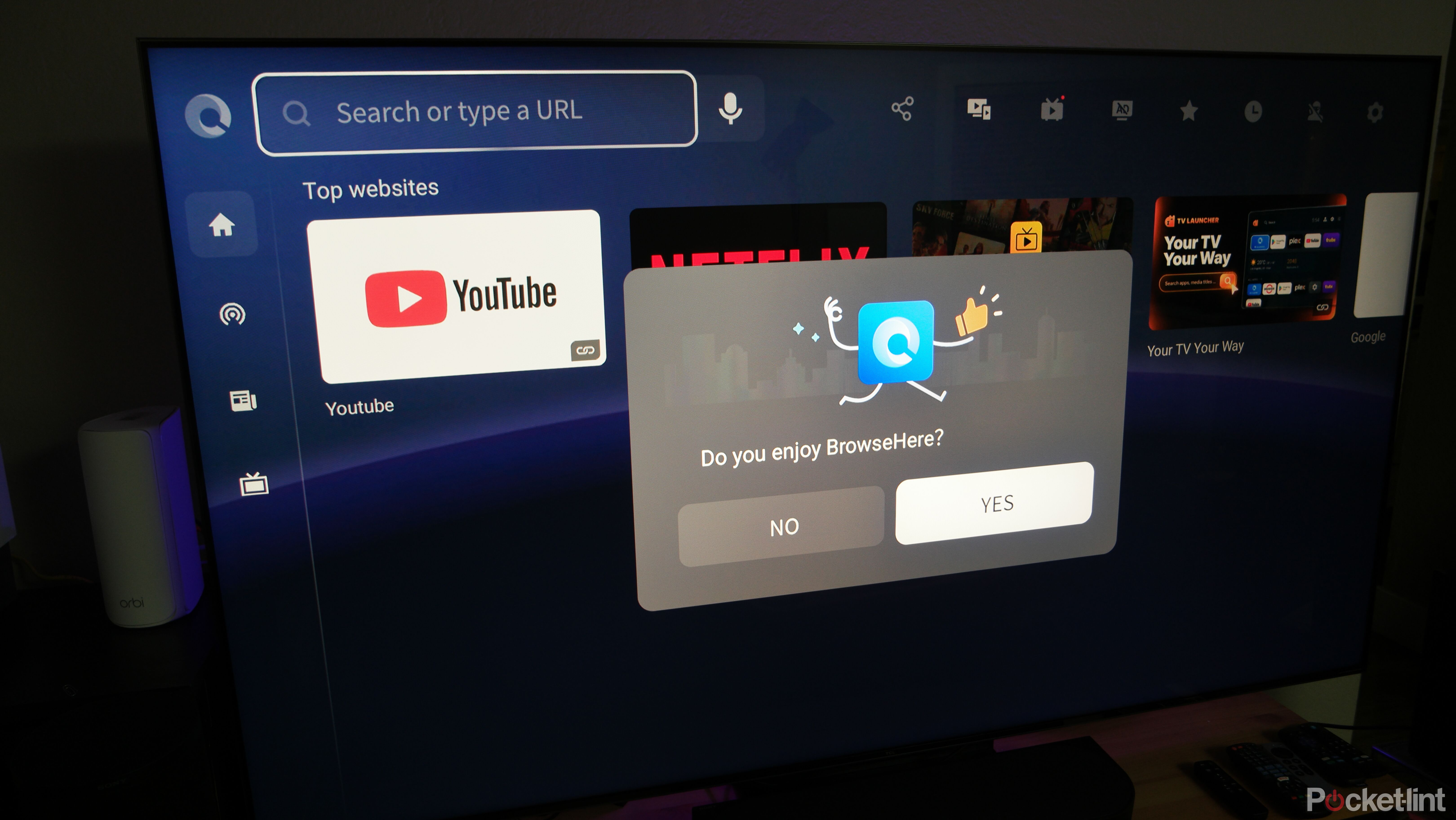
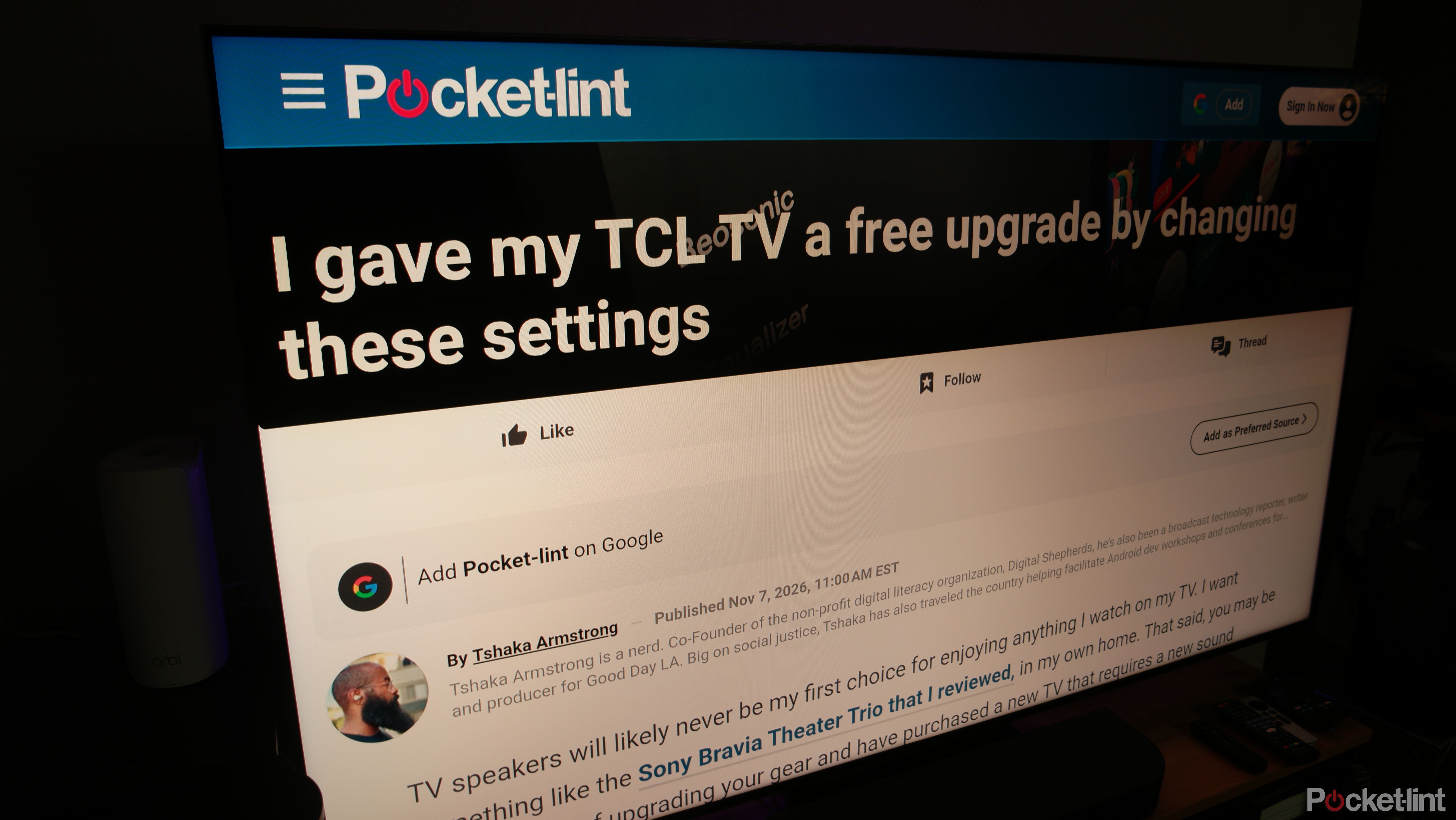
If you have a TCL with Google TV like the 75-inch QM7L I’m using, you likely already have this smart TV web browser in your apps tab. If you don’t, you can download it from the Google Play Store and instantly make your life better. Okay, maybe it doesn’t have that power, but it will make browsing the web on your TV easier, since it was designed from the ground up for navigation with your remote.
That said, I can easily pair a Bluetooth keyboard with the TCL QM7L and navigate Browse Here with it. In fact, that feature is baked into Google’s TV operating system, so no matter your manufacturer, you should be able to do the same as long as your unit supports pairing Bluetooth accessories.
Declutter that Google TV home screen
There’s a very easy way and one that takes more work
Do you know what a “launcher” is? All of the various elements that make up your mobile device’s home screen and app drawer are part of what is called the “launcher.” Your wallpaper, icons, accent colors, app drawer types, app categorization, multiple home screens, and widgets are all parts of what makes that interface a “launcher.”
First things first, the easiest way to do this is to go into Settings and turn on Apps Only mode. When you do this, it removes all the ads and personalized recommendations on the Google TV home screen and replaces them with a simple grid of your streaming apps. You’ll also lose access to Google search and Gemini. You can turn that mode off if you don’t like it.
The real winner, and the one that takes more work, is an app called Projectivy Launcher. It removes the ad and recommendation clutter like Apps Only mode, but it gives you new features like the ability to name your TV’s inputs. Do you ever forget which HDMI port the 4K Blu-ray player is connected to? Name it. Your gaming console? Name it. The app lets you customize everything from icons and background colors to wallpapers. You can still use the built-in wallpaper features, but you can also download GIFs and use animated wallpapers.
Often, when you’re talking about phone launchers, adding a third-party launcher may hinder some phone features, but everything on Google TV still works. All Projectivy Launcher does is literally replace that cluttered home screen on the active profile. When it’s active, you can even set it up so that when you turn the TV on, it launches your favorite app or starts with a specific input already active.
The setup process can be as simple or as complex as you want. You can install it and play with the app order and the order of items on the home screen, or you can get completely granular: install new icon packs, change the shape of the icons, name each input, and make dozens of other personalization choices from the Porejectivy settings menu.
Do you have a favorite Google TV app? Let us know in the comments below!

- Brand
-
TCL
- Display Size
-
75-inch
- Dimensions
-
65.60″ x 39.20″ x 14.50″ with stand
- Operating System
-
Google TV
- Display Type
-
SQD-Mini LED
- Display Resolution
-
4K UHD (3840 x 2160)


