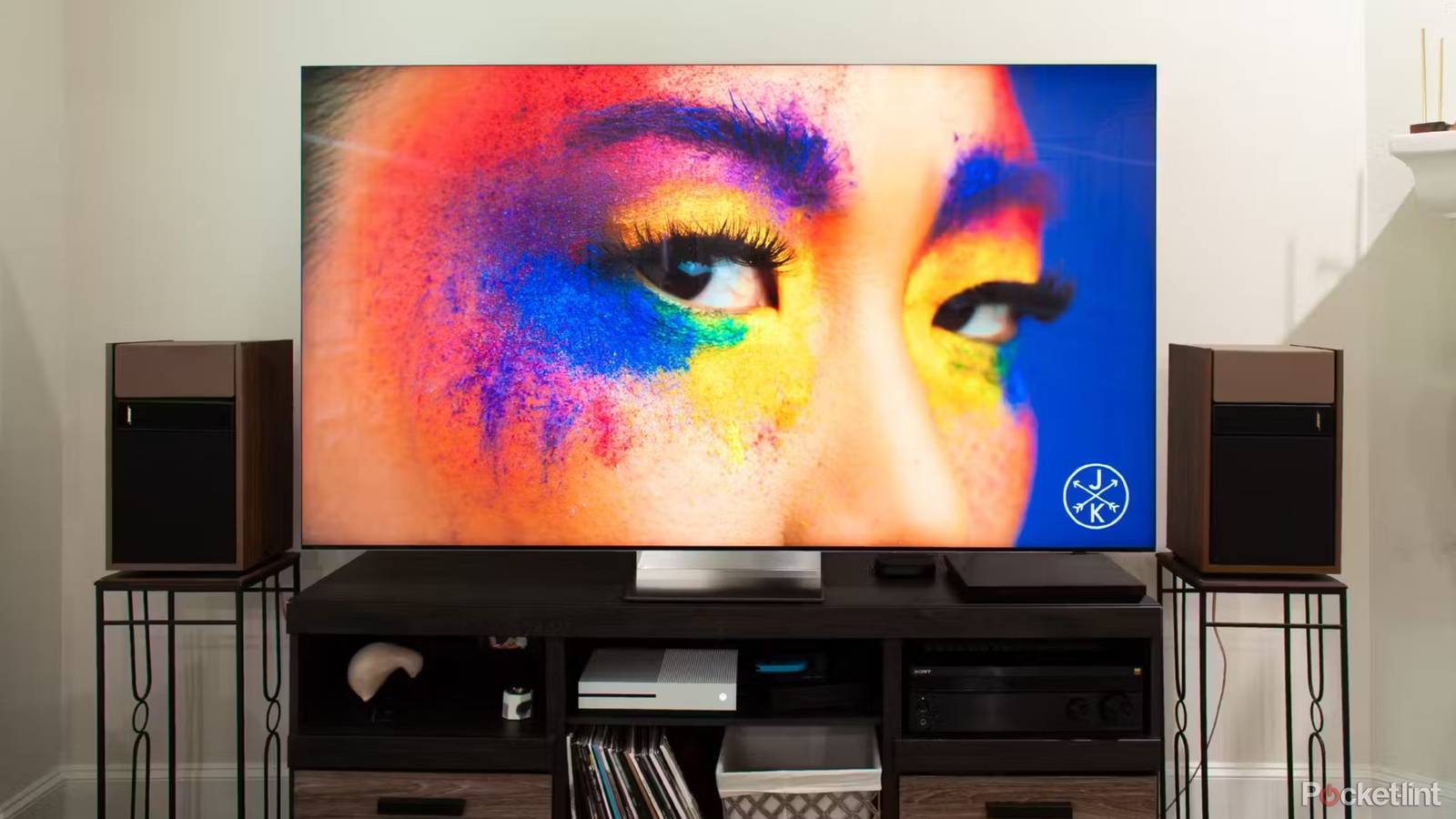
In a way, I’m perpetually amazed by the popularity of Samsung TVs. They’re often more expensive than brands like TCL or Hisense, and they use a proprietary OS, Tizen. While Roku OS, Fire TV, and Google TV may have their issues, they are at least standard platforms, often with better smart home integration. I suppose Samsung is a trusted brand that delivers in the spec department, missing Dolby Vision support notwithstanding.
One detriment Samsung shares in common with its rivals is the use of ACR. In this piece, I’m going to offer a quick primer on what ACR is, why it’s so terrible, and the specific steps for disabling it. You may have dodged it during your TV’s setup process, as you’ll see.
What is ACR, and why is it so awful for TV owners?
The anti-feature

ACR stands for Automatic Content Recognition. Although TV makers sometimes try to spin it as “personalizing” your viewing — especially Samsung — the true goal is letting marketers improve their ad targeting by telling them exactly what you’re watching. If I’m a married man into bikes or EUCs, marketers don’t want to waste their budget serving me ads for dating services.
That’s not too far removed from what happens on the web without anti-tracking software. What makes ACR unique, then, is its catch-all nature. It’s always active, no matter if you switch to a PC, a Blu-ray player, a cable box, or a game console. As far as it’s concerned, Chrome, Star Wars, and that VHS tape of a childhood rehearsal are all worth scanning. In practice, a lot of that data is going to be useless for advertisers, and your exact identity remains disguised — but you are being fingerprinted regardless. Many people resent this, and may not even be aware that they agreed to it.
That’s an important point. TV makers that subsidize their products with ACR often disguise it with euphemisms, including that flowery language I mentioned a second ago, and trick you into opting in during the setup process. Be sure to reject Samsung’s Viewing Information Services whenever it’s presented.
How to disable ACR on Samsung TVs
A few quick steps

If you did accidentally agree to ACR without realizing what you were getting into, disabling it is a short process, at least. Follow the steps below:
- From your homescreen, navigate to Menu -> Settings -> All Settings. Note that menu labels may be different on older TVs.
- Select General & Privacy -> Terms & Privacy.
- Look for Viewing Information Services. Click it, then disable it.
While you’re poking around in these menus, be sure to keep an eye out for other tracking-related options. That’s right — ACR isn’t enough when it comes to the ads that prop up profits. What you’re primarily looking for is Interest-Based Advertising, which should be turned off, and Do Not Sell or Share My Personal Information, which should be switched on. You’ll still see interface ads when you’ve got everything right, it’s just that they’ll be generic ones based on things like your broad location.
You might be wondering if you should boycott Samsung TVs because of ACR. Unfortunately, the tech is so widespread that you can’t dodge it without remembering to be vigilant during every manufacturer’s setup process. Add-on media streamers don’t neutralize ACR.