


- You can add a single video, an entire channel, a playlist, or even a search result as a source in NotebookLM.
- Therefore, you can either add each short individually via the link or curate a playlist of the shorts you want to add using the extension and add them all at once.
- This can be a hassle when you have to add multiple videos or an entire channel in a single notebook.
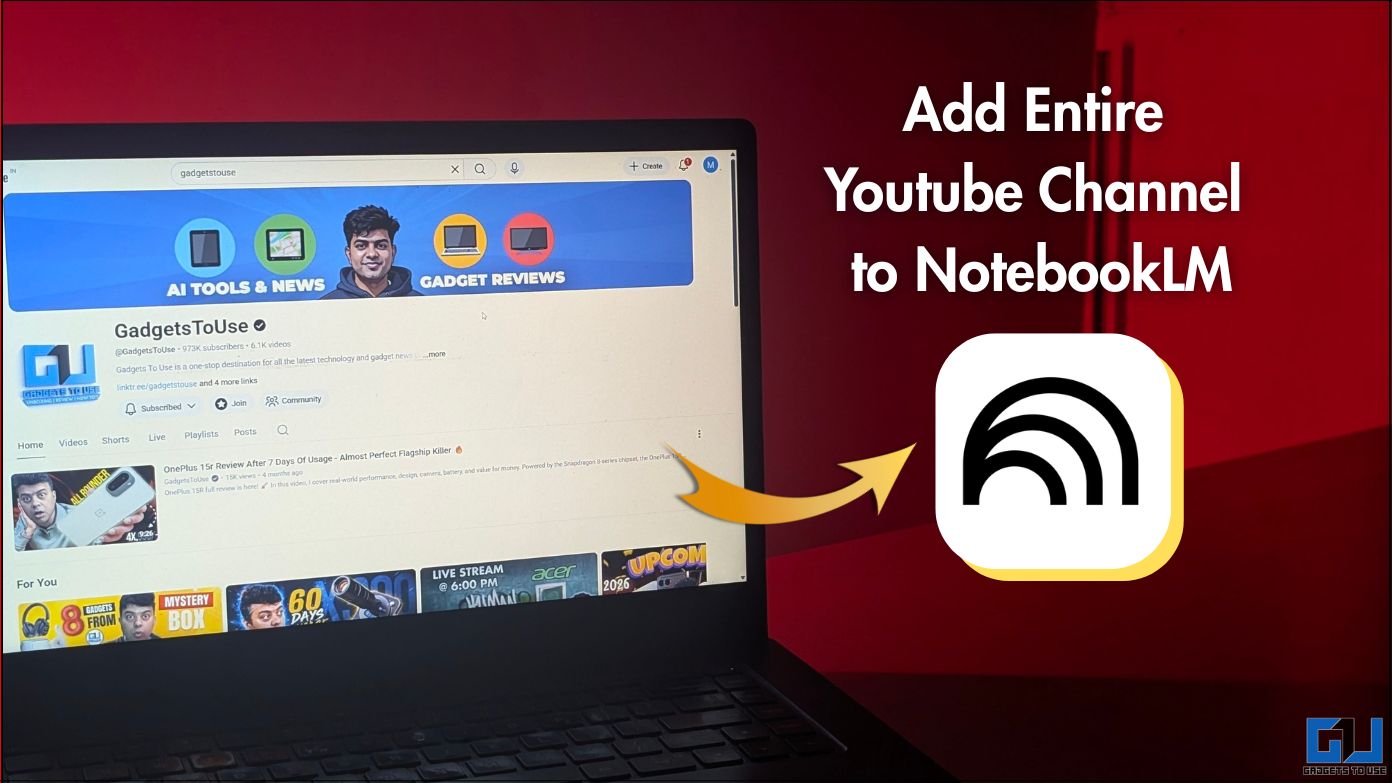
Whether you are a student or a working professional, NotebookLM can be a really beneficial tool. Based on the sources you provide, you can do a lot with it. Including creating presentations, generating audio and visual summaries, taking quizzes, arranging data graphically, and much more. Since Google owns both, YouTube videos work really well as a source for NotebookLM. However, to add a video, you have to copy the video link and paste it under sources in your Notebook. This can be a hassle when you have to add multiple videos or an entire channel in a single notebook. Let’s see how you can add multiple videos in one go without copying and pasting each video link separately.
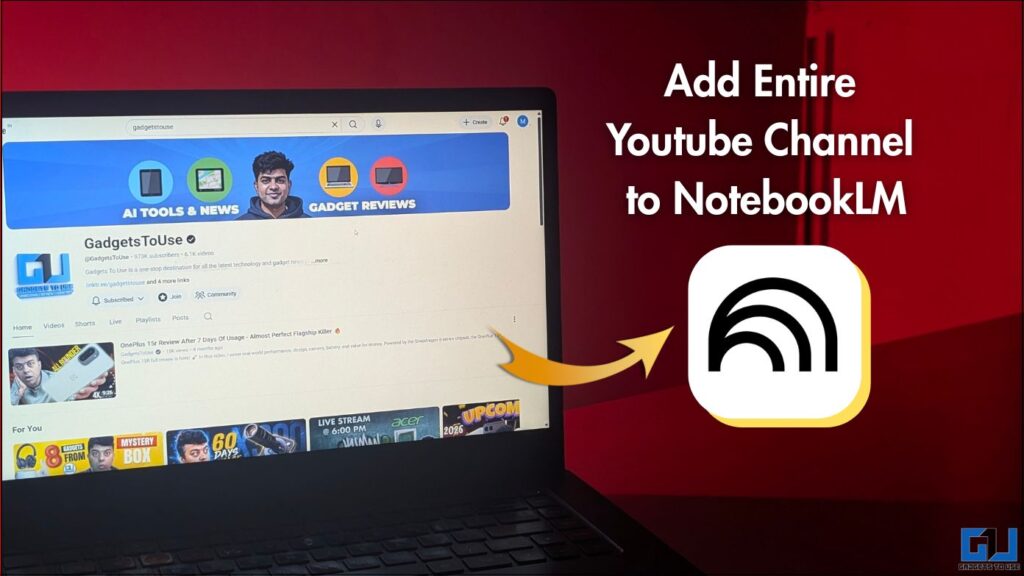
Adding Entire YouTube Channel to NotebookLM
To add multiple videos in one go, you can simply use an extension.
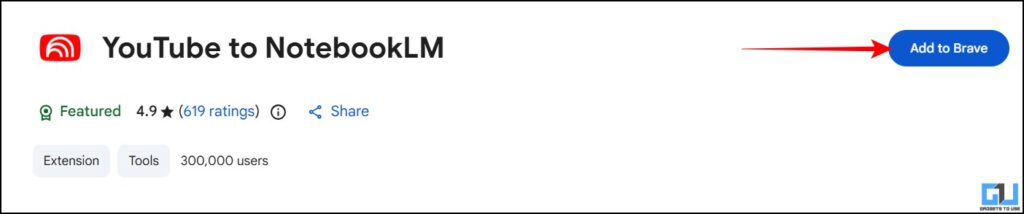
1. Open the YouTube to NotebookLM extension on the Chrome Web Store. Here, click on “Add to Chrome” or whatever Chromium-based browser you’re adding it to.
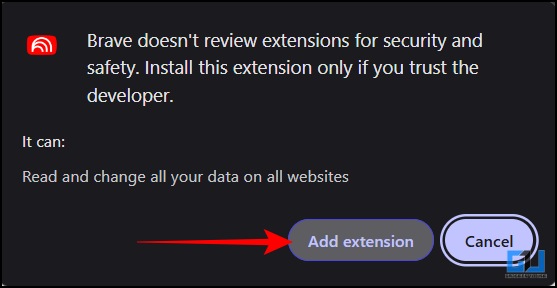
2. You will receive a confirmation pop-up, here click Add extension. Once it is added, you will receive a confirmation.
3. Now, to use the extension, make sure you have logged in to NotebookLM with your Google Account. Open YouTube. Here, you can use it in many ways.
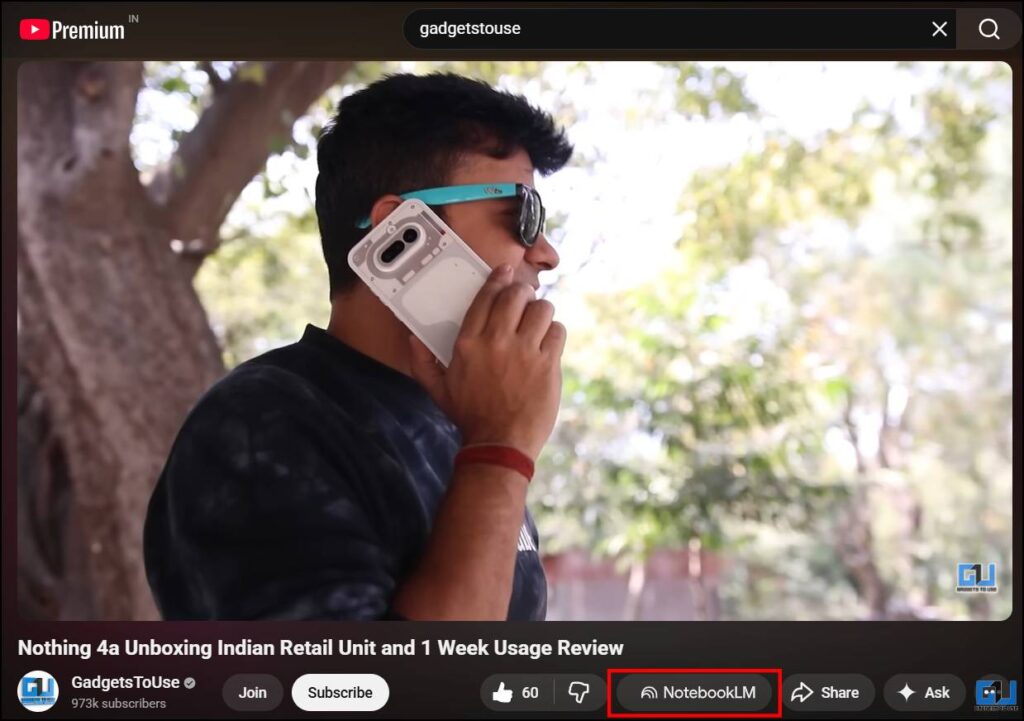
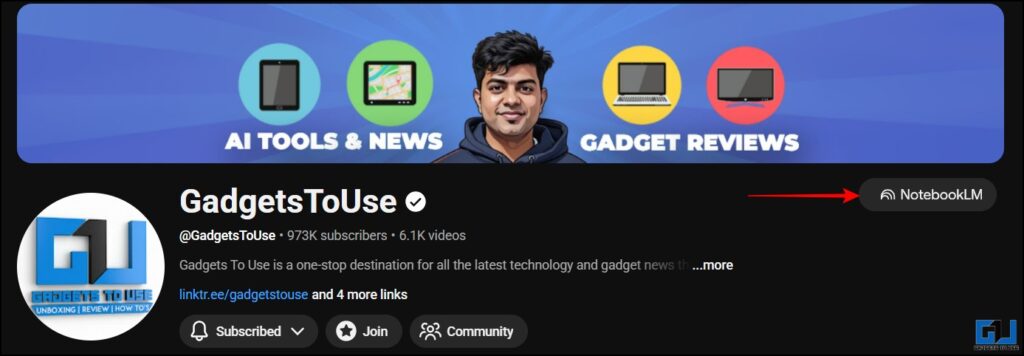
You’ll find that you now get a dedicated NotebookLM button when you open any video.
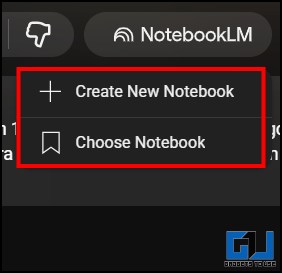
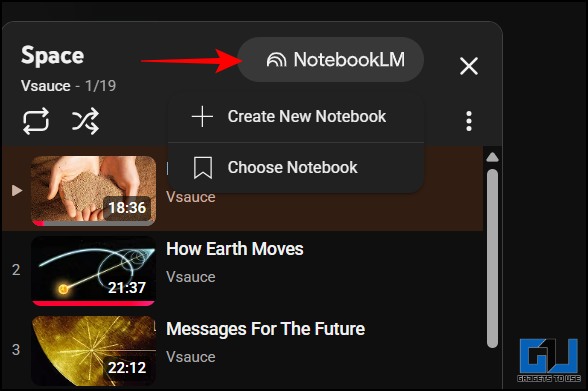
4. Once you click on it, you can either select to ‘Create a New Notebook’ using the video as a source. Or just click on ‘Choose Notebook’ to add that video to an already existing Notebook.
5. The videos get added to a new or existing Notebook, under sources.
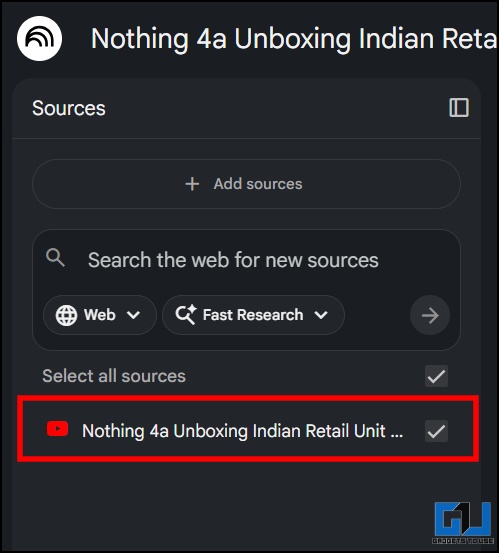
As mentioned above, this extension specifically helps you add multiple videos as sources in a Notebook with just a couple of clicks. Apart from a single video, you can add:
An entire YouTube channel
A Curated playlist on any channel and your private playlists, too.
You can even add a number of videos that come in the search results as sources.

Extension for Non-Chromium-Based Browsers
If you use a non-Chromium-based browser like Mozilla Firefox, you can add the same extension there too.
1. Open the YouTube to NotebookLM extension on the Firefox Browser Add-Ons. Here, click on “Add to Firefox“.

2. You will receive a pop-up. Here, hit ‘Add’. Once it is added, you will receive a confirmation.
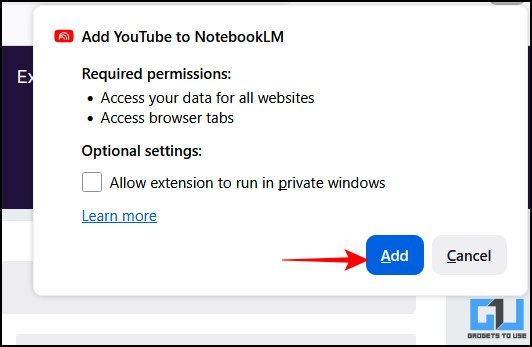
3. It works the same way as it does in Chromium-based browsers. You can add a single video, an entire channel, a playlist, or even a search result as a source in NotebookLM.
FAQs
Q. How many videos can I add to a single Notebook?
On the free version, you can add up to 50 sources per Notebook. Whether they are video links, PDFs, website links, or more. However, if you have a Google AI Pro subscription, that limit reaches to 300 per Notebook.
Q. Can I add multiple YouTube Shorts in the extension?
No, the extension is not compatible with YouTube Shorts as of now. Therefore, you can either add each short individually via the link or curate a playlist of the shorts you want to add using the extension and add them all at once.
Wrapping Up
Using the YouTube to NotebookLM extension can make your tasks easier. Especially if you’re someone who gets most of your information from YouTube videos. The extension is very convenient, allowing users to add multiple videos to NotebookLM in just a few clicks. The developers have kept in mind both users of Chromium-based browsers and users of a browser like Mozilla Firefox, which is non-Chromium-based.
You may also like to read:
Have any questions related to our how-to guides, or anything in the world of technology? Check out our new GadgetsToUse AI Chatbot for free, powered by ChatGPT.
You can also follow us for instant tech news at Google News or for tips and tricks, smartphones & gadgets reviews, join the GadgetsToUse Telegram Group, or subscribe to the GadgetsToUse Youtube Channel for the latest review videos.
Was this article helpful?
YesNo