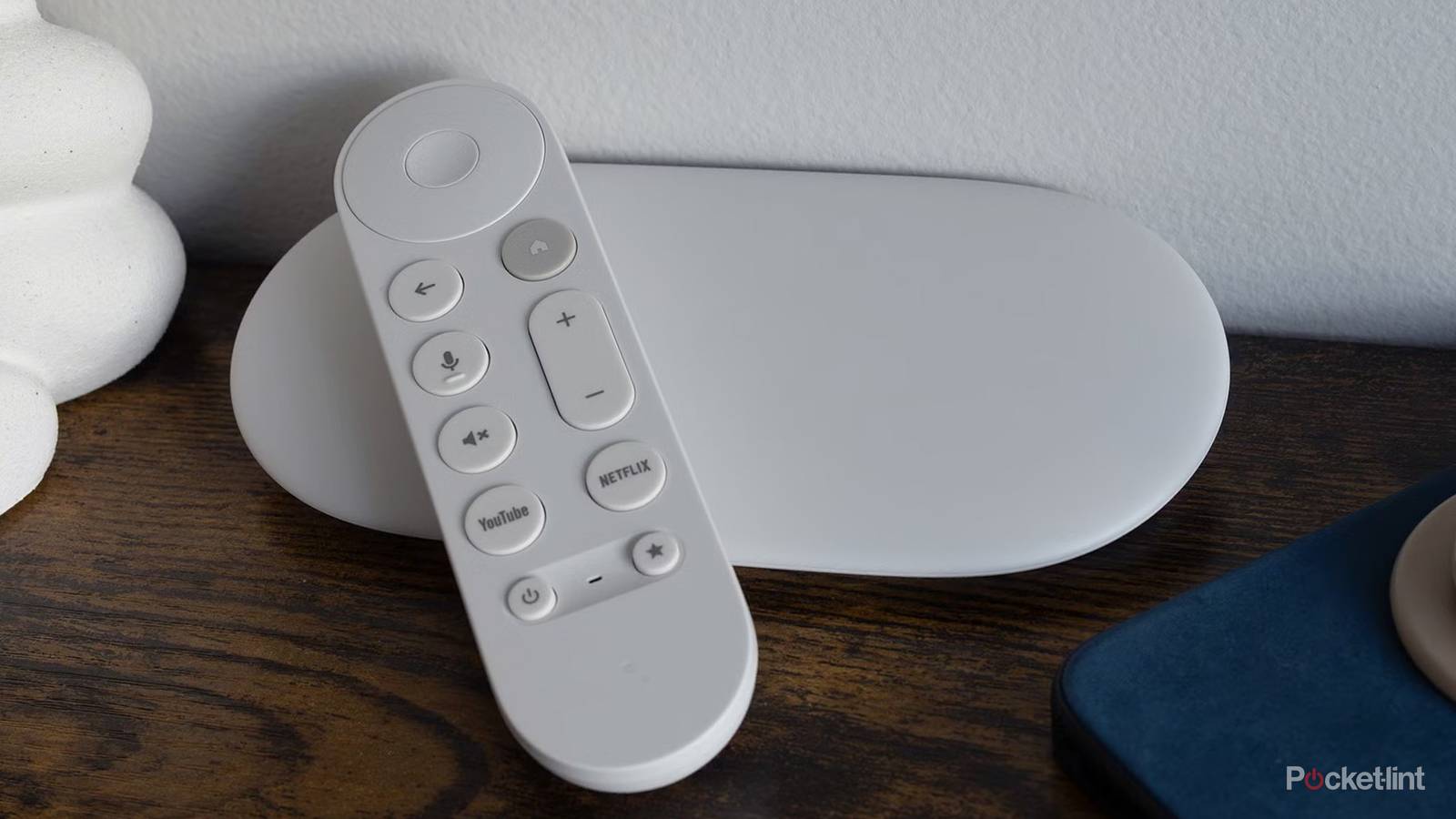
It’s hard for too much to go wrong with the Google TV Streamer or its Chromecast predecessors. It’s not that problems don’t arise — it’s that they’re intentionally simple devices. Until the product line was nixed, some Chromecast models were so cheap and simple that it was tempting to just buy another if things looked too far gone. The earliest ones didn’t even come with a remote.
I don’t mean to encourage treating devices as disposable. Along those lines, here’s a variety of tips you can use to squeeze every last drop out of your media streamers. Bear in mind that I’m going to limit my Chromecast discussion to the models with Google TV — anything else is at least a decade old, and needs to be replaced anyway to keep up with modern streaming apps.

Google Chromecast
Trivia challenge
From the original dongle to Google TV — how well do you know Google’s streaming stick?
HardwareHistoryFeaturesStreamingGoogle TV
In what year did Google first launch the original Chromecast?
Correct! Google unveiled the original Chromecast in July 2013 at a price of just $35. It was a surprise hit, selling out almost immediately after launch and popularising the idea of casting content from a phone to a TV.
Not quite. The original Chromecast launched in July 2013. It debuted at just $35 and quickly became one of Google’s best-selling hardware products, helping to mainstream the concept of smartphone-to-TV streaming.
What shape was the original first-generation Chromecast dongle?
Correct! The original Chromecast had a distinctive circular disc shape with an HDMI connector sticking out. This design was later updated in the second generation, which retained the round form but added a more flexible HDMI cable.
Not quite. The original Chromecast was a small circular disc with an HDMI connector. It was compact enough to sit mostly hidden behind your TV, which was a key part of its appeal over bulkier set-top boxes.
What is the core technology that allows a phone or laptop to send content to a Chromecast called?
Correct! Google Cast is the underlying protocol that powers Chromecast. Rather than mirroring a screen, it tells the Chromecast to fetch and play content directly from the internet, freeing up your phone’s battery and processing power.
Not quite. The technology is called Google Cast. Unlike simple screen mirroring, Google Cast instructs the Chromecast to stream content independently from the cloud, meaning your phone acts more like a remote control than a video source.
Which Chromecast model was the first to come with a remote control included in the box?
Correct! The Chromecast with Google TV, released in 2020, was a major departure from previous models because it shipped with a dedicated voice remote. It also introduced a full interface so users could browse apps without needing a phone.
Not quite. It was the Chromecast with Google TV, launched in 2020, that first included a remote control. This marked a significant shift in Google’s strategy, turning Chromecast from a casting accessory into a fully standalone streaming device.
What maximum video resolution did the Chromecast Ultra support at launch in 2016?
Correct! The Chromecast Ultra launched in November 2016 and was Google’s first Chromecast capable of streaming 4K HDR content. It was priced at $69, making it significantly more expensive than the standard Chromecast at the time.
Not quite. The Chromecast Ultra supported 4K HDR streaming when it launched in 2016. It also supported Dolby Vision and HDR10, and was the premium option in Google’s lineup for users with high-end 4K televisions.
Which port does every Chromecast model use to connect to a television?
Correct! All Chromecast devices connect to a TV via HDMI. This makes them compatible with virtually every modern television. The devices draw power separately via a micro-USB or USB-C cable connected to a power adapter.
Not quite. Every Chromecast plugs into an HDMI port on your TV. HDMI carries both audio and video signals digitally, which is why Chromecast can support features like 4K, HDR, and Dolby Audio without any signal degradation.
What was the name of the operating system used on Chromecast devices before Google rebranded it as Google TV in 2020?
Correct! Before Google TV, Chromecast with a full interface ran Android TV. Google TV is actually built on top of Android TV but adds a redesigned content-discovery layer that aggregates recommendations from multiple streaming services in one place.
Not quite. The answer is Android TV. Google rebranded and relaunched the experience as Google TV in 2020, but it is still built on the Android TV foundation. The main difference is Google TV’s unified home screen that pulls content from across different apps.
Which Google assistant feature can be used hands-free on Chromecast with Google TV via a compatible speaker or display?
Correct! Google Assistant is built into Chromecast with Google TV and can also be triggered via a Google Nest speaker or display on the same network. You can use it to launch apps, search for content, or control smart home devices directly from your TV.
Not quite. The correct answer is Google Assistant. It is deeply integrated into Chromecast with Google TV and can be activated via the voice button on the included remote or through a linked Google Nest device on the same Wi-Fi network.
Your Score
/ 8
Thanks for playing!
Inspect the connections, remote, and status LED

Sometimes, even the most basic things can go wrong, no matter how diligent you’ve been. With Google TV products, a missing video signal is likely attributable to the HDMI connection being loose, assuming you’ve already switched your TV to the right input. While you’re at it, make sure you’re plugged into the best possible port. While none of Google’s devices can truly take advantage of HDMI 2.1, let alone HDMI 2.2, you may still get a smoother experience with 2.1 as a result of features like ALLM and/or Quick Media Switching.
If the HDMI connection is secure, but video is still missing, you may want to inspect the port and cable for any debris or damage. If there’s damage, you probably won’t be able to fix it, honestly. If there’s debris like dust or lint, though, you may be able to clean it out with compressed air or a relatively soft-tipped swab or toothpick. Be careful, of course — you don’t want to scratch any contacts or leave new debris behind. Using an air can too close or at the wrong angle risks spraying fluid.
While you’re at it, pay attention to what the status light on your device is doing. A solid white light indicates that everything is fine, but a slow white pulse means that your device is either disconnected from Wi-Fi or in setup mode. A yellow light is cause for immediate concern. Depending on the pattern, it may indicate a reset or recovery mode, or (in the case of Chromecasts) that an update or diagnostic test in progress. Don’t disturb a device while it’s in the middle of a reset or update, because that risks bricking your device permanently. If a yellow light persists without any indicated way to address it onscreen, it’s probably time to talk to Google support.
There’s not much to talk about with the remote, but remember that buttons can become stuck or broken, and that low battery power can affect responsiveness, as I once found out. On that note, I’d suggest using rechargeable batteries if you can. While you’ll have to switch them out more often, you’ll be able to do that without worrying about wasting your money. If a remote appears genuinely broken, Google sells official replacements.
Restart the device or clear up storage

Just like your phone or computer, a Google TV device launches a number of background processes when it boots. In some cases, you may be able to fix odd app behavior simply by restarting a device, which will give processes and RAM a clean slate. You can do this by unplugging and waiting a minute before plugging in again, although it’s probably faster to head over to Settings -> System -> Restart.
If a device is starting to feel sluggish, a reboot won’t be enough. The first thing to do is clear temporary cache files, which bog down a device if they’re outdated or otherwise need to be overwritten constantly. You can do that by going to Settings -> System -> Storage -> Internal shared storage -> Cached data. There’s no real downside to this — you’ll stay logged into your services, and hopefully, your device will get a small speed boost. The operating system does technically need to rebuild caches, but that shouldn’t interfere with your streaming.
Should performance problems refuse to go away, it may be time to bite the bullet and delete apps you’ve stopped using regularly. None of Google’s products have very much storage — at best, you’ll get 32GB on the Streamer — and if you keep filling them up, you may encroach on the swap space needed to make things run smoothly. Remember, the OS takes up a sizable footprint on its own, so it’s not worth holding on to apps on the off chance you might finally take up that friend’s show recommendation.
Update your software and network settings

Unsurprisingly, apps can be badly behaved not because of anything you or Google have done, but because bugs slipped through the cracks. A modern app is a complex beast, so it’s hard to tamp down every possible conflict or memory leak. If your apps aren’t already set to auto-update, you can trigger manual updates by navigating to Settings -> Apps -> Manage Updates. While you’re there, you should probably flip the auto-update toggle, since downloads are far more likely to solve problems than introduce new ones.
Sometimes, the OS itself may need a new version. You can force a check by going to Settings -> System -> About -> System Update. Be patient, since OS downloads are larger, and inevitably require a reboot to finish the installation process. This is one reason you should leave your device on most of the time, simply putting it to sleep instead of powering off — this lets Google TV update itself during downtime. You’ll be ready to go every time you sit down for a movie or show.
Your Wi-Fi network could be to blame for some performance issues. If you’ve got separate 2.4 and 5GHz SSIDs (network IDs), go to Settings -> Network & Internet and try forcing your device onto the 5GHz band for optimal speeds. Alternately, you may want to choose 2.4GHz if you’re dealing with a weak signal, since that band offers more range. Note that some mesh systems won’t let you split bands, because a unified SSID makes switching from router to router more seamless.
When problems like buffering or slow downloads persist, it’s time to extend network troubleshooting. Make sure your Wi-Fi router is running the latest available firmware, and consider halting unnecessary traffic on your network when movie night rolls around, especially if you’re watching in 4K HDR and you’re on a 100 or 200Mbps internet plan. Also, make sure your router is out in the open and unobstructed. It’s a cardinal sin to stuff one behind furniture or inside a drawer, cabinet, or closet.
As a last ditch measure, you might consider power-cycling your modem and router, in that order. Leave them both unplugged for a minute or two, then reconnect the modem and wait for it to get a solid link. Assuming your router is a separate device, reconnect that next. These steps will accomplish things like establishing a fresh, potentially faster connection with your ISP, and clearing your router’s cache and active processes.

- Dimensions
-
6.4 x 3 x 1-inch
- Connective Technology
-
Wi-Fi, Bluetooth
- Brand
-
Google
- What’s Included
-
Remote