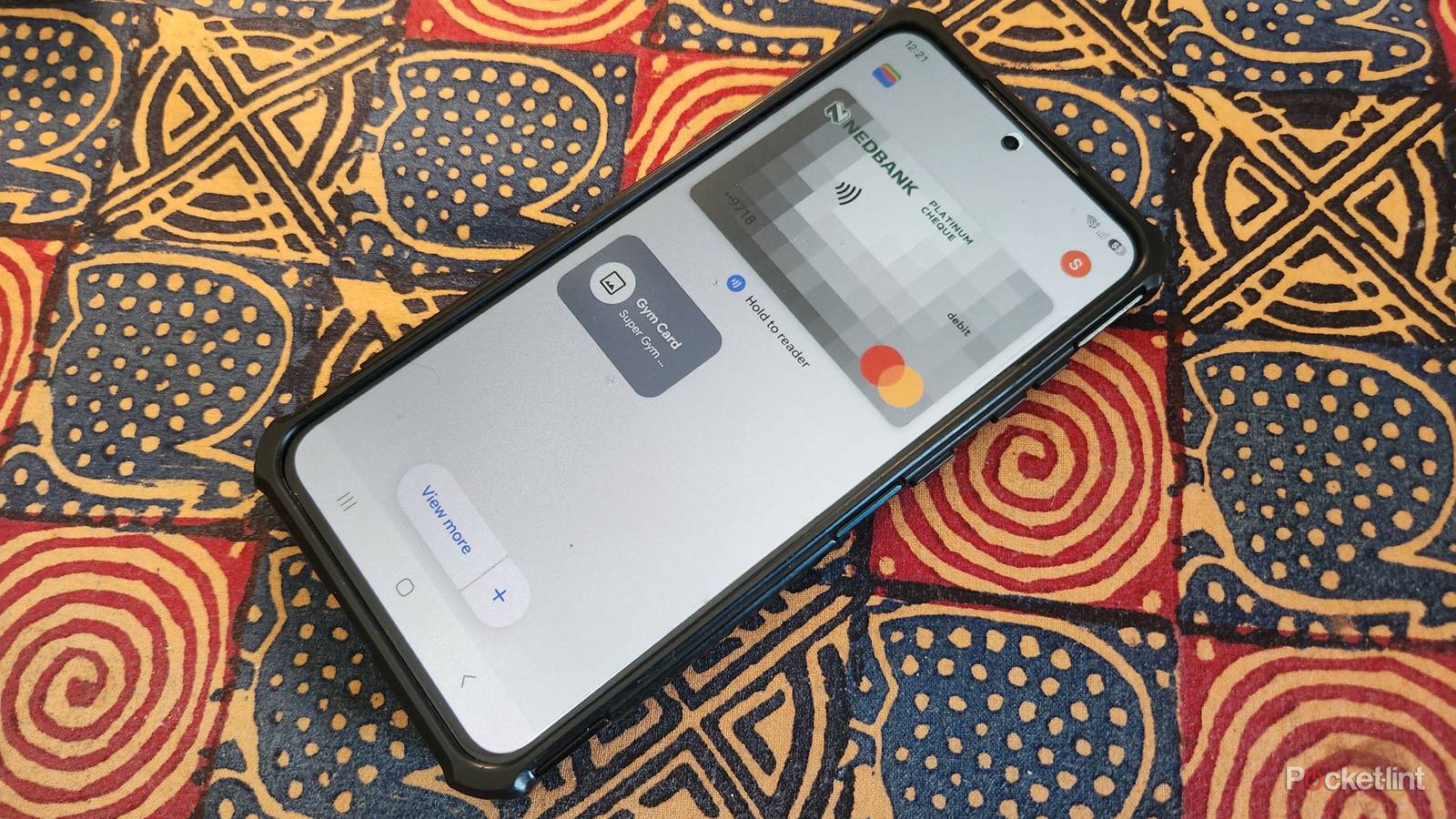
Google Wallet is a life-saving app that’s helped me countless times when I need to pay for something and have forgotten my wallet at home. I also find it faster to scan my phone than to take my actual card out of my wallet and return it to my pocket.
Most of us use Google Wallet as a simple card replacement. However, it has many other features, like Live Updates, that come in handy at airport check-ins, doctor’s offices, and other places where I need quick access to my identification and other cards. I also use easy tweaks to streamline Google Wallet and enjoy all its new features without holding up the line while I’m fumbling with my Android phone. Here’s how I optimize my Google Wallet performance for faster checkouts.
Add passes and membership cards
Use your phone to access services

It makes sense for me to store my bus pass, gym membership, and other cards to eliminate the need for a wallet. Adding cards to Google Wallet is simple. I navigate to the main menu and tap the icon saying Photo Create a digital pass from a barcode or QR code.
Trying to add memberships with multiple barcodes or QR codes won’t work and will generate an error.
Then I put my card on a flat surface, and the app will auto capture an image of it. I tap Next after it captures the card, and the app will confirm that I want to create a new pass using the photo. I tap Next again, and Google Wallet takes me to a screen where I can add the pass’s name and description. I tap Next again to store the card, and then I’m done.
Add loyalty cards
Carry fewer cards with you

Loyalty cards have a way of piling up, and I add them to Google Wallet, so I don’t need to carry them around. To do this, I tap on Loyalty card Earn and use your rewards and points. The app then displays a list of the most popular loyalty programs in my area.
I can manually add my membership number from a card in the input box.
I tap on the option I want to add, then scan the barcode on my card. Alternatively, I can manually add my membership number from a card in the input box. Then I tap Add to Wallet to store the card.
Create a lock screen shortcut
Easy access for faster payments

Google Wallet is one of my most frequently used apps, so I add it to my phone’s lock screen for quick access. I prefer this method because it instantly opens the app and is still secure, since I need to unlock my phone to use it.
Google Wallet is one of my most frequently used apps, so I add it to my phone’s lock screen for quick access.
Adding Google Wallet to my Lock Screen is easy. I long-press anywhere on my lock screen. I then need to type my code to edit the lock screen. I tap the icon on the bottom left or right of the screen. It opens the Actions menu, and I scroll down through the Apps list and select Google Wallet. Then I tap Done, and the Google Wallet icon is added to my lock screen.
Use Google Wallet on my Samsung Watch
Pay with another device

There’s no need for me to take out my phone when I can use my Samsung Galaxy Watch to make payments. I download Google Wallet from the Google Play Store and tap Install. Then I set a lock screen on my phone and follow the app’s instructions to add my cards to it.
There’s no need for me to take out my phone when I can use my Samsung Galaxy Watch to make payments.
After adding my cards, I open Settings, then Tap Buttons and Gestures. I choose Double-press then select Google Wallet from the app list. Then I go to the Quick Access menu and turn on NFCs. After that, I can use Google Wallet to pay when I double-press the side button on my watch.
An alternative way to access the app

Adding a Google Wallet shortcut to my phone’s Edge Panel menu is easy and gives me another way to access the app. I open the Edge Panel menu by swiping my finger from right to left across the screen.
Then I tap the pencil icon and unlock my phone. A list of apps appears on the left side. I scroll down to Google Wallet and drag the icon across to the Edge Menu.

- Developer
-
Google
- Subscription cost
-
No