


Apple’s tablets and smartphones used to be a lot simpler. Before the iPad started working like another version of Apple’s Macs, when you downloaded an app to your iPad or iPhone, it would just get added to the nearest empty spot on your home screen. There was no need to worry about widgets or folders. In fact, when the original iPad launched in 2010, it was in many ways a big iPhone, just with nice apps that took advantage of a larger screen. As the iPad has gotten more complex, adopted interface elements from Apple’s desktop operating system, and developed touch-focused alternatives, though, rearranging the tablet’s apps and widgets has gotten increasingly annoying. And the additional layers of new features haven’t made things any easier.
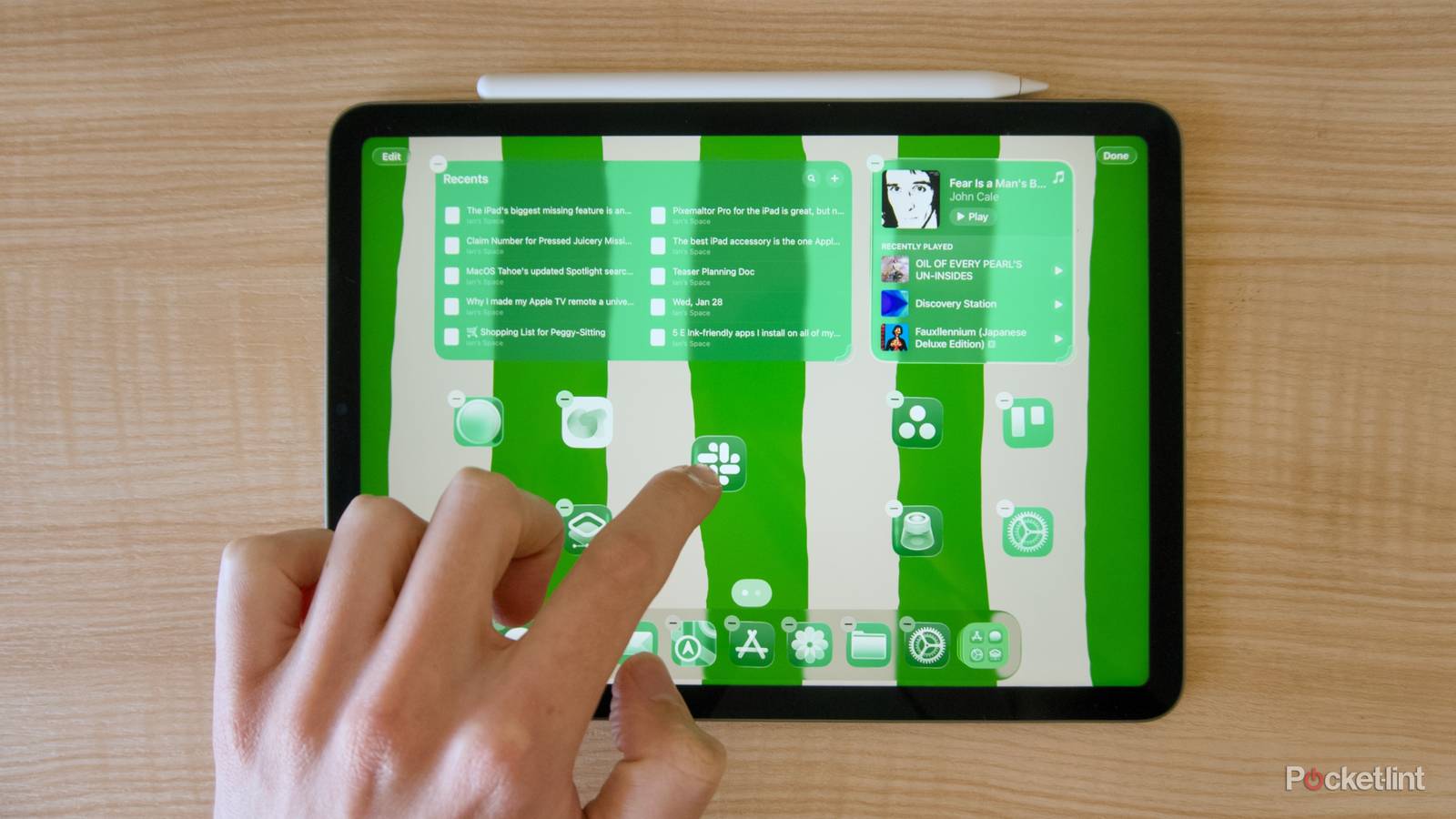
The process is intuitive, sure, but it’s also slow. You either individually drag whichever apps or widgets you want to the home screen of your choice, or you use two hands and try to collect multiple apps to move at once. Little of what Apple’s changed about the iPad’s interfaces in the last few years has made this process of laying out apps easier, and in some cases they’ve made it worse. More so than something that will make Apple’s tablet more like a laptop, the biggest missing feature from the iPad is a better way to organize apps.
iTunes used to manage apps, too
The switch to Apple Music had some unexpected drawbacks

When the iPod ruled the world, one of the most important pieces of software Apple offered was iTunes. Originally a way to rip your CDs and organize your music library, the media management app quickly blossomed into a place to purchase music, movies, apps and download podcasts, too. Originally, when you purchased a new iPad or iPhone, you had to connect it to iTunes first. Not just to download the latest firmware update, but also to figure out what parts of your library would make the cut for your new tablet or smartphone.
Updates Apple made to iOS over time made setting up a new smartphone or tablet more convenient, and iTunes less central to the life of the company’s devices. Automatic software updates, wireless backups, and the ability to access the App Store and iTunes Store from your tablet meant that you usually didn’t need to connect your iPad to iTunes unless there was a local library of content you needed to port over. Apple finally abandoned iTunes on macOS in 2019, replacing the app with the separate Music, Podcasts, and TV apps, and giving the responsibility of syncing and backing up devices to Finder.

In a world where many people already pay for a music streaming service, the move made sense, but it did ignore one of the other uses for iTunes: organizing apps. In the early days of the iPad, when there were fewer iPad apps, and fewer universal apps that could transition nicely from iPhone to iPad, iTunes was a simple way to make sure your iPad only had the best tablet apps. You could even use iTunes to place or layout your apps. Apps had to follow the more rigid home screen layouts offered at the time, but it was easier than doing it with your finger.
iTunes is still available for Windows 11 devices.
Apple’s most recent change to how apps are organized came in 2020 with the addition of the App Library, the furthest screen to the right on an iPad or iPhone that automatically sorts all the apps on your device into searchable folders organized around theme. The App Library is helpful, but it doesn’t really solve the inconvenience of manually setting up your home screen for anyone with a specific layout in mind.
A less than ideal, professional option
Apple Configurator lets businesses set up iPads en masse

With only a tedious on-device method for creating your ideal home screen and nothing like iTunes to fall back on, you might consider other options. Like, for example, Apple Configurator, which lets businesses and schools set up and manage multiple Apple devices at once. MacBooks and iPads have never been as popular in schools as cheap Windows laptops and Chromebooks, but Apple offers all the software necessary if you want to deploy an army of devices.
Even with the ability to add or delete apps on the fly, setting up Apple Configurator doesn’t seem worth the hassle.
Apple Configurator lets you create profiles of specific settings and blueprints of apps, and then apply them to as many iPads that you want to manage. That way, each one is set up exactly the same. On a smaller scale, you could theoretically set up both for a single device and achieve some of the home screen customization, but there are limitations, and because Configurator is designed to be a professional tool, it’s not a simple process.
Some changes require making your iPad a “supervised” device, which could require you to completely wipe it and start from factory settings to use. And while Apple Configurator can also bulk add and delete apps from your device, it can’t choose the specific placement of apps, so it also fails as a way to lay out the perfect iPad home screen. Even with the ability to add or delete apps on the fly, setting up Apple Configurator doesn’t seem worth the hassle.
Customization options should be easier to use
Templates and intelligent sorting could go a long way

Apple has been remarkably willing in the last few years to make the iPad feel and look like a proper computer with updates to iPadOS, so a solution to this problem seems possible. On macOS, there are countless apps that change how your dock, menu bar, and desktop work, and more than a few ways to move applications around in large quantities. iPads are supposed to be user-friendly, so it’s understandable why Apple might not want to open the floodgates to apps and utilities that fundamentally change how its tablet works, but it feels like some kind of middle ground could be reached.
Maybe Apple could offer templates of app and widget combinations that could be tweaked to include apps users prefer, rather than arranging everything by hand. Or maybe the iOS and iPadOS home screen could adapt on the fly, not just based on what Focus Mode is enabled, but whatever you’re doing on your device at a given time. Alongside its planned improvements to Siri, Apple reportedly explored having AI rearrange the home screen on the fly, but nixed the idea because of its potential to confuse users. That’s a legitimate concern, and the real solution is probably far less automated — smart folders like Apple uses in the App Library, but capable of being placed anywhere, maybe? Until then, we might just have to get comfortable with things being a little inconvenient.