

There are a few reasons some people still clamor for “dumb” TVs. One is privacy, and another, avoiding more advertising than TV already subjects us to. The overriding incentive though is simplicity. Some people only want to access broadcast TV, a Blu-ray player, or media on their local network.
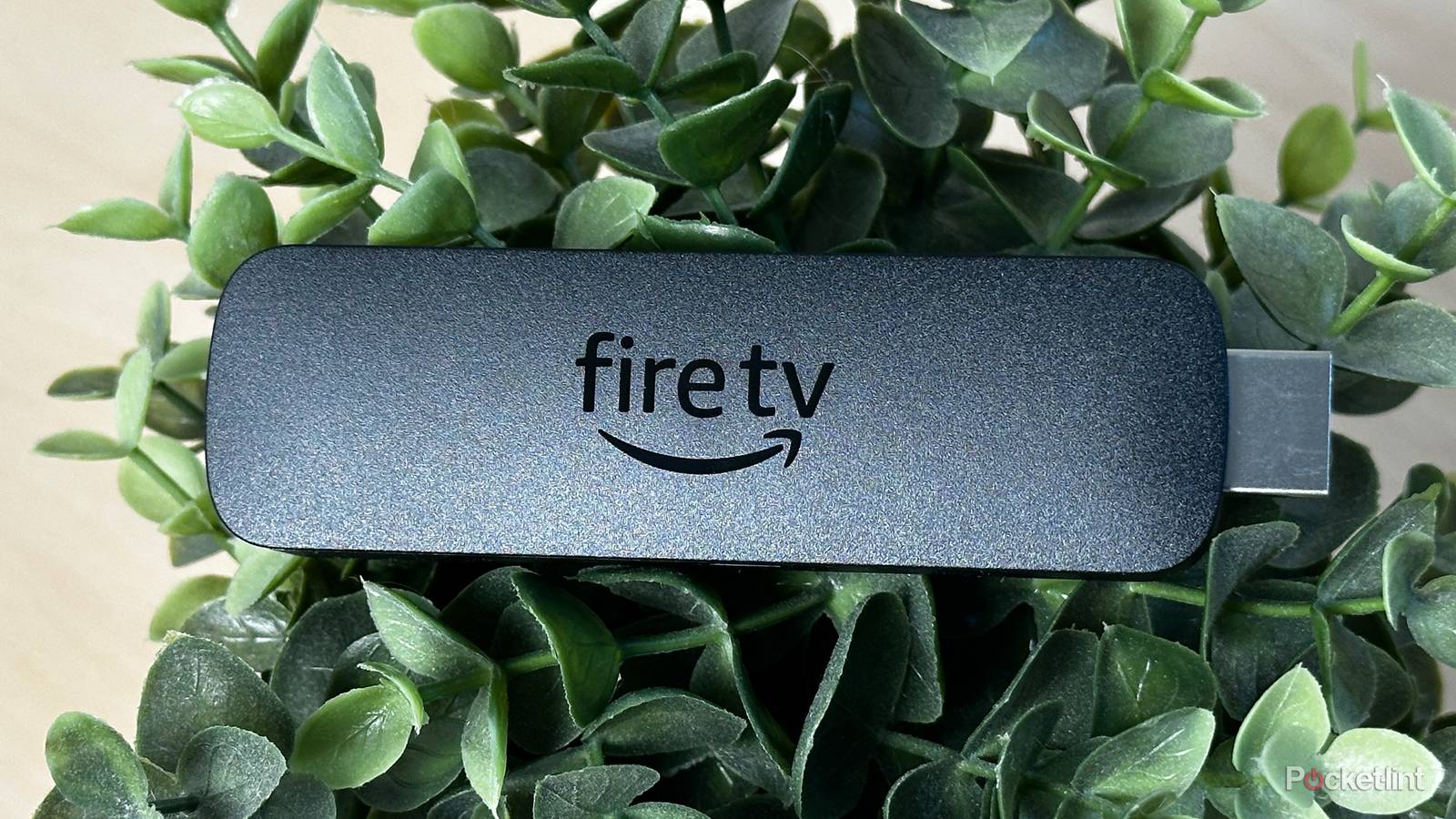
If you’ve got a Fire TV Stick, you might be wondering about how much you can do on it without connecting to the internet. Realistically, the answer for most people is little to nothing — but I’ll explain why, and which apps may still have some use. You might also be in luck if you have a USB drive and a special cable.
What doesn’t work when a Fire TV Stick is offline?
More than you might expect

The biggest obstacle is initial setup. Quite simply, while Fire-based TVs may let you bypass connecting to the internet, there’s not much point to doing that on a Fire TV Stick, since it can’t access your TV’s tuner or HDMI inputs. Even if it’s just temporary, you’ll want to connect your Stick to the internet via Wi-Fi or a compatible Ethernet adapter. Once you’re online, you’ll be prompted to sign in to your Amazon account, which will let you download apps — crucial to what I’m going to talk about in the next section.
Naturally, any apps that depend on remote streaming won’t work, such as Netflix, Disney+, or Spotify. Remember also that this includes live TV apps like Sling or YouTube TV. While some might behave like the interface on your cable or satellite box, they’re still pulling from the internet rather than over-the-air signals.
At least some Alexa smart home functions will fail, including most if not all voice commands and automation routines. Like many voice assistants, Alexa depends on cloud processing to interpret what you’re saying and deliver a response. You might be surprised about the automation aspect, but Alexa relies on the internet for many triggers. Typically, the only automations you can completely count on involve accessories connected directly to an Echo speaker via Thread or Zigbee.
Another big problem is that the homescreen itself will likely display an error message, such as “Home is Unavailable.” This could be a dealkiller if your TV has an interface of its own that works offline, but it’s actually still possible to launch apps on your Stick — just more convoluted. You’ll need to go to Settings -> Applications -> Manage Installed Applications, click on the app you want, then Launch Application. This is remarkably different from devices like the Apple TV 4K, which maintain their homescreens at all times, simply failing to load assets that require remote content, such as ads.
So what can you do with a Fire TV Stick that’s offline?
Mirror your Apple, Android, or Windows device

All Fire TV Sticks support Miracast, which is effectively interchangeable with Google Cast. That means that you can mirror any Android or Windows device via Wi-Fi, as long as you’ve enabled mirroring in Fire OS first. To do that, you’ll have to go to Settings -> Display & Sounds and select Enable Display Mirroring.
The connecting device will, of course, need internet access of its own if it’s not simply playing local files. I also need to emphasize the fact that you’re mirroring your entire screen instead of casting individual apps. When you cast an individual phone app, it typically only tells native Fire OS software to fetch content, which of course it can’t do in this case.
Unfortunately, the situation is rougher if you’ve got an iPhone, iPad, or Mac. While dedicated Fire TVs tend to support AirPlay, your Stick probably doesn’t, so you’ll need to install a third-party app like AirScreen or AirReceiver from Amazon’s app store. If you don’t like those — or they aren’t available in your region — other clients are available. Once you’ve got one installed (be sure to follow setup and usage instructions), you should be able to mirror an Apple device using the appropriate button in Control Center.
Stream from a local media server

Platforms like Plex and Jellyfin will let you stream music and videos from an offline media server on the same Wi-Fi network, usually your Mac or Windows PC. You will, however, need to install those apps ahead of time, not to mention collect and organize a media library. You can follow the link above for more info. Here I’ll just emphasize the fact that you’ll need hundreds of gigabytes of space, and special software like Handbrake (plus necessary plugins) if you’re planning to rip DVDs or Blu-rays. If you don’t have discs, you’ll need to find some way of downloading media (cough).
The server software itself can be tricky too. While you can run it directly from your computer, you may need to spend some time configuring port and transcoding settings for optimal performance. You may additionally have to enable local connections without online authentication, which is certainly true in the case of Plex.
Yet another wrench in the gears is that some of these apps aren’t available on Amazon’s app store, such as Kodi. If you’ve already set up a server app on one platform, you may be forced to add another for Stick compatibility.
Play media directly from a local USB drive

Nominally, the only purpose of the USB port on the side of your Fire TV Stick is power, but the truth is that it can double as a way of connecting external storage. If that storage is properly formatted (FAT32), as well as loaded with compatible audio or video files, you can use apps like VLC for local media playback.
It’s not all sunshine and roses. Apart from the burden of having to collect media and copy it to a drive, files and folders need to be carefully labeled and organized. Apps like VLC aren’t built to automatically detect and sort titles the way a platform like Plex is. You’ll also need to buy a special Y-shaped “OTG” adapter cable, as Amazon continues to use micro-USB instead of USB-A or USB-C. This will let you continue to power your Stick via your TV or a wall outlet.
Don’t expect much bandwidth out of this port. Being micro-USB, it’s capped at USB 2.0’s 480Mbps (megabits per second). That should be enough for many videos, but you won’t come close to maximizing the performance of a portable SSD, or even many thumb drives.
Tether to your smartphone

When all else fails, you can get your Fire TV Stick back online by turning your iPhone or Android device into a Wi-Fi hotspot, and changing settings on your Stick to connect. On an iPhone, go to Settings -> Personal Hotspot and toggle Allow Others to Join. Android devices should have a Hotspot button in Quick Settings. Once your phone is prepped, head over to Settings -> Network on the Stick, select your phone, then enter your password. After you’re done streaming, remember to switch settings back to your regular router.
This option is last on my list for a couple of reasons, one being carrier restrictions. Some cell plans have data caps, whether in general or just for tethering. If you exceed these limits, you may be charged an extra fee, or find your speeds severely throttled. Other plans may exclude tethering completely, in which case you’re streaming at your own risk.
Second, cellular can be unreliable. Even if you have 5G, download speeds may dip far enough to result in buffering. You might want to wait for your landline internet to come back before watching a movie in 4K HDR with Dolby Atmos.