


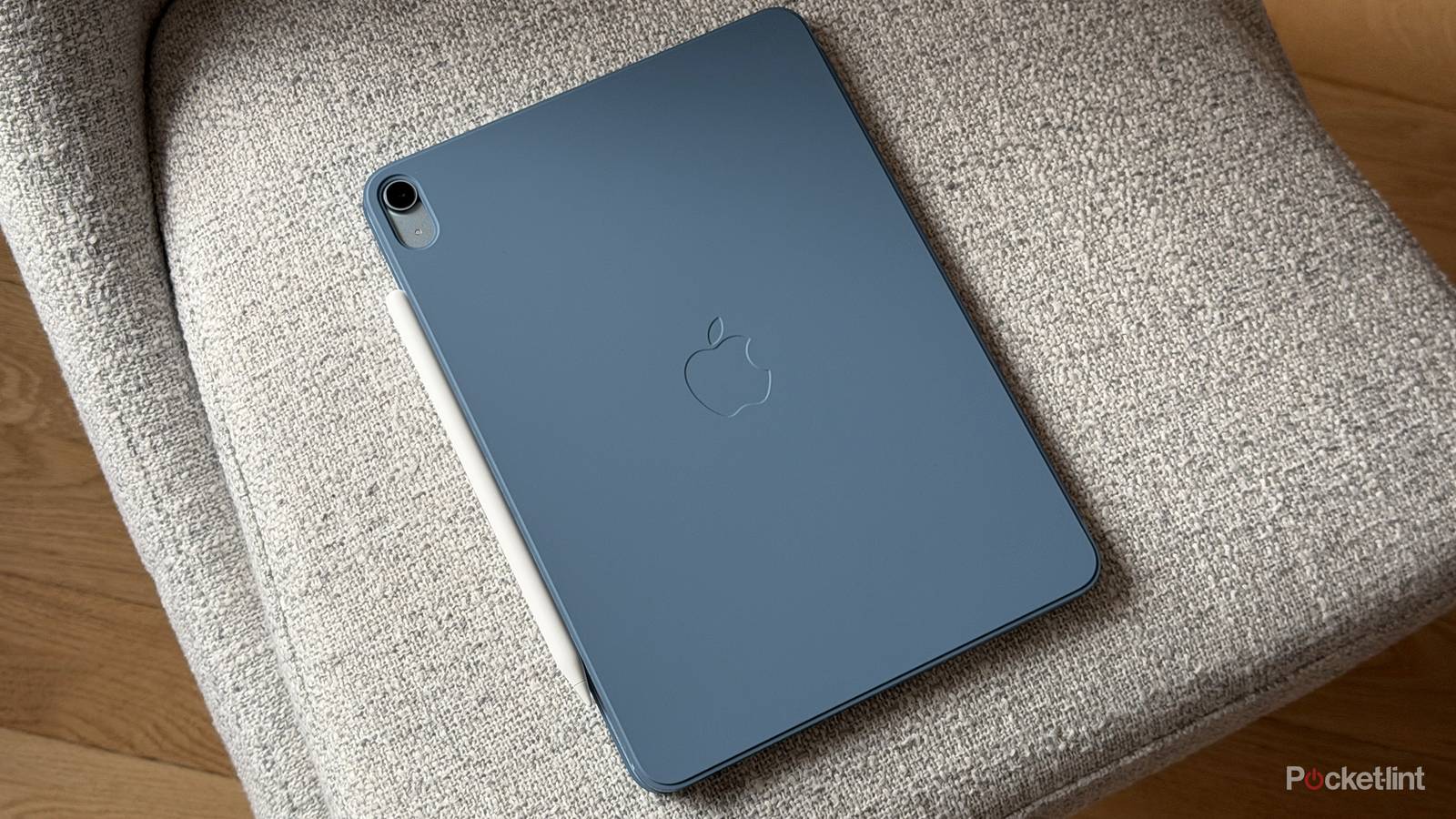
An irony of the iPad is that while it’s built to be a mobile device, none of the users I know own a cellular model. There’s not much point to it, typically — if you’re not within range of home or business Wi-Fi, you can probably tether to your smartphone. Another factor is that iPads are well-equipped to be usable offline, with more storage than most iPhones, and less need for Siri commands and dictation to get around interface barriers.
Ordinarily, my job demands that I be online whenever possible. But I have had to work off the grid, and having the right apps for those circumstances meant the difference between wasting time and being ready to upload when I returned to Wi-Fi range. Hopefully, some of you might benefit from my experience.

- Brand
-
Apple
- Storage
-
128GB, 256GB, 512GB, 1TB
Pages
The omnipresent typewriter

This one might seem like a lazy pick at first, until you consider that the primary alternatives are Google Docs and Microsoft Word. Both can operate offline, but Docs is relatively anemic, so it’s only worth using if your demands are straightforward or your employer demands Google’s platform. Word is far more powerful, but only in tandem with a Microsoft 365 subscription — in fact, you have to pay to play.
Pages is of course free with iPads, and offers all the most important features of Word including complex graphical layouts, advanced text formatting options (like footnotes and tables of contents), and more templates than you can shake a stick at. You can export to Word, PDF, TXT, RTF, or EPUB. There are even options for LaTeX and MathML notation, or autoscrolling text when you’re presenting a speech.
Aside from all that, another reason to stick with Pages is its deep platform integration. Drawing, writing, and annotating with an Apple Pencil (or another stylus) is built in, for instance. For some of you, there might not be any need for more apps.
Pixelmator Classic
Avoid the subscription trap

While Adobe Photoshop is the industry standard for image editing, you’re better off learning Pixelmator if you want to do offline work. Adobe refuses to sell a standalone version of its app anymore, which means paying through the nose for a Creative Cloud subscription. Owning Pixelmator Classic forever costs about as much as one month of CC, if not less, and rewards you with an app that’s equally capable of professional-level illustration and photo editing. In fact, if you go with Photoshop, it verifies your subscription status every 30 days. You’d better hope you’re online when that happens.
Pixelmator is easy enough to learn, and can import Photoshop files when necessary. Being under Apple’s wing now, the app also supports Continuity features with Macs, and all the capabilities of Apple Pencils. Don’t worry about Pixelmator Pro. That requires an Apple Creator Studio subscription, and you’re not gaining much for Pixelmator specifically beyond the Warp Tool.
Notability
Subscription-free notetaking (with a few catches)

I’d recommend experimenting with Apple’s preloaded Notes app first. It’s more powerful than you might think. I recognize, though, that some people need to step up to an app with file annotation tools, better organization options, and/or the ability to mix several kinds of media in a way that’s more seamless than Notes allows.
Notability fits that bill. If you’re a student, the app is aimed very explicitly at you. On top of allowing you to merge handwriting, sketches, diagrams, and typing, you can generate quizzes and flashcards, or search all your notes for specific pieces of information, whether it’s typed or handwritten. The app can handle workplace functions too — it’s just that the education functions stand out.
Admittedly, some of Notability’s best features require not just being online, but a paid subscription, such as automatic transcriptions of calls and lectures. You’ll also need a subscription for basics like handwriting recognition, math conversion, iCloud sync, and unlimited note creation.


