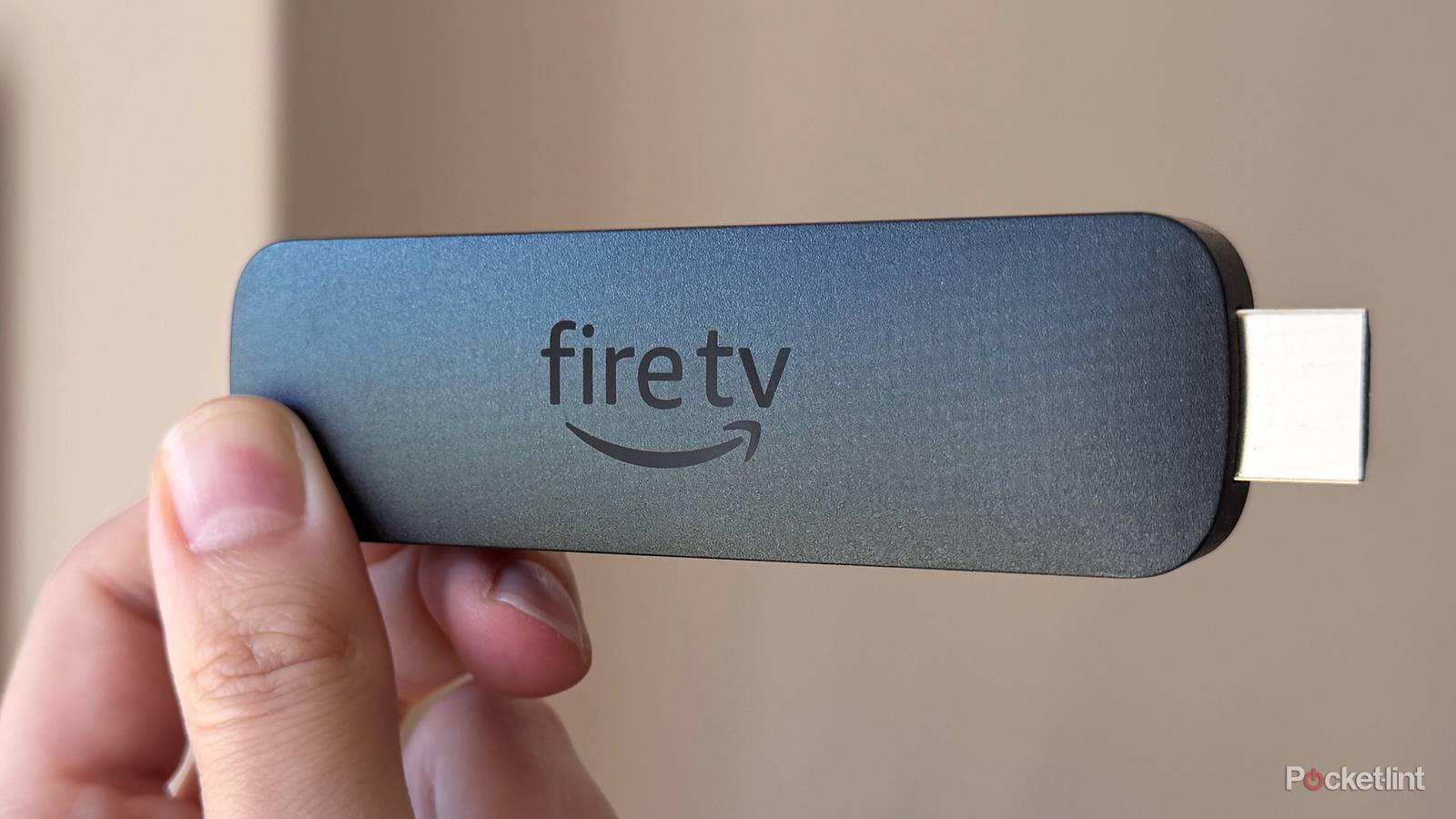
I’ve been using a Fire TV Stick 4K Max with my LG TV for a while now, and it’s one of the best upgrades I’ve made to my TV. It offers plenty of features that have improved my streaming experience, including Dolby Vision and Dolby Atmos support, Wi-Fi 6E, and 16GB of storage, so I can install all the apps I want without worrying about running out of space.
One of the things that impressed me most when I first got my Fire TV Stick, though, was just how fast it was. Considering how small and affordable it is (I picked mine up on sale for just $40), it was much quicker than I expected and immediately felt like a big upgrade over using my LG TV’s built-in webOS.
The only downside is that after years of streaming on it almost every day, it’s not quite as fast as it was when I first took it out of the box. That’s pretty normal for any piece of tech, though. After making a few adjustments and digging through the settings menu, I had it feeling fast again in just a couple of minutes.
So, if your Fire TV Stick has started to feel sluggish, here are four tweaks that can help make it feel almost brand new again. These tips work on just about any model, whether you have a Fire TV Stick HD, 4K Select, 4K Plus, 4K Max, or even an older Fire TV Stick.
Close apps running in the background
There’s a free app that helps you with this

The first thing I did that really helped speed up my Fire TV Stick was close all the apps and processes running in the background that I wasn’t using. Just like on your smartphone, tablet, or PC, closing an app on your Fire TV Stick doesn’t necessarily mean it stops running. Instead, many apps stay open in the background so you can jump back into them more quickly.
While that’s convenient, it can also put a strain on your Fire TV Stick’s system resources. Considering most Fire TV Sticks only have 1GB of RAM (the 4K Max has 2GB), having too many apps running at once can slow things down surprisingly quickly.
Fortunately, there’s an easy fix. I downloaded a free app called Background Apps and Process List from the Amazon Appstore. It’s essentially the Fire TV Stick equivalent of Task Manager on a Windows PC or Activity Monitor on a Mac, letting you see which apps are running in the background and close the ones you don’t need to free up system resources.
When I opened it, I was shocked by how many apps were still running in the background, even if I hadn’t used them in months. I closed the ones I wasn’t using, and my Fire TV Stick instantly felt faster.
The Background Apps and Process List app can only be downloaded on Fire TV Sticks running Fire OS. To close apps on a Vega OS Fire TV Stick, which is currently only the brand-new HD model and 4K Select, you can go to Settings > My Applications > Manage Installed Applications, then Force Stop any app you choose to stop from running in the background. The app just makes this process faster.
Clear your Fire Stick’s cache
One of the best tried-and-tested methods

Next up is a trick that works on Fire Sticks and just about every device: clearing the cache. If you’re unfamiliar with cached data, here’s the gist of it: Apps build up cache over time by storing temporary files to help load content more quickly. While that’s usually a good thing, too much cached data can actually have the opposite effect, slowing things down and taking up valuable storage space.
So, if you’ve never cleared your Fire TV Stick’s cache, or it’s been a while since you last did, doing so can help speed things up again. Fortunately, Amazon has made this much easier than it used to be. Fire TV Sticks now have a “Clear All Application Caches” option in the settings menu that lets you clear the cached data for all your installed apps at once. Here’s how:
1. Go to Settings > Applications.
2. Select Clear All Application Caches.
3. Press Confirm to delete the cached data for all installed apps.
Check for software updates
Amazon recently released one of its biggest Fire TV updates yet

Another easy way to improve your Fire TV Stick’s performance is to check for and install any available software updates. Amazon regularly releases updates that include performance improvements, bug fixes, and other tweaks designed to make the streaming experience smoother.
While many of these updates are minor, Amazon rolled out one of the biggest Fire TV updates ever earlier this year. It introduced a completely redesigned Fire TV interface and significant performance improvements after the company rewrote parts of the operating system’s underlying code. According to Amazon, the changes can improve performance by 20 to 30 percent, and the update is now available on all current-generation Fire TV Sticks. In my experience with the update, which I’ve been using since February, it has made things noticeably smoother.
That said, whether you have a newer Fire TV Stick or an older model, it’s always worth making sure you’re running the latest software. Sometimes, a simple update is all it takes to smooth out performance and fix the glitches you’ve been running into.
Here’s how to check for updates:
1. Go to Settings > My Fire TV > About.
2. Select Check for updates.
If an update is already available and has been downloaded, your Fire TV Stick may show “Install update” instead of “Check for updates.”
Uninstall apps you no longer use
If your Fire Stick’s storage is almost full, it can affect performance

Last but not least is storage space. If your Fire TV Stick is running low on storage, it can start to slow down, causing issues like stuttering, sluggish performance, or even apps freezing altogether. Most Fire TV Sticks only come with 8GB of storage (the 4K Max has 16GB), so if you download a lot of apps, that space can fill up surprisingly fast.
With that in mind, it’s worth checking your installed apps every once in a while and uninstalling any you no longer use. Even if your storage isn’t completely full, freeing up a little extra space can help keep your Fire TV Stick running smoothly while also decluttering your device.
Here’s how to uninstall an app on your Fire TV Stick:
1. Go to Settings > Applications > Manage Installed Applications.
2. Select the app you want to remove.
3. Choose Uninstall.

- Brand
-
Amazon
- Resolution
-
4K
- Audio codecs
-
Dolby Atmos
- RAM/storage
-
16 GB