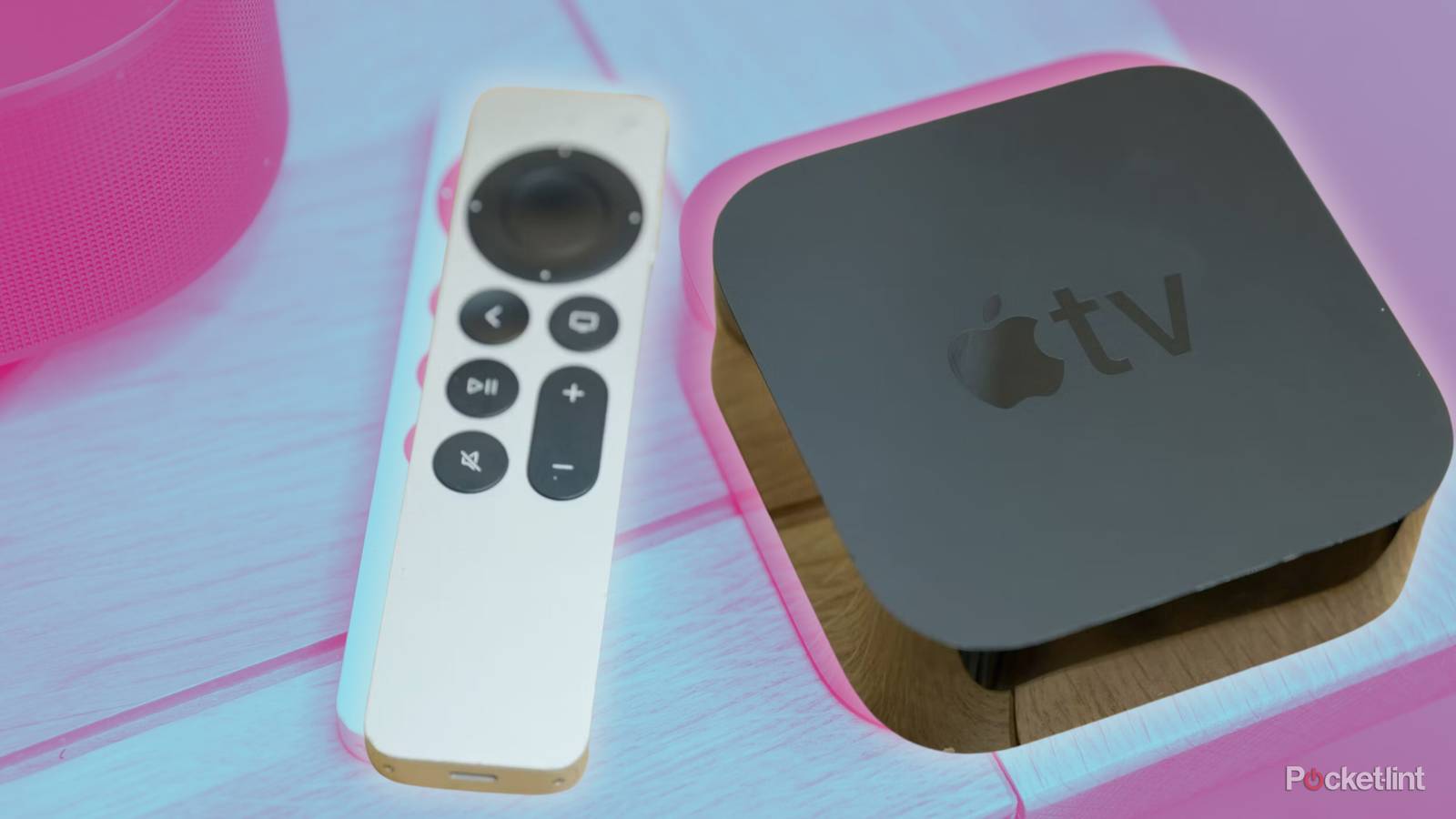
I’ll admit it: my Apple TV home screen had become a complete mess.
Over the years, I’d installed dozens of apps on it. Streaming services, games, VPNs, and Apple’s own first-party apps. The funny thing is that despite using only a handful of them regularly, I still found myself scrolling through the home screen just trying to find what I needed.
At some point, I realized I was spending more time looking for apps than actually using them.
What surprised me, though, was that Apple already gives you everything you need to fix this. You don’t need to, or rather can’t, install a third-party launcher on Apple TV. Spending just a few minutes reorganizing the home screen completely changed how I use the device.

- Brand
-
Apple
- Bluetooth codecs
-
5.0
- Wi-Fi
-
6
- Ethernet
-
Gigabit (128GB model only)
Apple’s third-generation 4K set-top box ships with an A15 Bionic chipset, HDR10+ and Dolby Vision support, and a rechargeable USB-C Siri Remote.
I didn’t realize Apple lets you customize almost everything

The biggest improvement I made was simply moving my most-used apps to where I could actually reach them.
It sounds obvious, but when I looked at my home screen, I realized YouTube, Disney+, Netflix, and Spotify, the apps I open almost every day, weren’t anywhere near the top. Instead, they were scattered across multiple rows in the exact order I’d installed them over the years.
Thankfully, Apple makes it really easy to rearrange apps, and once I spent a few minutes moving things around, the whole home screen instantly felt much more organized. Here’s how to rearrange apps on your Apple TV:
- Open the Home Screen on your Apple TV.
- Highlight the app you want to move.
- Press and hold the clickpad (or touch surface) on the Siri Remote until the app starts jiggling.
- Use the directional controls to move it wherever you’d like.
- Press the clickpad again to save its new position.
And that’s it. I kept all my most-used apps in the first row since those are the ones I launch every day. It’s also the best place to keep supported apps because Apple shows previews and additional information whenever they’re highlighted.
Why I’m probably stuck with Apple TV forever
If you’re looking for a simple, straightforward streaming platform, the Apple TV can’t be beat.
Group similar apps together and ditch the ones you don’t use

Once I’d moved the important apps, I realized the home screen still felt cluttered. All the apps I rarely used were still spread across multiple rows, taking up unnecessary space. And that is when I started organizing everything into folders.
Just like on an iPhone, Apple TV lets you create folders for apps. This means you can club similar apps into one folder, making it easier to find. I grouped together streaming services I rarely use, games, fitness apps, and utilities that I only open every once in a while. It made the home screen feel much cleaner while still keeping everything just a click or two away:
- Highlight the app you want to move.
- Press and hold the clickpad on the Siri Remote until the app starts jiggling.
- Drag the app on top of another app.
- Apple TV will automatically create a folder containing both apps.
- Open the folder if you’d like to rename it.
While organizing everything, I also realized just how many forgotten apps I still had installed. There were streaming services I’d canceled months ago, apps I’d downloaded for a single sporting event, and a few that I genuinely couldn’t remember installing in the first place.

Rather than leaving them there, I simply removed them. Here’s how to delete apps from your Apple TV:
- Highlight the app you want to remove.
- Press and hold the clickpad until the icon starts jiggling.
- Press the Play/Pause button on the Siri Remote.
- Select Delete and confirm your choice.
And that’s really it. These small changes completely transformed how I use my Apple TV. Instead of scrolling through endless rows of apps every time I wanted to watch something, I now know exactly where everything is.
A cleaner home screen makes Apple TV feel faster
This is how I ended up with a much cleaner Apple TV home screen, and it has made the whole experience feel faster and less frustrating. And that’s really just the beginning. Apple TV has plenty of other hidden features and settings that are worth exploring and can make the overall experience even better.