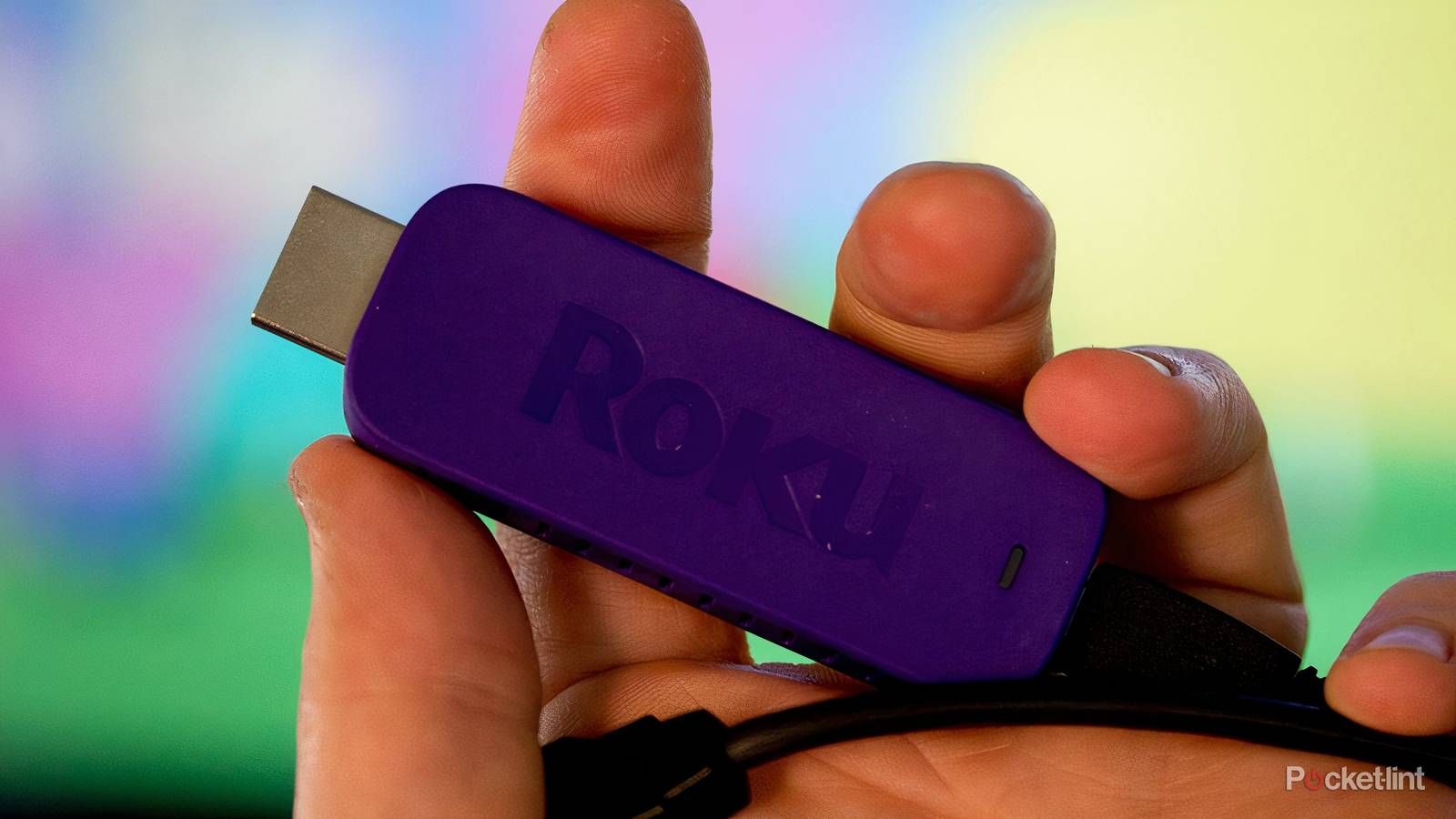
It may seem silly to you, but there are those among us who ask, “Can I use my Roku streaming device if I have no internet connection?” Maybe your service has been out longer than you can handle because somebody stole the copper wiring and crashed a neighborhood’s internet. Maybe times got a bit tough, and it was either groceries or streaming services. Maybe it’s the zombie apocalypse, and you’re just trying to keep Carl occupied.
Whatever the case, you absolutely can use a Roku streaming player without being connected to Beyoncé’s internet, but you won’t be able to use most of the functionality of the device. Let’s dig into what your options and use cases look like!
It’s in the name: Streaming
So, what isn’t going to work?

Roku streaming sticks are purpose-built for internet connectivity, so it should come as no surprise that without a connection, many of the features just won’t work. The first hurdle you’ll need to overcome is that to even begin playing with a Roku streaming device, you’ll need to configure it over an internet connection.
Once configured, you’ll be greeted with screens showing promotional content, but if you have no connection, those spaces in the interface will be blank. Even worse, you may get error messages. In some cases, you’ll actually need the internet connection just to download the apps that you can use without an internet connection. We’ll get to those in a moment.
Did you lose your voice?
Something I haven’t seen covered elsewhere is the voice remote’s functionality. Some Roku remotes work via Wi-Fi, while others use IR to “talk” to your TV. In the case of Wi-Fi remotes, if they’re already paired to your streaming stick, you’re good to go except for one thing: voice functionality. Some voice functions may work, but voice search will not. When using the voice functionality to search for something to watch, an internet connection is used to process the request and return your results.
One of the last bits you can’t count on when your internet is no longer working is “local storage.” Or the ability to store content directly on your Roku Streaming Stick. While some Roku sticks, like the Streaming Stick 4K, may have up to 4GB of internal storage, it isn’t available to use for downloading content to watch on the go or without an internet connection. There may be other options in that regard, though, which we’ll touch on in a moment.
Zombie apocalypse-proof?
Or, what you can do if there’s no internet

There are really only two things you can do if you’re using any Roku streaming stick without internet access. Are you familiar with “mirroring” your phone? Many Roku sticks have a built-in feature that lets them connect wirelessly to your smartphone, tablet, or laptop and cast whatever’s on your screen to your TV. The technology is called DLNA, and both your device and the Roku must support it in order for it to work.
Additionally, mirroring can be a bit tricky because even though you’ll have no internet connection, you’ll need your home router’s local network to be operational for this to work. That’s because both the device you’re sending content from and the device you’re casting that content to will need to be on the same wireless network.
If you didn’t know, your router still works without an internet connection, and devices connected to that router can still communicate with one another, though some may have limited functionality. To use this feature on your Roku Stick, you’ll need to go to the settings menu, then the System menu, and select Screen Mirroring. When you do, you should see the options “Screen mirroring mode” and “Screen mirroring devices.” Select the Screen mirroring mode first and choose either Always allow or Prompt.
Streaming media from an offline “server”

Now, I don’t have a NAS or local media server at home, but, in theory, you should be able to stream content from your networked storage with the right software installed on your Roku stick. There are apps like Jellyfin or Plex that let you stream content over a network, but you’ll need to configure them properly to connect to the Roku Stick, and you’ll need media files on your server that are supported by your Roku Stick model.
You should be aware that network streaming will take some know-how. You’ll likely need to configure ports to pass that data from an offline server, such as your laptop or desktop computer, and you may need to dig through the software’s settings to handle offline content streaming and playback.
You down with OTG? Yeah, you know me!

Last tip here: play media from a flash drive. For this, you’ll likely need to download the Roku Media Player app, since many Roku Sticks don’t come with it preinstalled. Next, since the antiquated micro-USB port commonly found on many Roku Sticks supplies power to the stick, you’ll need to purchase an OTG Y-adapter that lets you plug in the included cable to power it while also connecting your properly formatted flash drive as your media source. As with network-attached storage, you’ll need to ensure that your flash drive contains media files supported by your Roku streaming stick model.
Along with making sure you’re using files formatted properly for your Roku Stick, be aware that the micro-USB port isn’t a high-speed data transfer tool, so you’ll want to use smaller file sizes and not anything like a high bitrate, uncompressed 4k Blu-ray file, which is large and pushes quite a bit of data.
Ok, one more tip: If all else fails and your home is overrun by the undead, it would be ill-advised to use your Roku Streaming Stick as a projectile. If you throw it at the incoming horde, you’re likely to hit only one zombie, and let’s be honest, the stick isn’t heavy enough, and you can’t throw it hard enough to do any real damage to the zombie’s brain. If all else fails, your best bet is to run to a safer location, then try these tips again to see if they work in your new hiding place. You’re welcome!