Ever since I built my first PC back in 2013, I’ve been a PC gamer at heart. Don’t get me wrong, I still love playing games on consoles, and I own both a PS5 and a Switch 2, but there’s no denying that gaming on a PC offers the best experience, with higher resolutions and frame rates. Not to mention, a PC can do so much more than just gaming, whether it’s writing, editing videos and photos, watching YouTube, streaming, or simply browsing the web and social media.
However, for the longest time, I neglected one thing with my PC that I should’ve done years ago: connect it to my TV.
My TV has always had a Fire TV Stick 4K Max plugged into it for streaming shows and movies, and since I was perfectly happy with my monitor setup at my desk, I never really considered hooking my PC up to it.
That changed after I upgraded my TV late last year to an LG C5 OLED. With its 120Hz refresh rate and G-SYNC support, it seemed like the perfect display for my PC as well, and I realized it was long overdue for me to try it.
Since then, my PC has easily become the device I use most with my TV, whether it’s for gaming, streaming, or just browsing the web from the couch.
Connecting your PC to your TV is seamless
HDMI is all you need

While it might seem like a pain, connecting your PC to your TV can be pretty seamless, provided your PC (or Mac) has an HDMI port or a USB-C port capable of video output, which you can use with an HDMI adapter. The biggest hurdle I had to overcome was finding a long enough HDMI cable to connect my PC to my TV, which I solved with a 16-foot HDMI 2.1 cable.
After that, getting your TV to work with your PC is basically instant. I run Windows 11 on my gaming PC, and as soon as I connected my TV to my GPU via HDMI, my desktop appeared on the screen, with Windows automatically treating it as a secondary display, which is exactly what I wanted. The only thing I had to do manually was change the refresh rate from 60Hz to 120Hz, which you can do in Windows 11 by heading to Settings > Display > Advanced Display.
Even if you don’t have a Windows PC, connecting a Mac to your TV works virtually the same way, and you can either use your TV as a secondary display or mirror your Mac’s screen.
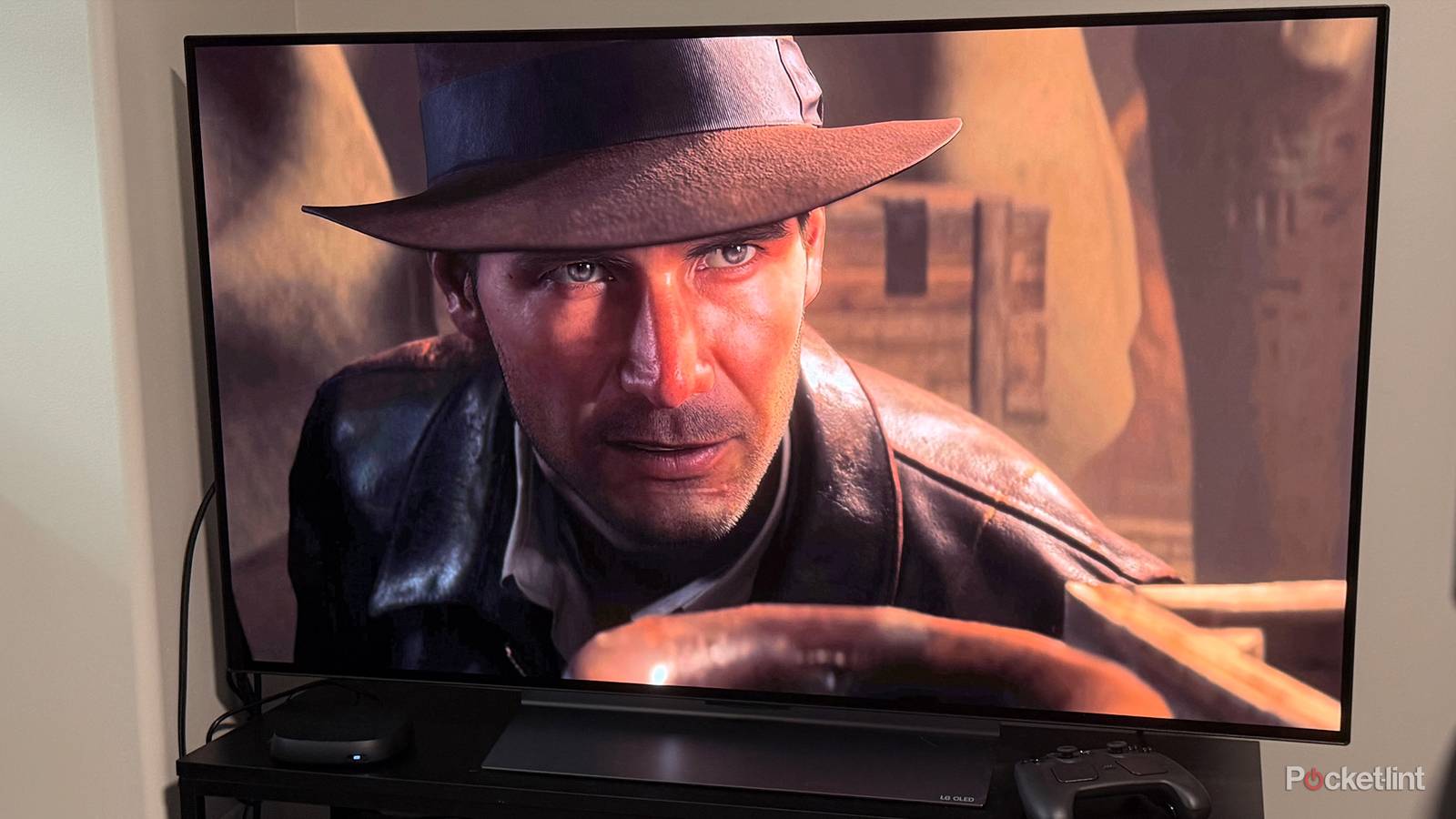
Once it was connected, I treated my TV just like a second monitor. If I wanted to play games on it, I could launch them and change the display settings to show the game on my TV instead of my monitor. One of the first games I tried this with was Indiana Jones and the Great Circle, and it looked absolutely incredible running in 4K on my TV.

I also recently picked up a new Steam Controller, and now whenever I press the Steam button on it, it launches Steam Big Picture Mode right on my TV (a setting you can enable). That makes it incredibly easy to jump into games on my TV rather than my monitor whenever I feel like a game merits a bigger screen.
Of course, it’s not just about gaming. Whenever I want to watch a YouTube video in 4K or tune into a livestream, I can simply open it in Chrome, drag the window over to my TV, put it in full screen, and I’m good to go.
I’ve actually found streaming from my PC to be much smoother and less clunky than using a streaming stick, and I think that comes down to one simple fact: most PCs are significantly more powerful than the hardware you’d find inside a streaming device, whether it’s a Fire TV Stick 4K Max, Roku Ultra, or Google TV Streamer.
There are also plenty of accessories that make using a PC with your TV even better. I’ve been using a Steam Controller, but a wireless keyboard with a built-in trackpad is another great option.
That said, while having my PC connected to my TV has been a fantastic experience so far, my Fire TV Stick 4K Max still has an important role to play, because it can do one thing my PC can’t.
A streaming device is still handy to have
You need one to stream in 4K on most streaming services

While having a PC connected to your TV lets you do virtually everything a streaming stick or set-top streamer can, there’s one major thing a PC still can’t do as well as a dedicated streaming device: stream in 4K (YouTube being a notable exception).
Yes, you can watch major streaming services on your PC through a web browser, including Prime Video, Disney+, and HBO Max, but the problem is that many of them cap streaming quality at 1080p when viewed in a browser. On Windows 11, Netflix is the main exception, allowing 4K playback through its dedicated app. On Mac, the situation is similar, with only Netflix and Apple TV supporting 4K streaming.
…streaming services are designed to provide their best experience through apps on smart TVs and streaming devices, not through a web browser.
That means if you want to watch a show in 4K on your TV using your PC, and it isn’t on Netflix, you’re generally out of luck. That’s where a dedicated streamer still comes in handy. Whether it’s a Fire TV Stick 4K Max, Roku Ultra, Google TV Streamer, or Apple TV 4K, these devices are built to deliver 4K streaming, along with features like Dolby Vision and Dolby Atmos.
Ultimately, it comes down to this: streaming services are designed to provide their best experience through apps on smart TVs and streaming devices, not through a web browser.
So with that caveat in mind, is connecting your PC to your TV worth it? In my eyes, absolutely. For gaming, browsing the web, and watching YouTube videos in 4K, it’s a fantastic experience and one I find incredibly convenient.
But when it comes to watching the latest movies and TV shows in 4K, a PC still falls short. That’s why keeping a dedicated 4K streaming device connected to your TV, alongside your PC, still makes a lot of sense.

- Brand
-
Amazon
- Resolution
-
4K
- Audio codecs
-
Dolby Atmos