


The default settings on your new TV are programmed by the manufacturer and don’t provide the best visuals or privacy. Some harvest your viewing data and share it with third parties. Certain visual settings dial up the brightness and other settings in the store, but can create unnatural smoothing and other effects that compromise your viewing experience.
That’s why it’s worth disabling annoying TV settings out of the box. Then you’ll be able to enjoy the latest OLED or Mini-LED technology to its fullest and watch movies and shows the way they’re meant to be seen. I always disable these 5 settings on a new TV, and so should you.
Automated content Recognition (ACR)
Remove a privacy risk

ACR is a smart TV feature that captures screenshots of whatever you’re watching and tracks your viewing habits. Then it uploads the data to the TV vendor’s server, where it’s analyzed to create a profile for targeted ads and often shared with third parties. This feature is a privacy risk because it records everything on your screen, including presentations and documents. It also contributes to your network traffic and increases your bandwidth.
This is the first feature I disable on any TV because it’s unnecessary and adds nothing to the viewing experience.
This is the first feature I disable on any TV because it’s unnecessary and adds nothing to the viewing experience. A recent lawsuit between LG and the state of Texas over ACR spying has made it easier to disable the feature. It sets a precedent that brands must obtain users’ upfront consent and provide opt-out options. It’s still better to manually check these settings on your TV.
Every TV brand has a different name for the ACR feature. It’s called Viewing Information Services on Samsung TVs, Live Plus on LG, and Use info from TV inputs on Roku TVs. You can check your specific make and model to find the names of ACR features not listed here.
Motion Smoothing
More frames, less clarity

Motion smoothing has its uses, but spoils the viewing experience if it’s too aggressive. The idea behind motion smoothing is to insert additional frames into certain content to reduce blur and improve the look. For example, movies are usually filmed at 24 fps, and motion smoothing adds more frames to bring the frame rate up to 60 or more. These inserted frames can add glitches to the visuals and make people’s movements seem unnatural.
Turning on your TV’s Filmmaker Mode is often the easiest way to get around this setting.
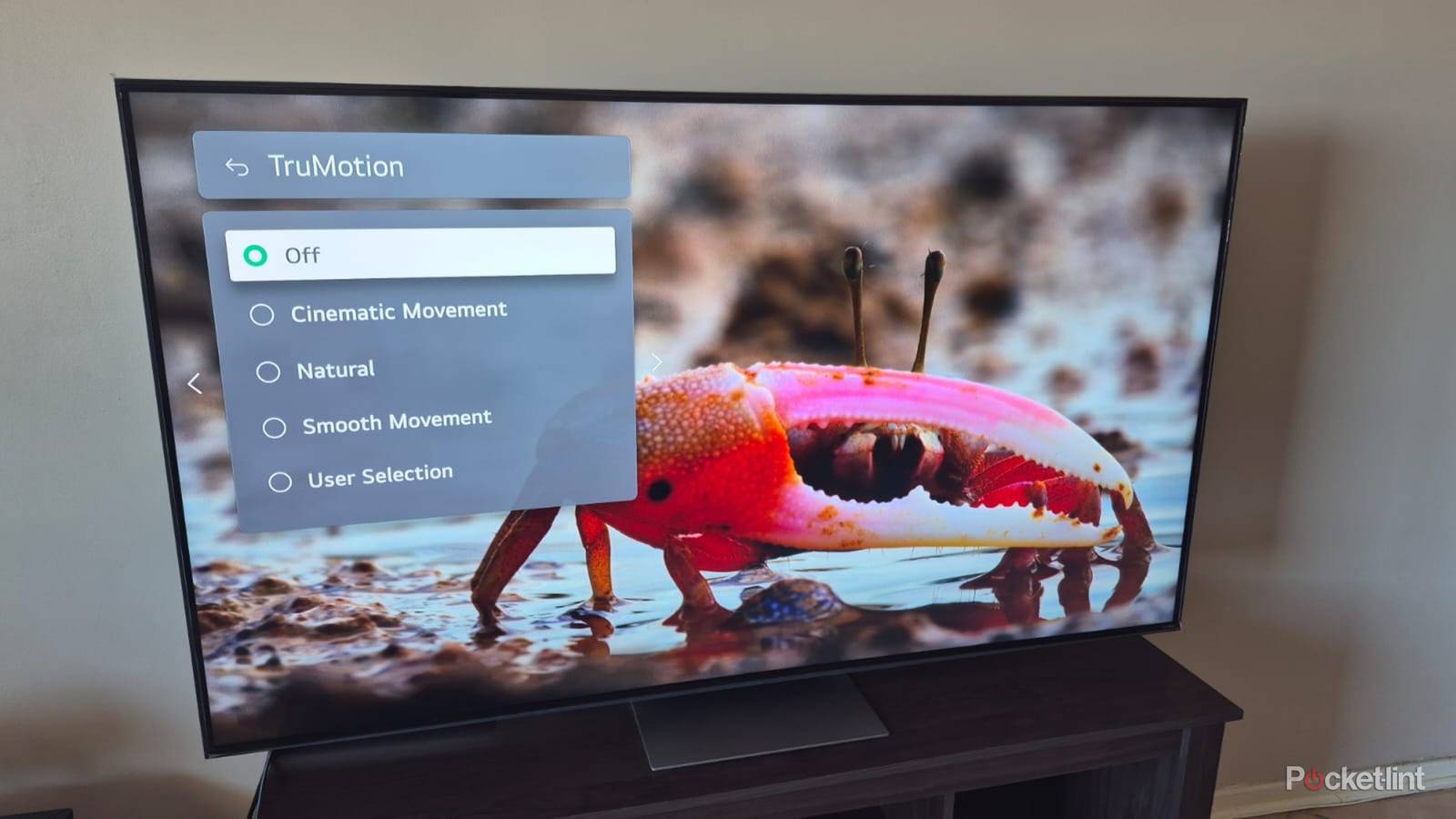
Turning on your TV’s Filmmaker Mode is often the easiest way to get around this setting, as it displays movies in their original format without extra image processing. Alternatively, you can turn off motion smoothing manually in your TV’s settings. It’s called Action Smoothing on Amazon Fire TVs, Auto Motion Plus on Samsung, Motionflow on Sony, and TruMotion on LG TVs. My TV offers four motion smoothing presets, but I prefer to disable it entirely.
Energy Saving
Don’t reduce your TV’s performance

The idea behind TV energy-saving or eco-modes is to reduce electricity consumption and save you money by automatically lowering your TV settings. They use sensors to detect the ambient light level in a room and then adjust the TV’s brightness accordingly. The problem with energy-saving mode is that it reduces your TV’s performance, making images look dimmer and less detailed. Eco-modes can also reduce the brightness of HDR content and affect the contrast.
It reduces your TV’s performance, making images look dimmer and less detailed.
We all want the best possible image quality from our TVs, so it’s best to disable your TV’s light sensor and energy-saving features, which can have minimal impact on your electricity consumption and bill anyway. Energy settings are usually found in a dedicated menu on most TVs. You can sometimes choose from different performance levels if you don’t want to turn them off completely.
AI enhancements
Not necessarily helpful

TVs, like just about every device these days, are incorporating AI features to improve their sound and visual performance. These features are hit-or-miss for me, and I’d rather have them off than overprocess my movies and videos. My LG TV includes AI picture and brightness settings, as well as sound and voice recognition enhancements.
I feel the AI visual enhancements on my TV make the textures in certain movies and shows too smooth and unnatural. Sometimes, the details are lost as objects look filtered and synthetic. This is why I turn off all AI image enhancements on my TV. I also turn off AI voice enhancements because I don’t use voice activation often. I leave the AI audio enhancements on because it makes my TV’s sound louder and clearer.
Noise Reduction
It’s best for older content

Noise reduction is another TV feature that sounds fantastic on paper, but in reality, it can be detrimental to your enjoyment. This feature is meant to reduce digital video noise in older, lower-resolution content and isn’t required for modern streaming or 4K content.
As with the previously mentioned settings, noise reduction can be aggressive and eliminate smaller details in what I’m watching. My TV has multiple noise reduction levels, but I prefer to keep it off. There’s another separate setting for MPEG noise reduction, which I also disable on my TV.