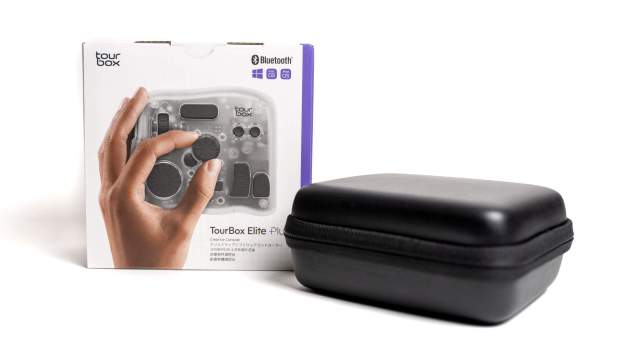


Can this little controller actually speed up your editing, or is it another gadget destined to collect dust?
If you’ve never come across TourBox before, you’re probably not alone. A few years ago I kept seeing these funny little controllers popping up on YouTube and creative channels and thinking… what exactly is that thing?
For anyone unfamiliar, TourBox creates customizable editing controllers designed for creatives. Think photographers, retouchers, digital artists, video editors, and anyone who spends a lot of time clicking through menus or trying to remember keyboard shortcuts. Rather than constantly reaching for the keyboard, the idea is to put commonly used tools and actions literally at your fingertips using buttons, dials, knobs and wheels.
The company has been around since around 2018 and has steadily built a following among photographers, editors and artists wanting a faster and more tactile editing experience. Over the years they’ve released a number of models, refining the design and adding more functionality along the way.
I’ve often thought about trying one myself. As someone who spends a lot of time in Lightroom, Photoshop and portrait editing, I was curious whether it was genuinely useful or just another shiny gadget that looked cool sitting on a desk.
So when TourBox offered to send over a demo of the TourBox Elite Plus, of course I said yes.


First Impressions
Straight out of the box my first thought was:
“Okay… there are a lot of buttons.”
The TourBox Elite Plus looks a little like a gaming controller collided with a sound mixer. Dials, wheels, knobs, buttons and scroll controls are all packed into this compact little unit.
The build quality immediately impressed me. It feels solid and premium without feeling bulky, and every button has a really satisfying tactile feel.
Setting it up was interesting because somehow it felt simple and complicated at exactly the same time.
Installing the software and getting connected was straightforward enough. No major dramas there. Download the software and instal it, turn the Tourbox on (button on the underside), even connecting to Bluetooth was a breeze. Follow along with simple setup instructions. But once you open up all the customization options, that’s where my brain started doing gymnastics.
You can customise almost everything, profiles, shortcuts, button combinations, gestures and application-specific controls.
Suddenly I found myself sitting there wondering:
“Am I overthinking this? Or somehow underthinking it?”
Because the beauty of TourBox is also the thing that initially makes it overwhelming. There isn’t one “correct” setup. It depends entirely on how you work.
Thankfully the lovely people at TourBox patiently helped me gain some perspective on this little controller and reminded me that I didn’t need to build the mythical perfect setup on day one.
Start simple.
Choose one program (like Lightroom Classic).Choose the tools you use all the time.
Build from there.
Once I stopped trying to map every possible button combination known to mankind, things started making a lot more sense.


The Learning Curve… and Yes, It’s Steep
Now I’m just going to say it upfront, there is a learning curve here.
Not a gentle little hill either. More of a “why did I decide to climb this mountain?” kind of learning curve.
Thankfully TourBox clearly understands this because there are on-screen reminders that pop up and tell you what buttons are assigned to what functions. And honestly… thank goodness for that.
Because my poor feeble brain can barely remember keyboard shortcuts at the best of times, and that’s with a pretty basic setup.
At first I found myself constantly checking prompts and wondering:
“Wait… was that exposure? Undo? Brush size? Why am I zooming into someone’s eyeball?”
And that’s before getting into more advanced shortcuts and combinations.
As someone who’s used keydial remotes and shortcut hubs before, there was something strangely familiar about the experience, but also completely alien at the same time.
Similar idea.
Completely different way of interacting with it.
I think part of the challenge is that most of us have spent years editing a very specific way. Keyboard over here. Mouse over there. Hands automatically reaching for the same controls without thinking.
Breaking that muscle memory takes time.
It’s still early days for me, but I suspect the secret isn’t endlessly sitting there assigning buttons. The key is probably to jump into a proper editing session, throw away the keyboard and mouse and force yourself to commit. And that is exactly what I did.
Because I quickly realised I’d developed a reflex. Every few minutes I unconsciously reached for my mouse.
Not because I needed to. Simply because that’s what years of editing had trained me to do.
Real World Editing Experience
So far I’ve only configured TourBox for Lightroom and Photoshop, but even that has given me a taste of what it can do.

Simple adjustments like:
- Exposure
- Contrast
- Brush size
- Zoom
- Undo
- Before and after previews
all become much more tactile.
Instead of clicking around menus or remembering shortcuts, you’re physically interacting with your edits.
And that changes the experience more than I expected.
Editing starts feeling less like computer work and more like you’re actually controlling the process.
For Lightroom users especially I can see the appeal once that muscle memory develops.
For Photoshop users I suspect it could be even better.
Brush controls, opacity, canvas rotation, retouching tools and repetitive tasks all seem like obvious wins.
And honestly, anything that potentially reduces repetitive keyboard and mouse strain after a long editing session gets a thumbs up from me.
It Goes Way Beyond Lightroom
Right now I’ve only set up Lightroom and Photoshop, but this really just scratches the surface.
TourBox supports:
- Lightroom Classic
- Photoshop
- Premiere Pro
- DaVinci Resolve
- Final Cut Pro
- Capture One
- Clip Studio Paint
- And pretty much any software that uses shortcuts???
So whether you’re editing photos, painting digitally, creating videos or jumping between multiple programs, you can customise profiles for almost anything.
That flexibility is one of its biggest strengths.
It also explains why setup initially felt slightly overwhelming.
The possibilities are enormous.
Wireless Performance
The Elite Plus supports Bluetooth connectivity and dual-device support, which is genuinely useful if you work across multiple systems.
Connection was stable during testing with no noticeable lag or random disconnects.
Battery life also seems solid so far, and it doesn’t feel like something you’ll constantly need to plug in.
TourBox Elite Plus Specs
Connectivity: Bluetooth + wired USB-C connection
Wireless Support: Dual Bluetooth device switching
Compatibility: Windows and macOS
Supported Software: Lightroom, Photoshop, Premiere Pro, DaVinci Resolve, Capture One, Final Cut Pro, Clip Studio Paint and more
Customisation: Programmable buttons, dials, wheels, macros and software-specific profiles
Battery: Rechargeable built-in battery
Charging: USB-C
Dimensions: Approx. 112 × 95 × 45 mm (including knobs etc)
Weight: Approx. 420g


What’s in the Box?
Inside the box you’ll find:
- TourBox Elite Plus controller
- USB-C charging cable
- Quick start guide/documentation
- Bluetooth pairing instructions
- Protective storage pouch
Simple and ready to go.
“One thing I appreciated was that setup itself wasn’t complicated. Download the software, connect the device and you’re off. Understanding how you actually want to use it though? That’s where the real adventure begins.”
What I Loved
- Excellent tactile controls
- The dials and buttons feel fantastic and make editing more interactive.
- Huge customization options
- You can genuinely tailor it to suit your own workflow.
- On-screen reminders save your sanity
- Especially during those early days.
- Great build quality
- Feels solid and premium.
- Works across multiple creative programs
- Lightroom today. Photoshop and video editing tomorrow.
What Could Be Better
- The learning curve is real
- Expect to invest time.
- Can feel overwhelming initially
- So many buttons and combinations can be intimidating.
- Price
- It’s definitely an investment at AUD$476.00
- Muscle memory is hard to break
- I reached for my mouse constantly.
Want a little more in-depth review and setup guide? Hit my YouTube channel.