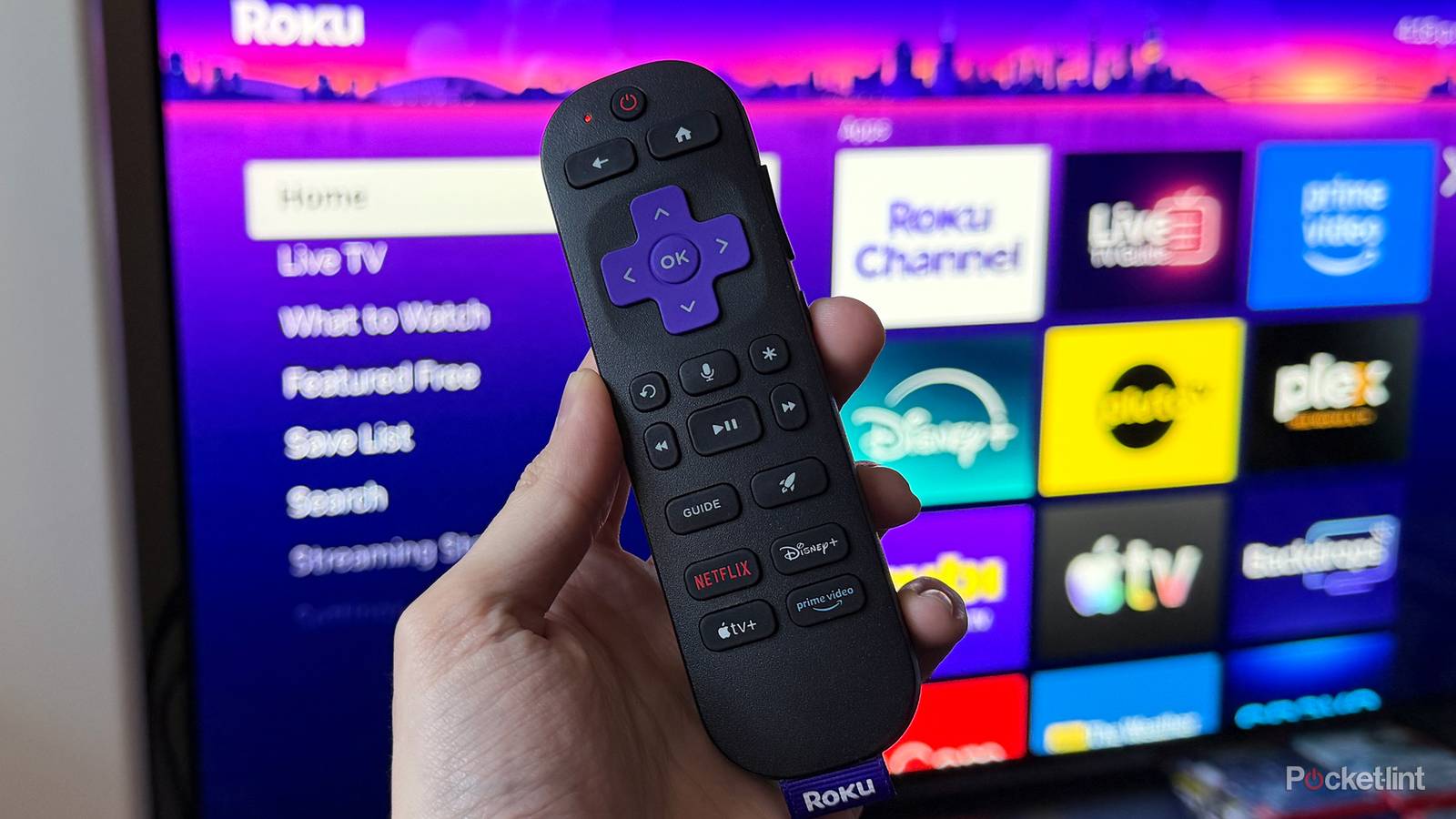
I use two Roku devices every day: a Roku Ultra connected to my living room TV and a Roku Streaming Stick Plus on the TV in my bedroom. I mostly stream in my living room, so I use the Roku Ultra there for its faster performance and extra features, including Dolby Vision and Dolby Atmos, both of which my 4K LG TV supports. My bedroom TV is older, so the cheaper Roku Streaming Stick Plus works perfectly there for late-night binging or for throwing on YouTube videos without needing any fancy extra features.
In the past, I mainly relied on Fire TV Sticks for all my streaming needs, but over the past six months, Roku devices have slowly become my go-to. A big reason for that is their integration with The Roku Channel, Roku’s free ad-supported streaming service that offers hundreds of free live TV channels alongside thousands of on-demand movies and TV shows.
That said, one of my longtime gripes with The Roku Channel — particularly its live TV guide — is that finding specific free channels used to be a pain. You’d have to endlessly scroll through categories just to track down the channel you wanted, an experience that often felt like going back to the cable TV days. While you can favorite channels, that doesn’t help much when Roku adds new ones (which it does almost every month) and you want to find them quickly.
Earlier this year, though, Roku finally rolled out an update that fixed this problem. Since then, it’s become much easier to discover new free content, especially whenever Roku adds new channels. And the feature responsible for that improvement is surprisingly simple: a search bar Roku added to its live TV guide with Roku OS 15.
Finding free live TV on Roku just got much easier
Roku should’ve added this a long time ago

While it might seem like something that should’ve been added ages ago, it wasn’t until the Roku OS 15 update that Roku finally added a search bar to its live TV guide. And it’s exactly what it sounds like: a simple search option built into the live TV guide that lets you find channels by typing a name or using your voice.
“With Search, you can quickly track down your go-to channels, explore new genres, or jump straight to shows and movies whether they’re live, trending, or on-demand. It’s a simpler way to search and just a click away,” Roku explained.
To get started using the search option, you’ll find it in Roku’s live TV guide in the categories on the left side of the screen. On my Roku Ultra and Streaming Stick Plus, the search feature is listed under the Recommended, Favorites, and Recents categories (as you can see in the image above).
To open it, choose the Search category and then click on “Search for live channels in the Guide.” This will bring up a search screen where you can enter the channel’s name. Alternatively, you can select the microphone icon to search using your voice.

The feature isn’t limited to just searching by channel name, either. You can also search by genre, such as action, sports, or drama, to surface related live channels.
If you don’t see the search option in your Roku’s live TV guide, the most likely reason is that your device needs an update. You can fix that by going to Settings > System > Software update.
All in all, I’ve been using this search function in Roku’s live TV guide for the past couple of months, and I’ve been genuinely impressed with it. Results appear quickly and accurately, making it a breeze to find any new free channels Roku adds. It’s a simple, intuitive feature, and if you spend a lot of time watching free live TV on Roku, you’ll likely come to appreciate it quickly, as I have.

- Dimensions
-
4.9 x 5.0 x 1.0 inches
- Connective Technology
-
Bluetooth® streaming, 802.11ax dual-band MIMO Wi-Fi 6 (2.4 GHz / 5 GHz), 10/100 Base-T Ethernet
- Brand
-
Roku