


When I was shopping for my first OLED TV last year, I expected choosing one to be difficult. There are so many brands, features, and price points to weigh. But when I spotted the LG C5 OLED TV on sale for $500 off during Black Friday, the decision became a whole lot easier. It has a gorgeous OLED display, four HDMI 2.1 ports, a 120Hz refresh rate, G-SYNC support, and Dolby Vision and Dolby Atmos. After six months of actually owning it and using it every day, I can honestly say I have no regrets. If anything, I just wish I’d bought it sooner.
However, while streaming and gaming on the TV have been excellent over the past few months, I’ve recently noticed an issue: webOS (the operating system that runs on LG TVs) suddenly feels slower. Navigation isn’t quite as snappy as it used to be, with menus taking longer to open and the home screen feeling more sluggish when switching apps or inputs.
Naturally, since I was used to my LG TV being pretty quick, this slowdown was frustrating enough to send me looking for a fix. And having dealt with similar issues before on devices like my Fire TV Stick and Roku, I already had a pretty good idea of where to start. It turns out there are two simple tricks that helped speed things up again: using the Memory Optimizer tool and cleaning up the home screen.
If you’re running into the same issue on your LG TV, here’s how to get it feeling fast and responsive again. And don’t worry, both fixes are quick and easy to do.
How to speed up your LG TV
Memory Optimizer clears your TV’s cache and RAM

The first thing I’d recommend doing to speed up your LG TV is to use the Memory Optimizer tool. This can be found in the settings menu, and it clears your TV’s cache (a buildup of temporary files from apps), closes any apps or processes you’re not using, and clears your TV’s RAM, effectively giving it a fresh start and improving performance, without actually having to restart or reset your TV.
I use the Memory Optimizer tool on my TV once a week now, and it’s been a reliable way to maintain smooth performance. Here’s how you can use Memory Optimizer as well:
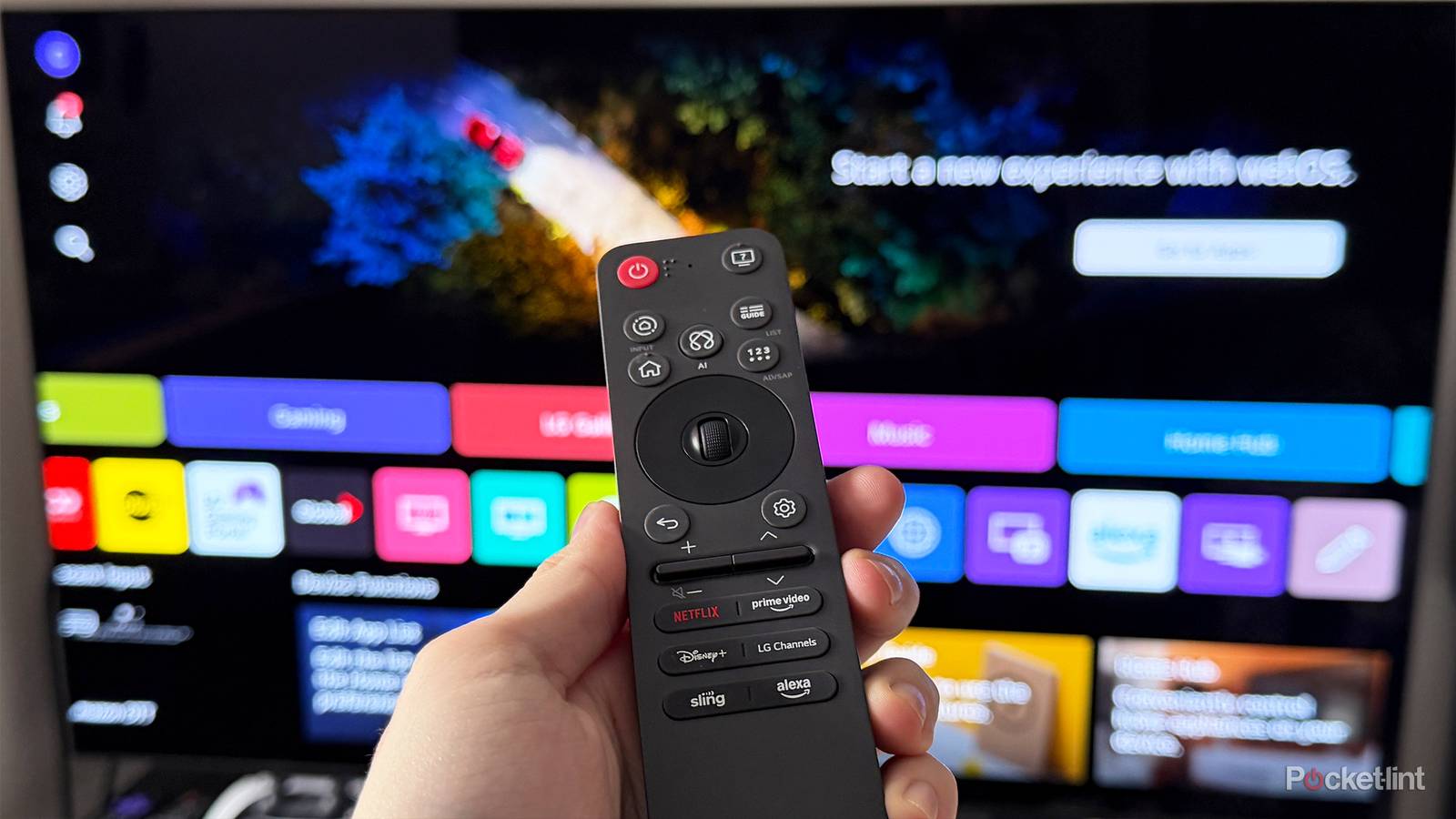
1. Open the Settings menu on your LG TV by pressing the gear icon on your remote.
2. Go to Support.
3. Scroll down to Memory Optimizer.
4. Select Start.
When you press start, Memory Optimizer will begin running on your TV to help speed up performance. On average, I found that it only takes about 10 seconds to run, so it’s pretty speedy.
Cleaning up the home screen
Uninstalling apps and removing ads makes a difference

The next trick I used to improve performance on my LG TV was cleaning up the home screen. This meant uninstalling apps I no longer use and removing the ads on the home screen, both of which seemed to help things run a bit smoother.
When I’m streaming, I typically rely on a Fire TV Stick 4K Max, so I ended up removing a bunch of apps I didn’t really need in webOS to free up space and reduce background load.
To uninstall an app on an LG TV, go to the app list on the home screen, hover over an app with the cursor, and hold the select button. You’ll then see a list of your installed apps with options to delete or hide each one (as shown in the image above). For example, I removed apps like Netflix, Apple TV, and Disney+ since I use them through my Fire TV Stick rather than directly on webOS.

Finally, the last part of cleaning up the home screen is removing ads. By default, LG crams a bunch of ads onto the home screen, which can make your TV feel more like a billboard than a TV. Turning them off not only makes everything look cleaner, but I also found it helps performance, since the TV isn’t constantly loading promotional content in the background.
Here’s how to turn off ads step by step on your LG TV:
1. Open the Settings menu on your LG TV by pressing the gear icon on your remote.
2. From there, go to General > System > Additional Settings > Home Settings.
3. Simply turn off Home Promotion and Content Recommendation.
And voilà, just like that, all the ads that were once on your TV’s home screen will vanish.
Hopefully, these tricks help speed up your LG TV, as they did for me. If you’re looking for more LG TV tips and tricks, I’ve covered quite a few here on Pocket-lint, including improving picture quality and making casting easier.

- Display Size
-
42, 48, 55, 65, 77, or 83 inches
- Operating System
-
webOS
- Display Type
-
OLED