



It’s true — Windows PCs do require extra work to keep running, but that’s not necessarily Microsoft’s fault. Any full-fledged computer is going to be more complex than a smartphone. It’s inherently more powerful, and often depends on components from a variety of manufacturers. That’s one of the advantages, in fact. Whereas your smartphone is always stuck with whatever ships from the factory, it’s taken for granted that you can upgrade a PC for better performance, or at least more storage.
If you follow some basic principles, it’s not that hard to keep most PCs running smoothly. Below are some routines you should be following like clockwork. On top of these, it’s mostly a question of being nice to your hardware. A marathon five-hour gaming session in an unventilated room is probably a bad idea.
Some of these tips will also apply to Macs. For the purposes of clarity and brevity, though, I’m going to concentrate on Windows.
Clearing out caches and unused files
Consider taking an axe to some apps, too

All apps rely on temporary file caches on your hard drive, since your RAM is never enough for the amount of data that’s shuttling around. Generally these caches are well-managed, and often cleaned up automatically. But files can occasionally linger around when they’re unnecessary, robbing you of space. Large or outdated caches can slow functions down, since they may need to be updated or trimmed on the fly. In rare instances, corrupt cache files can lead to glitches.
If an app offers a built-in option to clear its cache, it’s worth taking advantage of this periodically to keep things fresh. As for Windows itself, head over to Settings -> System -> Storage and make sure Storage Sense is on. Within Storage Sense options, make sure Keep Windows running smoothly by automatically cleaning up temporary system and app files is checked.
As for other files, Storage Sense can also help you clean up things like your Recycle Bin and cloud-synced folders, but I mostly prefer to handle that myself. I’ll additionally poke into my Documents, Downloads, or Videos folders to delete any large files I no longer need. A 100MB installer or ZIP file might not matter much on its own — but all you need is 10 of those to reach 1GB, and a single feature-length 4K movie can consume dozens of gigabytes.
Getting rid of unwanted files isn’t just about making room for new ones or app installs. It ensures that you don’t intrude on Windows 11’s swap space, which will definitely bring the OS to a crawl. Along those lines, you should also be thinking about removing apps you no longer use. As hard as you might persuade yourself otherwise, it’s not worth keeping that video editing tool or 100-hour role-playing game installed if you haven’t touched either in several months.
Updating apps, drivers, and the OS
Your best defense against bugs and hackers

As I’ve said elsewhere, people seem to fall into three camps when it comes to updating software. There are chronic updaters like myself, followed by people who update on a schedule, or whenever they see that a new download is worthwhile. In the last camp are the people who ignore or actively avoid installing updates until they’re forced to, presumably working on the axiom that if it ain’t broke, don’t fix it.
When it comes to PCs, that last approach is terrible. The issue is that many updates are preventative — they’re addressing bugs that might be rare, but still pose a risk in the long run. That’s particularly true with security vulnerabilities. Hackers are constantly probing the latest releases, so the older your software is, the more likely it is they’ll have discovered a successful entrypoint. It’s an ongoing arms race with no end in sight.
Hackers are constantly probing the latest releases, so the older your software is, the more likely it is they’ll have discovered a successful entrypoint.
You don’t need to update daily unless you’re in a profession where security is paramount, but you should probably be scanning Windows Update at least once per month, and preferably once per week. Download any security updates immediately. As for hardware drivers, I’d recommend updating those whenever new ones are offered, but you can hold off a few days if you want to check what people are saying about them, or you have more pressing things to attend to.
Many apps offer their own update mechanisms, but you’ll want to check the Downloads tab in the Windows Store for anything you’ve installed that way. Perhaps the most critical thing you may need to update on your own is GPU (graphics) drivers. If you play 3D games or do professional image or video work, new drivers can not only fix compatibility problems, but occasionally boost performance through new features and optimizations.
Clean off internal and external dust
The bane of a healthy PC

If you’re new to PCs, it’s all too easy to think of dust as a cosmetic issue. It tends not to have any immediate impact. In the case of laptops, dust can’t even make its way in that well — the latest designs have relatively few ports, and better models have powerful ventilation systems.
Over time, however, dust inevitably accumulates to the point where it interferes with air flow. That causes internal temperatures to rise, limiting safe performance envelopes, and increasing the risk of component failure. It may also increase the chances of static discharge, which may not just shock you, but more directly damage parts.
Don’t forget to wipe your screen. The safest thing to do is spray purpose-made cleaning fluid onto a microfiber cloth, but you can also mix your own fluid.
You can go weeks at a time without dusting. Once a month, though, it’s a good idea to wipe dust off vents and other surfaces using a microfiber cloth. You should also inspect ports and your keyboard. For those, I like to clean using a compressed air can, but you do have to be careful. To avoid spraying liquids, the nozzle needs to be held at least a few inches away, and the can kept as level as possible.
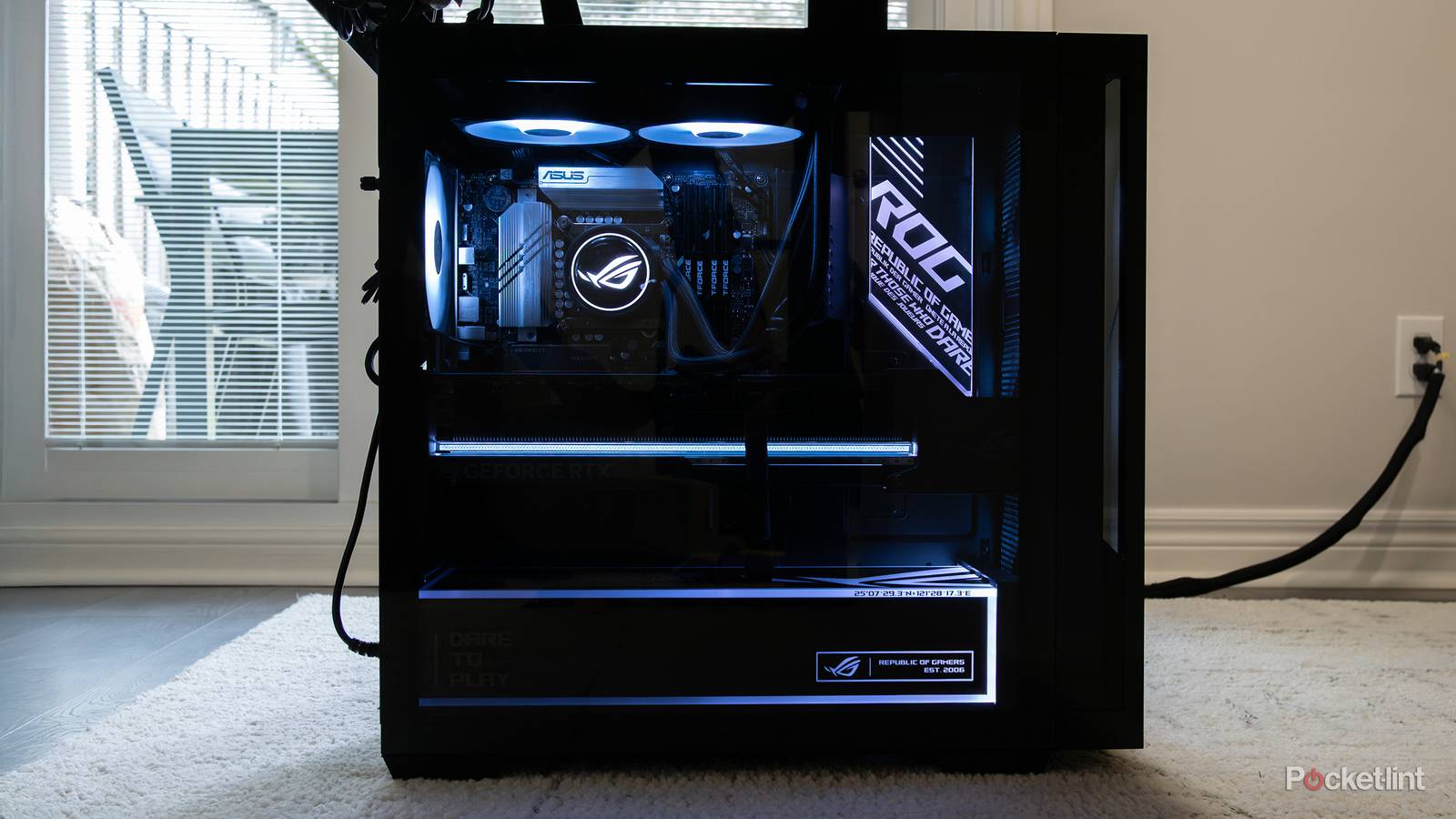
If you’ve got a tower PC, you’ll want to clean the insides once or twice per year at a minimum. The trick here is that you can’t just open the case and spray away. It’s important to not only shut off your PC, but unplug it, and keep yourself electrically grounded during the cleaning process. You may also need to temporarily relocate the tower somewhere you don’t mind making a mess. If you want to avoid this, some portable vacuums are viable alternatives to air cans and blowers.
Don’t forget to wipe your screen. The safest thing to do is spray purpose-made cleaning fluid onto a microfiber cloth, but you can also mix your own fluid using a 50/50 blend of distilled water and white vinegar. Whatever you do, don’t use conventional window cleaners like Windex. These usually contain caustic chemicals like ammonia or alcohol, which can eat away at display coatings.

- Playing Time
-
3-12 hours
- Brand
-
Valve
- Weight
-
1.41lb (640g)
- Chipset
-
AMD APU