


I used to use a Fire TV Stick 4K Max as my main streaming device on my 4K LG TV, but ever since I picked up a Roku Ultra to try out the Roku experience, I’ve had a hard time switching back. And honestly, it mostly comes down to the user experience.
A big part of it is how easy it is to jump into hundreds of FAST (free ad-supported TV) channels in seconds through The Roku Channel, but also how cleanly Roku lays everything out in its user interface. I especially prefer the Roku home screen to my Fire TV Stick, where all your apps are front and center instead of being buried under a big ad, as they are in the newer Fire TV interface.
And since the home screen is where you probably spend most of your time outside of actually watching something, making it simple, fast, and easy to navigate really matters. It’s something I think Roku absolutely gets right.
That said, after using my Roku Ultra for a while, there’s one small tweak I’ve found myself making occasionally to improve the home screen — something Roku doesn’t automatically do for you: reorganizing the apps based on what I’m actually watching.
By default, Roku sorts apps in the order you downloaded them, and when you land on the home screen, it keeps the earliest ones near the top of the list. But if you’re no longer using those apps and would prefer to have the apps you actually use at the top, you can rearrange everything to better match your habits. I’ve done this to keep my most-used streaming services right at the top of the home screen, and it’s a tiny change that makes the whole experience better. Fortunately, if you want to do the same thing on your Roku Streaming Stick, Roku Ultra, or Roku TV, it’s very easy.

- Brand
-
Roku
- Operating System
-
Roku OS
- Downloadable Apps
-
Thousands
A slim plug and play streaming stick that includes 4K/HDR support and includes a voice remote.
How to reorganize your Roku’s home screen
Jump into your favorite apps faster
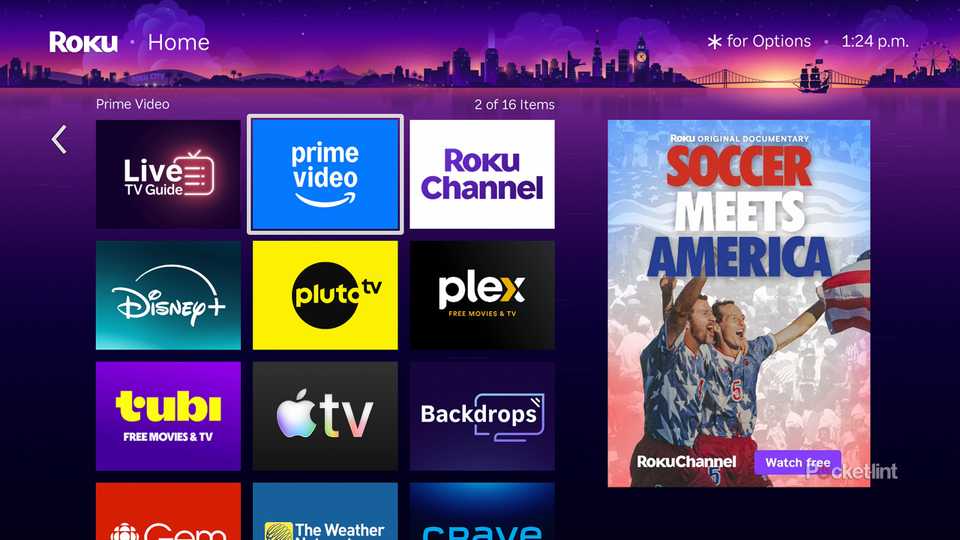
To get started reorganizing the apps on your Roku’s home screen, you’ll first want to head over to it. You can do this by selecting the Home tab in the list of options on the home page or simply pressing the Home button on your Roku remote. From there, just follow these simple steps:
1. Select the app you wish to move, then hover over it.
2. Press the Star (*) button on your remote.
3. Select “Move this app” from the list of options that appear.
4. Use the directional buttons on your remote to move the app up, down, left, or right on your screen, depending on where you want it.
5. Once you’ve placed the app somewhere you like, press OK on your remote.
Alternatively, when you highlight an app and press the Star button on your remote, you’ll see another option called “Move app to top.” If you want an app in that very first spot on the home screen, this does it instantly.

And voilà, just like that, you’ve moved an app on your Roku’s home screen.
Personally, I use The Roku Channel, Prime Video, the Live TV Guide, and Disney+ the most on my Roku, so I’ve moved those right to the top for quicker access. Everything else, such as Apple TV or Tubi, lives a bit further down since I don’t open them as often.
Although this is a small tweak, I’ve found it really does make a difference by making it just that tiny bit easier to jump into my favorite streaming services without scrolling through the home screen. And if you have a lot of apps on your Roku, I highly recommend giving this a shot to make your home screen better suited to you.
For more Roku streaming tips, you can check out other stories we have here on Pocket-lint, such as how to easily access free live TV on your Roku and also how to know if your Roku is expired.