


On every smart TV I’ve ever owned, the first thing I’ve always done after setting it up has been to hook up a streaming device. Sometimes it’s a Fire Stick, other times it’s a Roku. But at the end of the day, the main reason I’m doing it is to avoid what I find to be a slow, clunky user interface on most smart TV platforms.
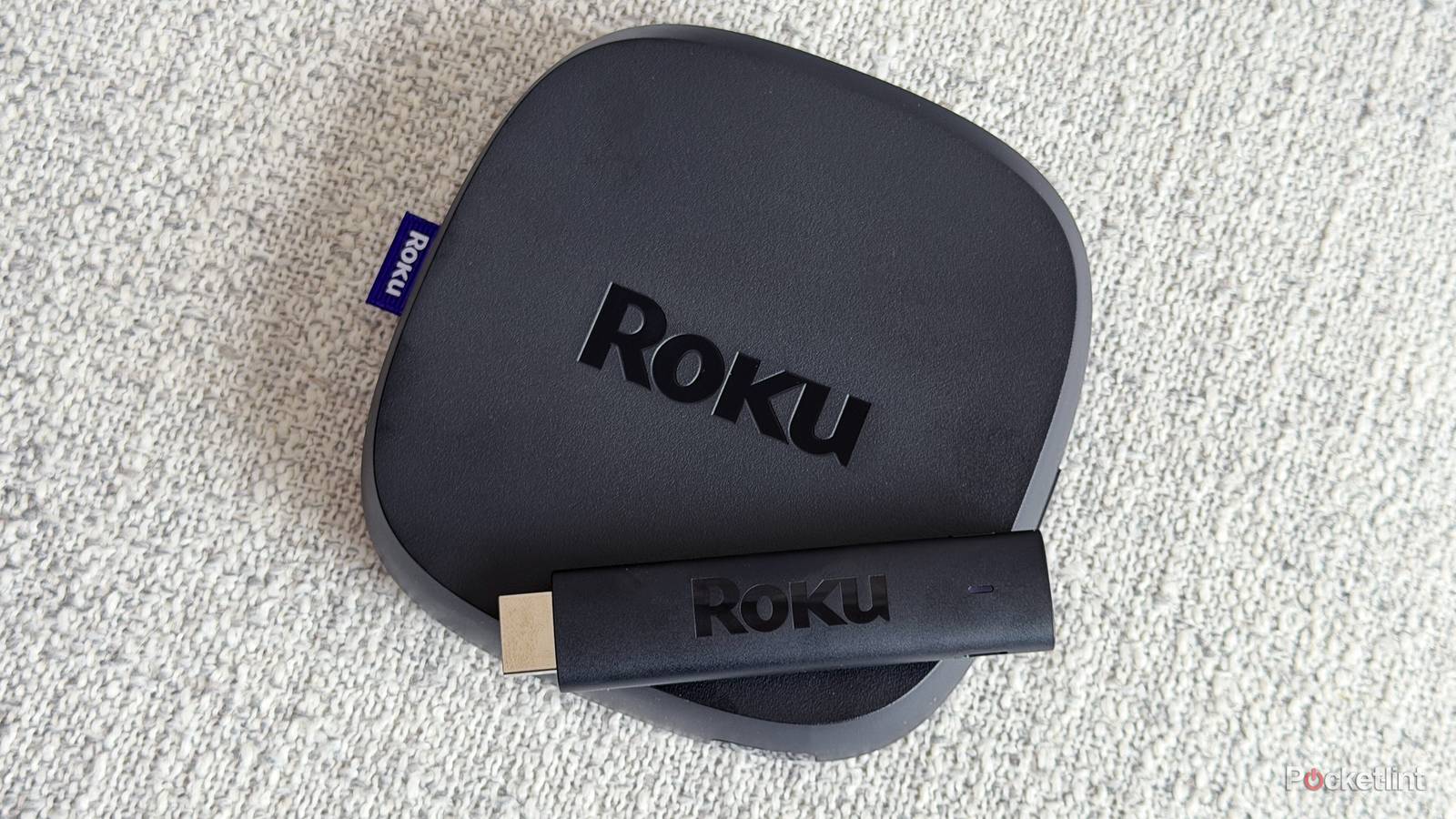
In particular, I have an LG TV with webOS, and I’d take Fire OS or Roku OS over it any day. Lately, I’ve been using the Roku Ultra mainly because I’ve been exploring The Roku Channel and its hundreds of free FAST channels. It is also a more premium streamer, with smoother performance than most streaming sticks.
That said, for most of my time with the Roku Ultra, performance has been stable and reliable. But every so often, it’ll run into a few hiccups, like laggy menus or apps taking longer to load. And once you get used to how fast a Roku can be, those slowdowns can get frustrating pretty quickly.
Fortunately, if you’re like me and have a Roku streaming device, whether it’s a Roku Streaming Stick, Roku Ultra, or a Roku TV, there’s an easy way to speed it up again, and all it takes is enabling this single setting.

- Dimensions
-
4.9 x 5.0 x 1.0 inches
- Connective Technology
-
Bluetooth® streaming, 802.11ax dual-band MIMO Wi-Fi 6 (2.4 GHz / 5 GHz), 10/100 Base-T Ethernet
- Brand
-
Roku
The Roku Ultra has refreshed for the first time since 2021. A new backlit remote, faster performance, and Wi-Fi 6 support separate this 2024 edition from the past generation.
How to speed up your Roku
Clearing the cache is key

Usually, the culprit behind slowdowns on most Roku devices is the cache (a buildup of temporary files), and to get your Roku back to its normal speedy self, all you need to do is clear it.
However, while most devices just have a simple “Clear Cache” button you can click to be done with it, Roku does things differently: to clear the cache on your device, you must restart it.
And there are a few different ways to do this. Firstly, you can simply unplug the power cord from your Roku to shut it off, wait 60 seconds, then plug it back in. Or, the method I prefer, since my Roku Ultra is nicely set up, and I don’t want to rip it out of my TV unit, is by going into the settings menu on my device and doing it from there with a single click. Here’s how you can do this too:
1. On the Roku home screen, select Settings.
2. Navigate to System > Power.
3. Select System Restart.
4. Click Restart.
Once you’ve pressed restart, your Roku will turn off and boot back up shortly afterward, clearing the system cache and any lingering temporary files that may be slowing down your device.
Alternatively, you can also restart your home Roku and clear the cache by inputting the following button sequence on your remote:
1. Press Home five times
2. Press Up once
3. Press Rewind twice
4. Press Fast Forward twice
If you’re unfamiliar with cache data and have concerns about it, here’s the lowdown. Cache data are temporary files that apps store on your device over time. Every device has some form of cache, whether it’s a streaming stick, smartphone, tablet, or PC, and a Roku is no exception. The apps you’ve downloaded use cache to quickly store and retrieve information like thumbnail images for shows and movies, search and watch history, leftover update files, and even login details.
What can be confusing about cache data is that, yes, it’s actually a good thing for apps to be storing, since it helps them load information faster. But it has a negative effect when too much cache data accumulates over time, slowing your device down and hogging storage. That’s why most devices offer a way to clear cache data, and doing so doesn’t negatively affect your device.
More ways to speed up your Roku
Sometimes a simple update is all it needs

If you’ve restarted your Roku and cleared the cache but are still experiencing slow performance, there are a couple of other things you can try to speed it up.
The first thing I recommend is checking for any software updates available for your device. Sometimes, all it takes is a software update to fix lingering glitches or performance issues, and Roku usually rolls out updates for its devices frequently to keep performance smooth and add new features. To check for updates on your Roku, go to Settings > System > Software update > Check now. If an update is available, it will install, and then your device will restart to download it.

Another way to improve performance on your Roku is to uninstall any apps you no longer use. Roku offers a wide range of apps in its Streaming Store, so it’s easy to build up a large library of apps on your device. But if you’re not using some of them, I highly recommend uninstalling them to free up storage space and system resources. To uninstall an app on your Roku, go to the home screen and navigate to your app list. Hover over an app you no longer want and press the star (*) button on your remote. Select Remove app to uninstall it. And don’t worry, if you want to use an app again in the future after you’ve uninstalled it, you can easily reinstall it from the Roku Streaming Store whenever needed.