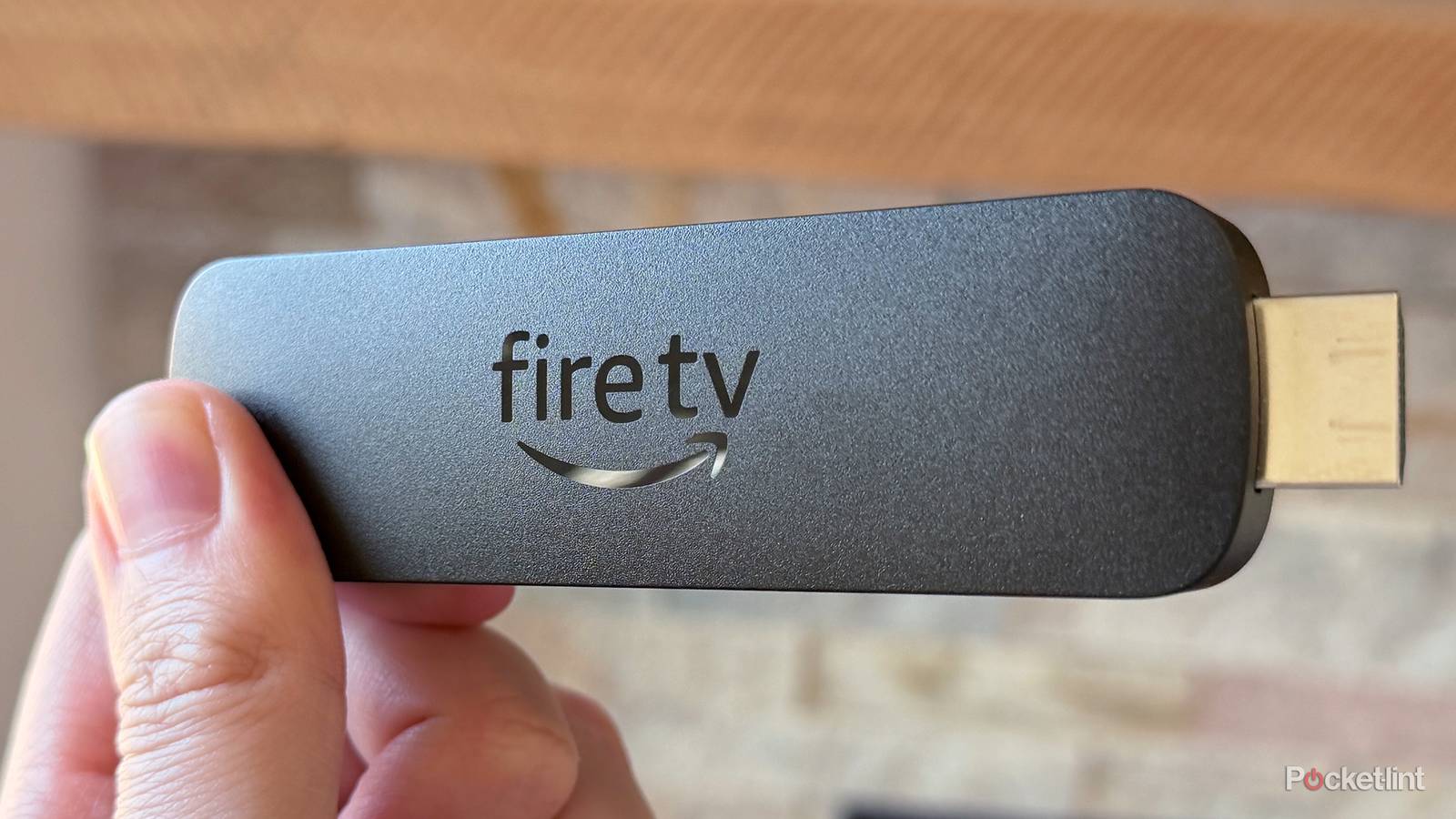
When I got a new 4K TV last year, one of the first things I did was hook up my Fire TV Stick 4K Max to it. While smart TVs come loaded with streaming apps out of the box, I’ve found the experience Amazon’s Fire TV Sticks offer to be much better, with a cleaner user interface, streamlined access to all my favorite streaming apps, and a faster overall experience. And you can’t forget the price, either. I picked up my Fire TV Stick 4K Max on sale for just $40.
However, while I’ve mostly enjoyed my experience with my Fire TV Stick 4K Max, that’s not to say I haven’t had any issues. Notably, every now and then, I notice it starts to lag, and apps load more slowly. And given that the 4K Max is normally pretty speedy (as are Amazon’s other Fire TV Sticks), this can get annoying pretty quickly.
Fortunately, I’ve found an easy solution that has fixed the lag I’ve occasionally experienced on my Fire TV Stick multiple times now and brought it back to its normal, speedy self. If you’re having the same issue on your Fire TV Stick, with random lag and apps slowing down, regardless of the model you have, there’s one setting you can activate with a single click that will fix it instantly. And don’t worry, it’s extremely easy to do.
How to speed up your Fire TV Stick
All it takes is clearing the cache

To speed up your Fire TV Stick and get it back to normal, what you need to do is dive into the settings menu and select an option under Applications called “Clear all Application Caches.”
As the name suggests, this clears all the cache data (temporary files) accumulated by apps on your Fire TV Stick over time, freeing up storage space and speeding up your device. Truly a win-win, in my view.
Here’s how to do this step-by-step:
1. Open the Settings menu on your Fire TV Stick.
2. Go to Applications.
3. Choose Clear all Application Caches.
4. Select Confirm.
If you’re unfamiliar with cache data, don’t worry — clearing it won’t negatively affect your Fire TV Stick. Every device, whether it’s a streaming stick, laptop, tablet, or smartphone, stores cache data. These are temporary files that apps use to quickly save and retrieve information, such as thumbnail images for shows and movies, watch history, search history, old update files, and login details.
While cached data is generally helpful because it helps apps load information faster, too much of it can accumulate over time and slow your device down. That’s why most devices give you the option to clear cache data for apps, and Fire TV Sticks are no exception.
To open the Settings menu on your Fire TV Stick using the newly redesigned Fire TV user interface, press the menu button on your remote (the three horizontal lines), then select Settings at the bottom of the side menu that pops up. If you’re on the older Fire TV user interface, press and hold the Home button on your remote, then select Settings.
Other ways to speed up your Fire TV Stick
Updating it can help resolve issues

If you’ve cleared all the cache data on your Fire TV Stick and are still experiencing issues, there are a couple of other remedies you can try.
The first thing I would recommend doing is restarting your Fire TV Stick if you haven’t already. Sometimes odd glitches and slowdowns can be fixed just by power-cycling your device, and there are a couple of ways to do this on your Fire TV Stick. The first is to simply unplug the power cord from your Fire TV Stick, let it sit for a minute, then plug it back in to reboot it. Alternatively, you can press the Select button on your remote (the center button) and the Play/Pause button simultaneously for 5-10 seconds, and your Fire TV Stick will automatically restart.
Another thing you can try is updating your device. Amazon updates its Fire TV Sticks with new patches that address bugs and performance issues, and if your Fire TV Stick hasn’t automatically updated for whatever reason, this could be why you’re having issues. To do this, go to Settings > My Fire TV > About > Check for Updates. If an update is available, it will download, and your device will restart to install it, which should hopefully fix any issues you’re having.

- Brand
-
Amazon
- Resolution
-
4K
- Audio codecs
-
Dolby Atmos
- RAM/storage
-
16 GB